
How to Fix Nollie Stuck in Bootloader (Unbrick Guide)
Recover a soft-bricked Nollie controller stuck in bootloader mode using HIDQuickWrite.
- Failed firmware updates or malformed RGB packets can soft brick your controller into bootloader mode.
- Always close SignalRGB, OpenRGB, and NollieRGB before running HIDQuickWrite so the USB device handle is free.
- Sending the '00 83' byte command via hid_write commands the bootloader to exit and boot normal firmware.
- The process is 100% software-based over USB—no opening cases or hardware programmers needed.
Sometimes third-party RGB software may send incorrect or malformed USB HID packets, or an interrupted firmware update may fail midway. When this happens, your Nollie controller can become “soft bricked” — trapped inside its onboard microcontroller bootloader instead of booting into its normal lighting runtime.
In this state, the controller may appear unresponsive, fail to display any RGB lighting, or fail to be recognized by SignalRGB or OpenRGB.
Fortunately, you do not need to open up your controller or use hardware programmers. You can easily rescue and exit the bootloader over standard USB using HIDQuickWrite.
Download the Required Tools
We highly recommend HIDQuickWrite, a lightweight open-source HID utility developed by our community member Morg:
| Platform | Download Link | Notes |
|---|---|---|
| Windows (x64) | Download Windows 64-bit | Ready-to-run .exe |
| Linux (x64) | Download Linux 64 AppImage | Portable executable AppImage |
| Source Code | GitLab Repository | Source code & docs by Morg |
| HIDAPI Releases | libusb/hidapi Releases | If it prompts missing HidApi.dll |
Extract the downloaded archive (if compressed) to an easily accessible folder such as your Desktop or Downloads folder.
Close All Background RGB Software
Before opening HIDQuickWrite, make sure to fully close any running RGB software:
- SignalRGB (Right-click system tray icon -> Quit SignalRGB)
- OpenRGB
- Nexus
- Skydimo
- Any other motherboard or peripheral lighting software
If another application has an open handle to the Nollie controller, HIDQuickWrite will not be able to claim the USB interface to send recovery packets.
Run HIDQuickWrite and Send the Exit Command
Follow these step-by-step instructions to kick the controller out of the bootloader:
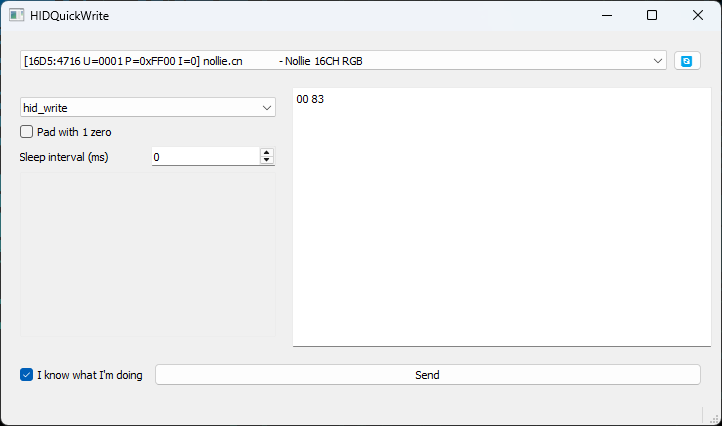
- Launch HIDQuickWrite (
HIDQuickWrite.exeon Windows or the AppImage on Linux). - Select your device: Click the top dropdown menu and select your Nollie controller.
- Example:
[16D5:4716 U=0001 P=0xFF00 I=0] nollie.cn - Nollie 16CH RGB(or your specific Nollie 8 / 16 / 32 / 2W / 1 model). - Tip: If you don’t see your device listed, click the blue Refresh icon on the right.
- Example:
- Select
hid_write: In the second dropdown (under the device selection), choosehid_write. - Enter the exit command: In the text box on the right, type:
00 83 - Keep default options:
- Leave
Pad with 1 zerounchecked. - Leave
Sleep interval (ms)set to0.
- Leave
- Confirm safety: Check the box for “I know what I’m doing” in the lower left corner.
- Click Send: Click the large Send button at the bottom.
Verification
As soon as you click Send:
- The bootloader will acknowledge the
00 83command and immediately jump to the controller’s main application firmware. - Windows will briefly chime or re-enumerate the USB device.
- Your default lighting effect will immediately resume on your fans and LED strips!
You can now relaunch SignalRGB, OpenRGB, Skydimo or Nexus. If the issue occurred during a failed firmware update, you can now safely re-flash the firmware via NollieRGB.