
How to Troubleshoot Low FPS, Stutter, Lag, and Device Recognition Issues
Fix lighting lag, frame drops, freezes, and USB disconnects in SignalRGB, OpenRGB, and NollieRGB.
- Install the updated Nollie SignalRGB Add-on plugin if experiencing low framerates in SignalRGB.
- Update controller firmware to the latest version via NollieRGB for critical USB packet and framerate optimizations.
- AMD B550, B650, and X570 motherboards should use the USB-A to PH2.0 cable connected to rear I/O to avoid internal header throttling.
- Avoid passive USB splitters; use an active powered internal hub like the NZXT Gen 3.
- For Nollie 8, cap total LEDs under 300 in SignalRGB, or max out an unused channel in OpenRGB to prevent stutter.
If your Nollie controller is experiencing low framerates (FPS), choppy lighting effects, stuttering, freezing, or intermittent USB disconnects, the cause is typically related to USB bus bandwidth, outdated software plugins, excessive canvas sampling, or motherboard chipset quirks.
Follow this troubleshooting checklist to quickly identify and resolve the issue.
1. Install the Updated SignalRGB Plugin (SignalRGB Only)
The default Nollie plugin bundled with older versions of SignalRGB is outdated and can cause noticeable lighting lag and reduced framerates.
Install the latest community-maintained Nollie controller plugin: 👉 Install Nollie SignalRGB Add-on
After clicking the install link, allow SignalRGB to install the addon and restart SignalRGB. This immediately resolves high packet latency and restores smooth 60 FPS playback for most setups.
2. Update Your Nollie Firmware to the Latest Version
Older firmware versions (such as NollieOS 1.0) lack crucial USB packet throughput optimizations and direct-drive performance enhancements introduced in recent updates. Specifically, firmware 2.1+ brings significant framerate improvements in SignalRGB, OpenRGB, and standalone modes across all Nollie 1, Nollie 8, Nollie 16, and Nollie 32 controllers.
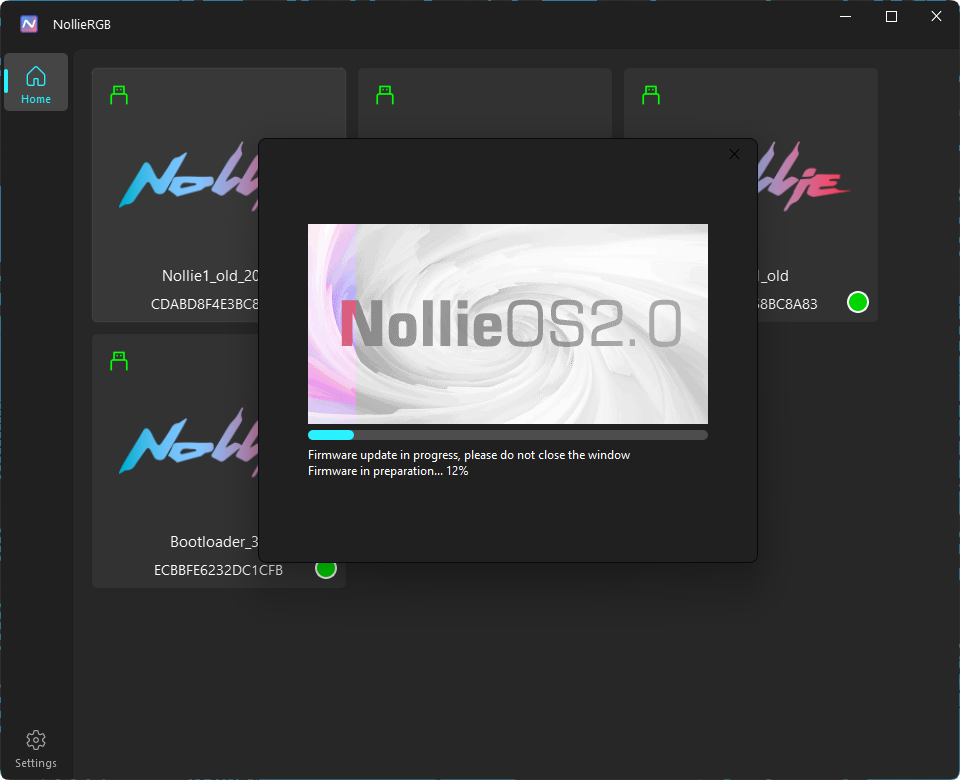
- Head over to NollieRGB Software and download the latest release of NollieRGB.
- Extract the archive and launch NollieRGB.
- If an update is available, click on your Nollie controller in the device list to perform the automated 1-click firmware flash.
- Ensure power remains uninterrupted during the update.
- Once the update completes, close NollieRGB and restart SignalRGB or OpenRGB. (For full instructions, refer to our How to Setup/Update NollieRGB 2.2 Guide).
3. Resize Your Components in Canvas Layout (SignalRGB Only)
SignalRGB renders lighting effects by sampling color pixels across its virtual Layout canvas.
If you created or placed custom components with excessively large grid dimensions (e.g. 50×50 cells for a single 12-LED fan) or left massive empty borders, SignalRGB is forced to process hundreds of empty pixels every single frame:
- Open SignalRGB and navigate to the Layout tab.
- Select your device components and inspect their boundaries.
- Scale down overly enlarged components, or recreate them in the Nollie x SignalRGB Component Editor using the AutoResize button to strip away all empty padding.
- Keeping component sizes tight and proportional significantly lowers CPU overhead and boosts canvas rendering FPS.
4. Avoid Passive USB Splitters (Use an Active Hub)
We strongly advise against using cheap, passive 9-pin internal USB splitters.
ARGB controllers continuously stream dense USB packets at high polling rates (often 30–60 updates per second per channel). Passive Y-splitters share bandwidth without active packet management, frequently leading to:
- Lighting stutter and micro-freezes
- Controller disappearing from SignalRGB or OpenRGB
- “Device descriptor request failed” Windows errors
If your motherboard has run out of internal 9-pin USB 2.0 headers, use a dedicated, active powered internal USB hub such as:
Powered hubs supply dedicated SATA power and a true USB controller chip, preventing voltage drops and bus starvation.
5. AMD Motherboard Internal USB Throttling (B550, B650, X570)
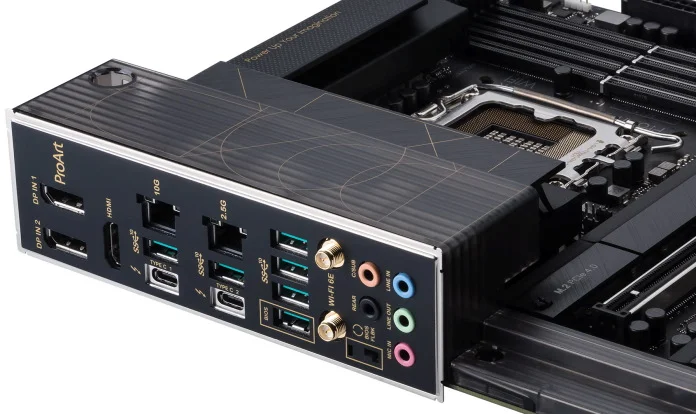
There is a well-documented hardware issue with many AMD AM4 and AM5 motherboards (specifically B550, B650, and X570 chipsets) where the internal 9-pin USB 2.0 headers suffer from packet dropouts, high latency, or intermittent throttling compared to rear I/O ports.
The Solution:
If your Nollie controller stutters or frequently disconnects on an AMD system:
- Unplug the internal 9-pin USB cable from your motherboard header.
- Use the USB-A to PH2.0 cable provided in your Nollie box (only comes with unit purchase from the official store).
- Route the cable through a PCI bracket or case pass-through and plug it directly into a Rear I/O USB-A port on the back of your motherboard.
- Rear I/O ports connect directly to the primary CPU/chipset lanes and are immune to internal header throttling.
6. Nollie 8 LED Limit Considerations (SignalRGB Only)
Due to hardware serial packet transmission throughput on the Nollie 8 model, performance begins to degrade once the total LED count across all channels exceeds 300 LEDs.
- Under 300 LEDs: Smooth 60 FPS performance.
- Above 300 LEDs: Framerates progressively decrease as the total LED count rises.
If you have a high-density setup with over 300 LEDs, consider upgrading to the Nollie 16 or Nollie 32, which feature dedicated high-bandwidth processing architectures designed for thousands of LEDs without framerate loss.
7. Nollie 8 Stutter Workaround in OpenRGB (OpenRGB Only)
In OpenRGB, there is a known driver timing issue specific to Nollie 8 that causes lighting updates to stutter or hitch.
Temporary Workaround:
- Open OpenRGB and go to your Nollie 8 controller settings.
- Find any unused channel (a channel with no physical LEDs attached).
- Set that unused channel’s LED size to MAX.
- Save your profile.
Padding the unused channel forces the packet buffer to align correctly, completely eliminating the stutter. This workaround can be used until an official upstream driver update is published by Nuonuo.
8. Check for Interfering USB Devices (WiFi / Bluetooth Dongles)
High-power wireless USB dongles—particularly USB Wi-Fi network adapters and Bluetooth receivers—can cause severe bus contention and power interference when sharing the same USB root hub as your ARGB controller.
Multiple community reports confirm that high-bandwidth USB Wi-Fi dongles caused Nollie controllers to freeze, disconnect, or drop frames.
How to Test:
- Temporarily unplug all external USB Wi-Fi adapters, Bluetooth dongles, or unpowered hubs.
- Restart SignalRGB or OpenRGB.
- If the stutter immediately disappears, relocate the wireless adapter to a different USB controller root port (e.g. front panel vs. rear panel USB 3.0/3.2 ports) so it does not share bandwidth with the Nollie controller.
Quick Troubleshooting Summary
| Symptom | Probable Cause | Recommended Fix |
|---|---|---|
| Low FPS in SignalRGB | Outdated built-in plugin | Install the Updated Nollie SignalRGB Add-on |
| Old firmware performance | Outdated controller firmware | Flash latest firmware with 1-click in NollieRGB |
| High CPU usage / stutter | Oversized canvas components | Resize/scale down components in SignalRGB Layout |
| Disconnects / Freezes | Passive USB Y-splitter | Switch to an active powered hub like the NZXT Gen 3 |
| Stutter on AMD B550/B650/X570 | Internal USB header latency | Use USB-A to PH2.0 cable connected to rear I/O |
| Nollie 8 low FPS in SignalRGB | LED count exceeds 300 | Keep under 300 LEDs or upgrade to Nollie 16/32 |
| Nollie 8 stutter in OpenRGB | OpenRGB driver packet bug | Set any unused channel to MAX LEDs |
| Random disconnects / lag | USB Wi-Fi / Bluetooth interference | Unplug or relocate high-power wireless USB dongles |