
How to Fix Fans and LED Strips Remaining Lit After Shutdown
Stop RGB fans, coolers, and LED strips from staying illuminated after turning off your PC.
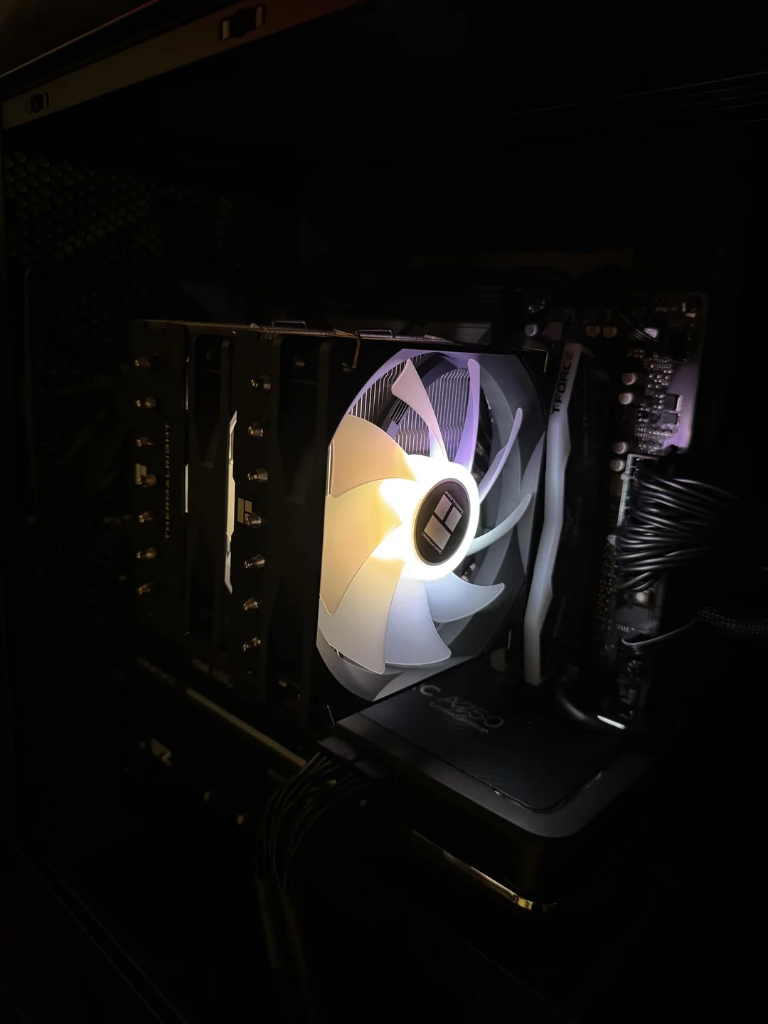
- The +5VSB (standby) power rail keeps motherboard USB headers and RGB lines energized after shutdown.
- Disable Windows Fast Startup to ensure a true clean ACPI power shutdown instead of a hybrid sleep.
- Enabling ErP Ready (S4+S5) in BIOS cuts standby 5V power to RGB controllers and headers when powered off.
- Includes dedicated BIOS instructions for ASUS, MSI, Gigabyte, and ASRock motherboards.
You shut down your computer at night, the monitor goes black, the fans stop spinning—yet your RGB fans, CPU cooler, or ARGB light strips stubbornly remain lit in the dark:
This happens because modern motherboards keep the +5V Standby (+5VSB) power rail alive even when the PC is turned off. By default, this rail supplies power to USB ports and network chips to support phone charging, mouse clicks, and Wake-on-LAN. Because many ARGB controllers (like Nollie controllers) and motherboard 5V headers draw from this circuit, your LEDs stay frozen on their last active color or default static hardware state.
Follow these proven solutions to ensure your lights turn off completely when your PC shuts down.
1. Disable Windows Fast Startup
Windows uses a hybrid shutdown feature called Fast Startup to speed up boot times. Instead of completely shutting down, Windows logs off your user session and puts the kernel into a semi-active hibernation state. This often prevents motherboard power controllers from fully cutting power to internal USB and RGB headers.
How to Disable It:
- Press
Win + R, typepowercfg.cpl, and hit Enter to open Power Options. - In the left sidebar, click “Choose what the power buttons do”.
- Click the blue link at the top: “Change settings that are currently unavailable” (requires administrator permission).
- Under the Shutdown settings section at the bottom, uncheck “Turn on fast startup (recommended)”.
- Click “Save changes” and shut down your PC to test.
2. Enable ErP / EuP in Motherboard BIOS (Recommended Fix)
The most effective, permanent fix is enabling ErP Ready (also known as EuP or Deep Sleep) in your motherboard BIOS/UEFI.
ErP is an international energy-efficiency standard. When enabled (specifically set to S4+S5 or S5), your motherboard will cut the +5VSB standby rail entirely upon shutdown, dropping overall standby power consumption below 0.5W. This instantly turns off all USB ports, internal headers, and connected RGB lighting.
Motherboard Brand Instructions:
ASUS Motherboards
- Restart your PC and repeatedly press
DelorF2to enter BIOS. - Press
F7to switch to Advanced Mode. - Navigate to Advanced → APM Configuration.
- Set ErP Ready to Enable(S4+S5).
- Press
F10to save and restart.
📺 Video Tutorial: Enable ErP on ASUS Motherboard
MSI Motherboards
- Restart your PC and tap
Delto enter Click BIOS. - Press
F7to enter Advanced Mode. - Navigate to Settings → Advanced → Power Management Setup.
- Set ErP Ready to Enabled.
- Press
F10to save and reboot.
📺 Video Tutorial: Enable ErP on MSI Motherboard
Gigabyte / AORUS Motherboards
- Restart your PC and tap
Delto enter BIOS. - Switch to Advanced Mode (
F2). - Navigate to the Settings tab → Platform Power.
- Set ErP to Enabled.
- Press
F10to save and reboot.
📺 Video Tutorial: Enable ErP on Gigabyte Motherboard
ASRock Motherboards
- Restart your PC and tap
DelorF2to enter BIOS. - Navigate to Advanced → Chipset Configuration.
- Locate Deep Sleep (or ErP Ready).
- Change setting to Enabled in S4-S5 (or Enabled).
- Press
F10to save and reboot.
📺 Video Tutorial: Enable ErP (Deep Sleep) on ASRock Motherboard
3. Reset Windows Hibernation State
If Windows hibernation state files (hiberfil.sys) become corrupted, shutdown sequences may fail to dispatch proper ACPI power-state transition signals, leaving motherboard peripherals semi-powered.
To reset the hibernation state:
- Right-click the Windows Start button and select Terminal (Admin) or Command Prompt (Admin).
- Turn hibernation off completely:
powercfg /hibernate off - (Optional) If you rely on hibernation, re-enable it fresh:
powercfg /hibernate on - Perform a complete PC shutdown to verify if the LEDs turn off.
4. Update Motherboard Chipset & IMEI Drivers
Outdated or corrupted chipset drivers—specifically the Intel Management Engine Interface (IMEI) on Intel platforms or the AMD Chipset Power Management Driver on AMD platforms—can stall the ACPI power state transition during shutdown.
When this occurs, the OS tells the hardware to enter the S5 (Soft Off) state, but the chipset hangs in an intermediate state, keeping power to fans and headers alive.
How to Fix:
- Visit your motherboard manufacturer’s support page (or your CPU chipset page).
- Download and install the latest Chipset Drivers and Intel Management Engine (IMEI) firmware/driver package.
- If this issue started right after a driver update, open Device Manager → expand System Devices → right-click Intel(R) Management Engine Interface → select Properties → Driver → Roll Back Driver.
- Reboot your system to apply changes.