
SignalRGB PluginIntegration·5 min read·Oct 4, 2026
How to Add Skydimo Ambient Lighting to SignalRGB
Control and synchronize Skydimo monitor backlights, LED lightbars, and ambient strips directly within SignalRGB.
N
nuonuo
Nollie Team
Key Takeaways
- Completely exit the official Skydimo desktop software so SignalRGB can open the USB serial (COM) port.
- Install the plugin with 1-click via the SignalRGB Add-on installer or manually copy the .js files into your User Plugins folder.
- Skydimo devices are fully plug-and-play over USB.
Download Plugins
- Repository: Click here
- 1-Click Install: Add to SignalRGB
Introduction
- What is this: A dedicated community plugin that connects Skydimo USB ambient lighting controllers and monitor backlights to SignalRGB via standard serial communication.
- Why it is needed: While Skydimo has its own standalone screen-capture app, users who want unified RGB lighting across their entire setup (PC fans, RAM, GPU, keyboard, and monitor ambient backlights) need Skydimo on the SignalRGB lighting canvas.
- Prerequisites:
- SignalRGB installed (latest stable build recommended).
- Skydimo controller plugged into a USB port on your PC (plug-and-play).
- Crucial: The official Skydimo software must be closed/exited (Windows does not allow two apps to access the same COM serial port simultaneously).
Supported Hardware & Models
The Skydimo plugin communicates over USB Serial (CH340 chip: Vendor ID 0x1A86, Product ID 0x7523) and supports single-zone strips, dual-zone bars, 3-sided monitor backlights, and 4-sided ambient strips:
| Category / Type | Model Code | Zones / Segments | Total LEDs | Preview Image |
|---|---|---|---|---|
| Single-Zone Strips & Ambient Bars | SK0402 |
Single | 72 | 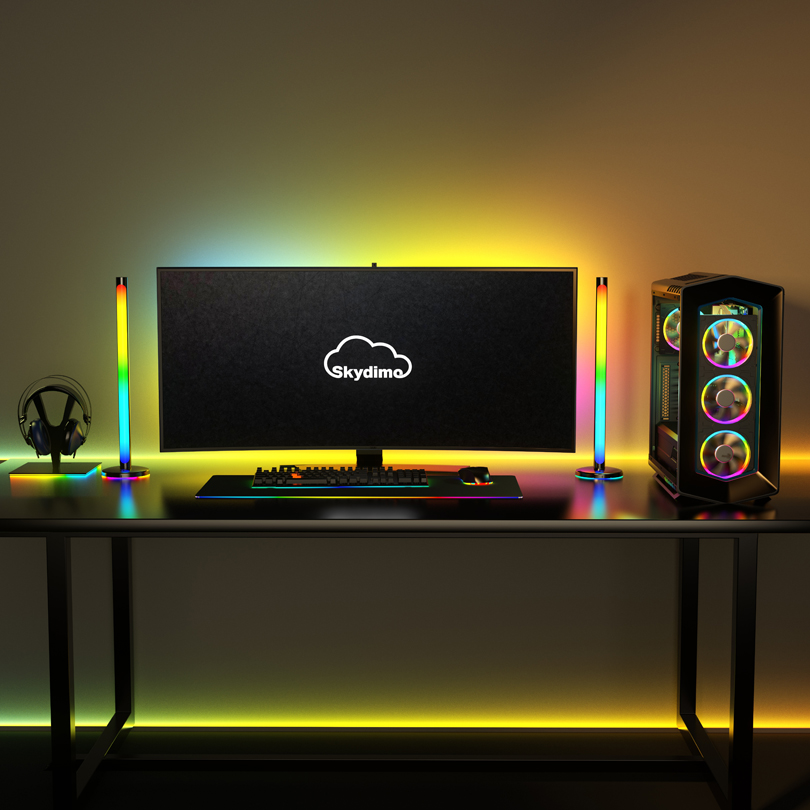 |
SK0403 |
Single | 96 | |
|
SK0404 |
Single | 144 | |
|
SK0901 |
Single | 14 | 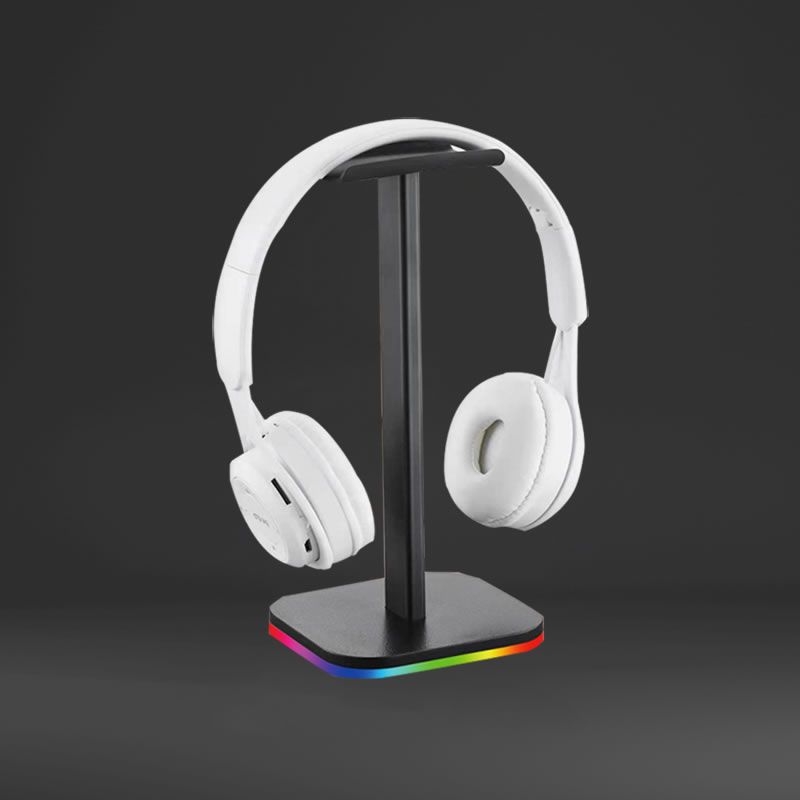 |
|
SK0902 |
Single (Screen Lamp) | 49 | 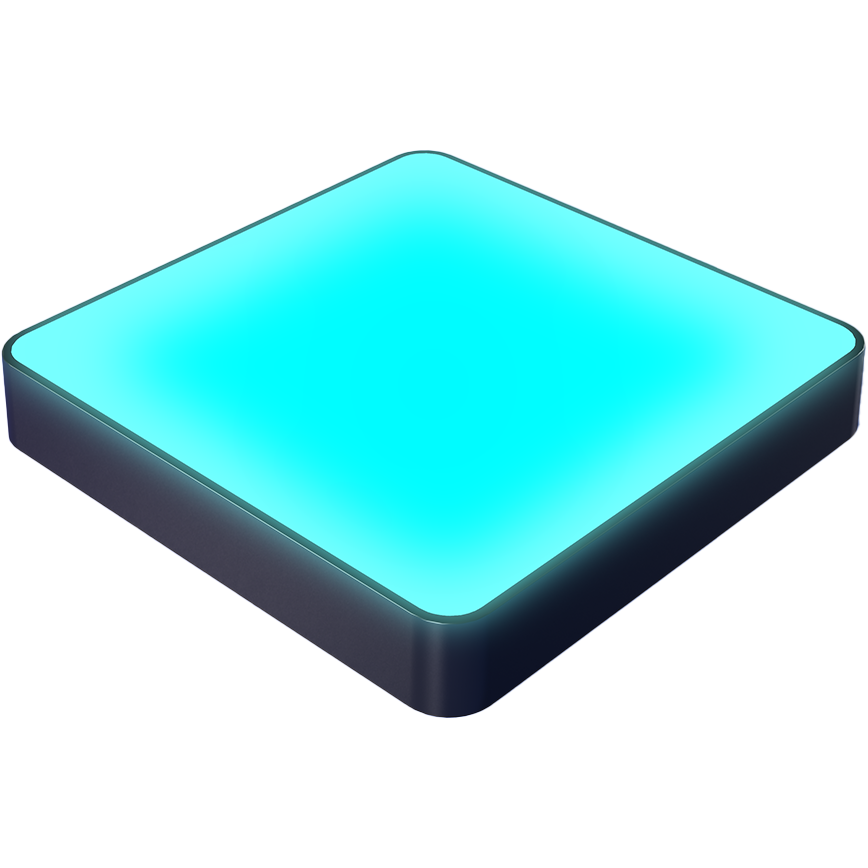 |
|
SK0801 |
Single | 2 | 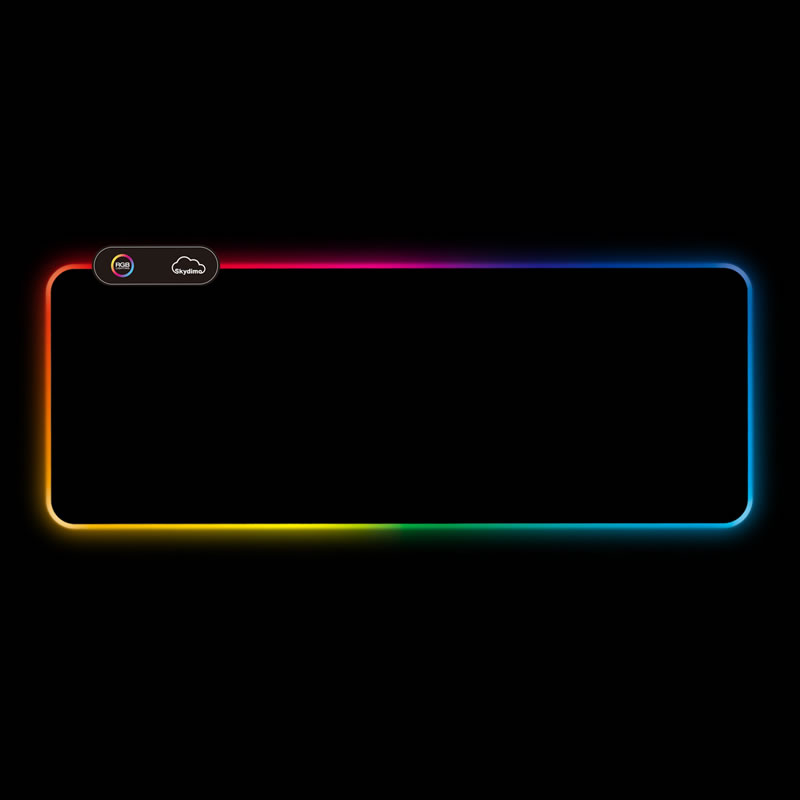 |
|
SK0803 |
Single | 10 | |
|
SK0E01 |
Single | 16 | 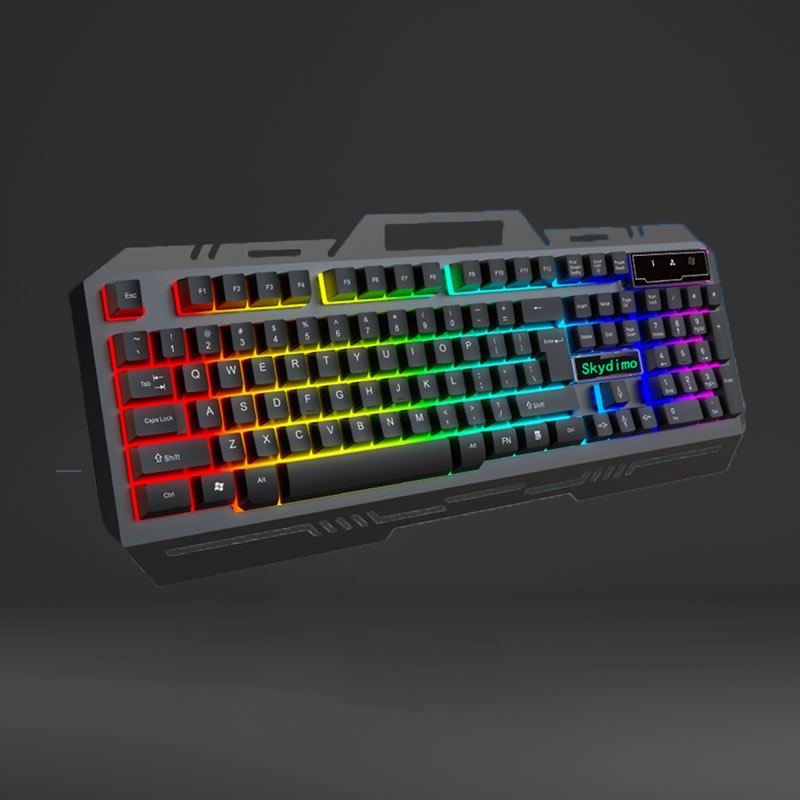 |
|
SK0H01 |
Single | 2 | 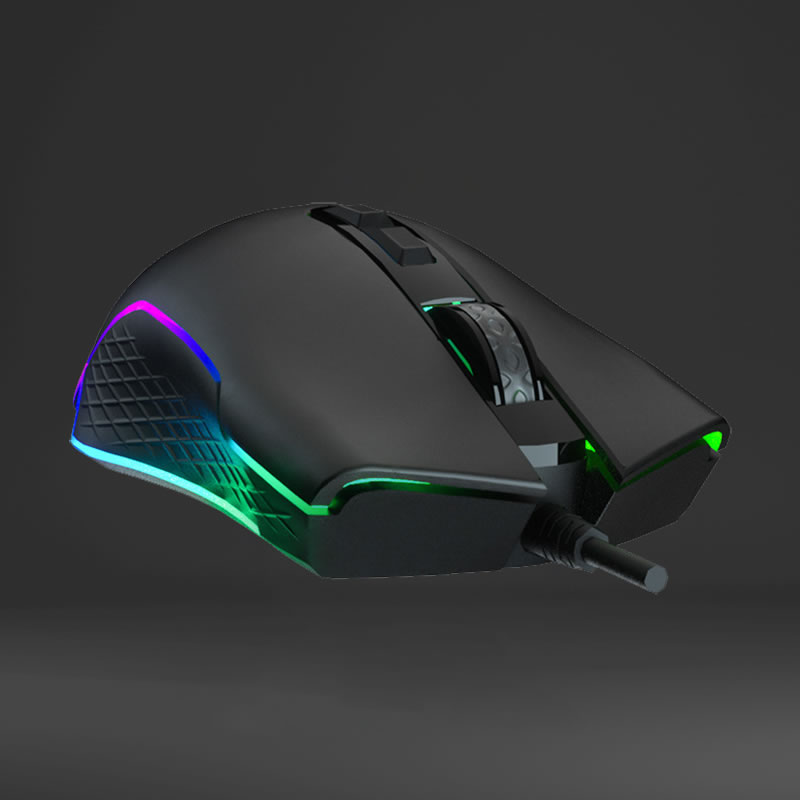 |
|
SK0H02 |
Single | 4 | |
|
SK0S01 |
Single | 32 | — | |
SK0J01 |
Single | 120 |  |
|
SK0K01 |
Single | 120 | — | |
SK0K02 |
Single | 15 | — | |
SK0M01 |
Single | 24 | 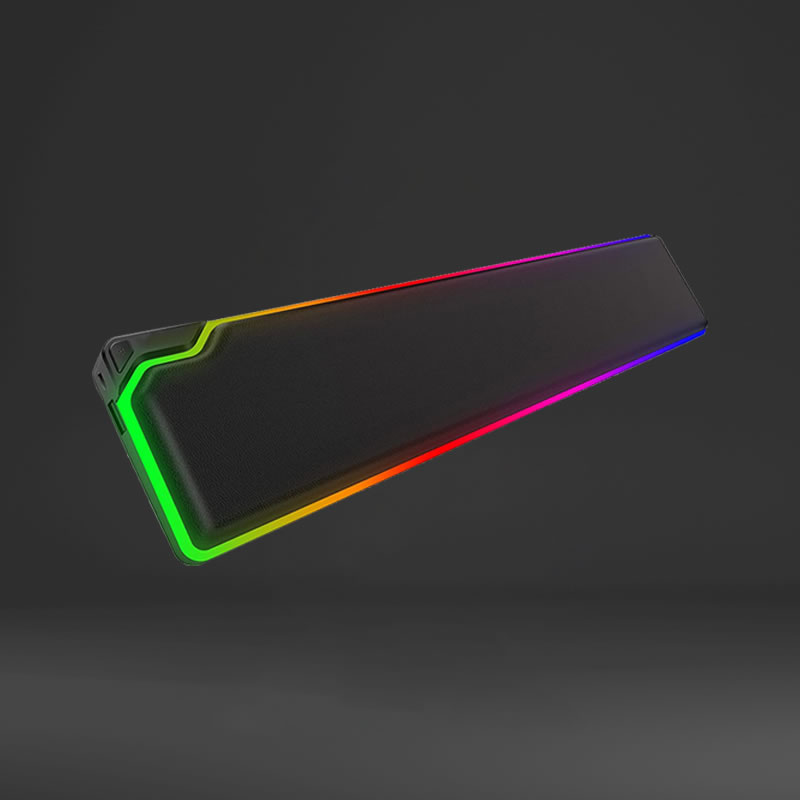 |
|
SK0N01 |
Single | 256 | — | |
SK0N03 |
Single | 253 | 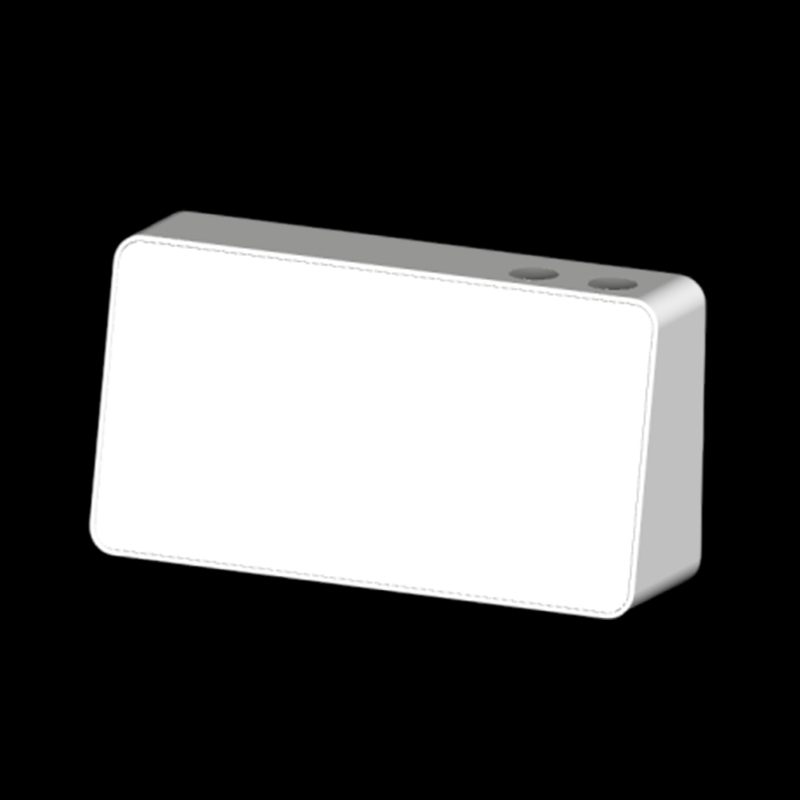 |
|
| 2-Zone Dual Strips & Backlights | SK0201 |
2 Zones | 40 | 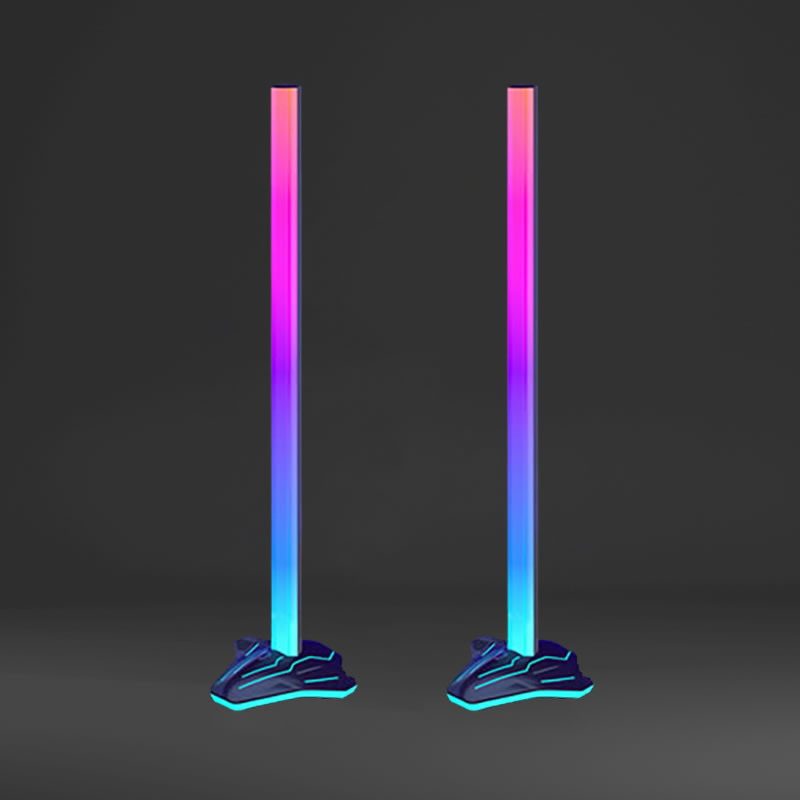 |
SK0202 |
2 Zones | 60 | |
|
SK0204 |
2 Zones | 50 | |
|
SK0F01 |
2 Zones | 58 | 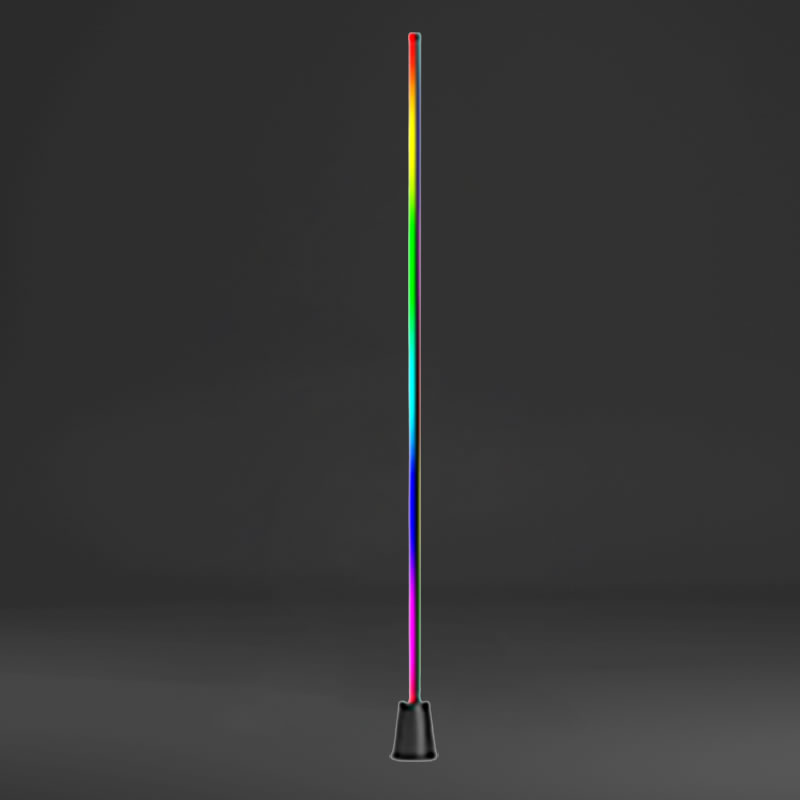 |
|
SK0F02 |
2 Zones | 50 | |
|
| 3-Zone Monitor Backlights (3 Sides) | SK0121 (21") |
3 Zones | 51 | 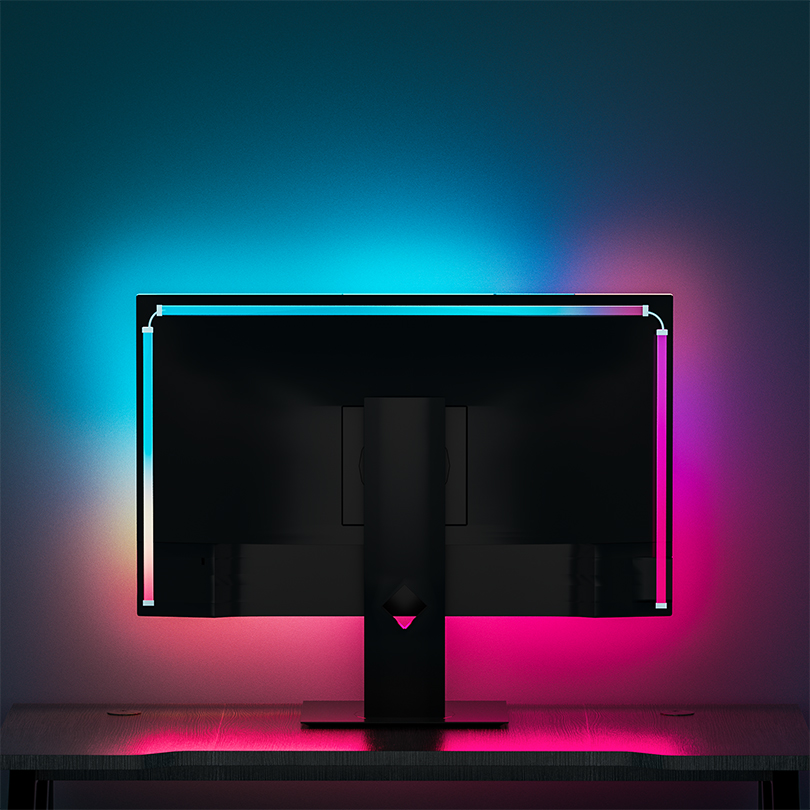 |
SK0124 (24") |
3 Zones | 54 | |
|
SK0127 (27") |
3 Zones | 65 | |
|
SK0132 (32") |
3 Zones | 77 | |
|
SK0134 (34") |
3 Zones | 71 | |
|
SK0149 (49" Ultrawide) |
3 Zones | 107 | |
|
SKA124 (24") |
3 Zones | 70 | 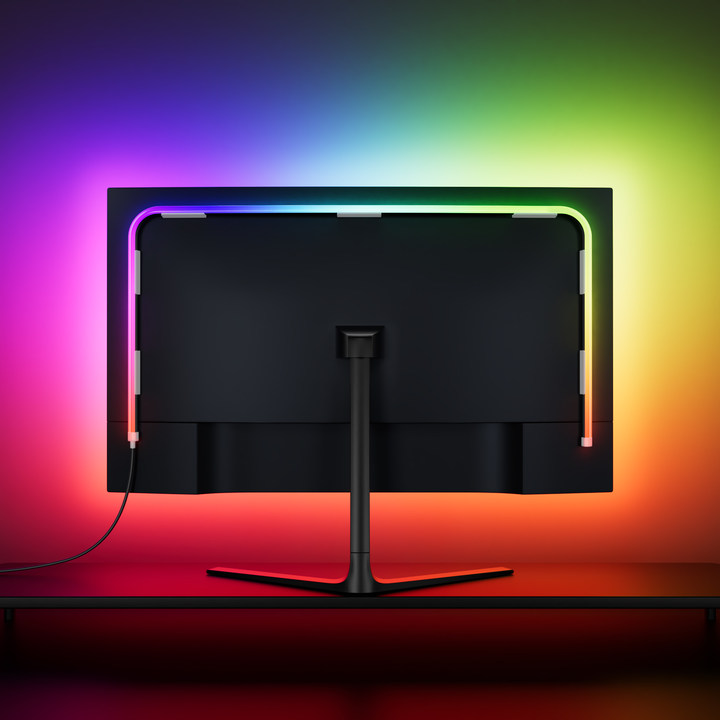 |
|
SKA127 (27") |
3 Zones | 81 | |
|
SKA132 (32") |
3 Zones | 95 | |
|
SKA134 (34") |
3 Zones | 93 | |
|
| 4-Zone Monitor Backlights (4 Sides) | SK0L21 (21") |
4 Zones | 76 | 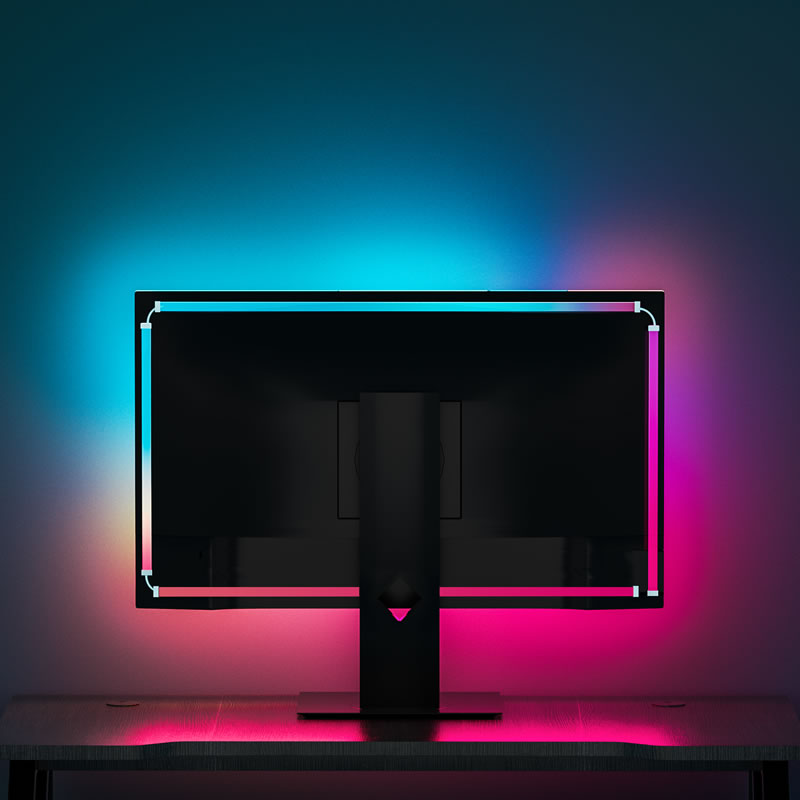 |
SK0L24 (24") |
4 Zones | 80 | |
|
SK0L27 (27") |
4 Zones | 96 | |
|
SK0L32 (32") |
4 Zones | 114 | |
|
SK0L34 (34") |
4 Zones | 112 | |
Step-by-Step Installation
Method 1: 1-Click Installation (Recommended)
- Make sure SignalRGB is running on your system.
- Click the 1-click install link: Install Skydimo Plugin in SignalRGB.
- A confirmation dialog will appear in SignalRGB. Accept the installation.
- Restart SignalRGB from your system tray to complete setup.
Method 2: Manual Installation
- Locate the SignalRGB Plugins directory: Click here (or browse to
%USERPROFILE%\Documents\WhirlwindFX\SignalRGB\Plugins). - Download the plugin files from the GitLab Repository:
Skydimo_LED_Strip.js(primary controller plugin for multi-zone and strip models)Skydimo_SK0902.js(for SK0902 screen lamp model)
- Copy the
.jsfiles into your SignalRGBPluginsfolder. - Right-click the SignalRGB tray icon, click Quit, and launch SignalRGB again.
- In SignalRGB, open Devices. You should see Skydimo LED Strip recognized.
Troubleshooting & FAQ
- Port in Use / Device Not Found:
- In Windows, a serial (COM) port can only be opened by one program at a time.
- Check Task Manager and ensure the official Skydimo desktop client is completely closed and not minimized to the system tray.
- Device Not Detected in SignalRGB:
- Skydimo devices are plug-and-play and automatically recognized by Windows under Ports (COM & LPT).
- If SignalRGB does not recognize the device, try unplugging and reconnecting the USB cable, or ensure no background software is locking the COM port.
- Wrong Zone Layout or LED Count:
- The plugin automatically queries the device model on handshake. If your LEDs don’t match, verify that your model string corresponds to one in the supported table.
- SignalRGB Update Overwrote Plugins:
- SignalRGB updates can occasionally clear local user plugins. Re-run the 1-click install or copy the
.jsfiles back to your Plugins directory.
- SignalRGB updates can occasionally clear local user plugins. Re-run the 1-click install or copy the