
OpenRGB PluginIntegration·6 min read·Oct 4, 2026
How to Play OpenRGB Effects on Your Desktop Wallpaper
Turn your Windows desktop into an OpenRGB virtual LED device and display live lighting effects using Wallpaper Engine.
N
nuonuo
Nollie Team
Key Takeaways
- OpenRGB Wallpaper Engine Plugin adds your desktop wallpaper as a virtual RGB matrix device inside OpenRGB.
- Install the RGB-Wallpaper content package directly into Wallpaper Engine's projects folder or drag-and-drop into Lively Wallpaper.
- Install the .NET 10.0 Runtime and load the plugin .dll in OpenRGB's Settings > Plugins menu to link the wallpaper with your lighting profiles.
Download Plugins & Wallpaper Content
- Plugin Repository: GitLab Repository
- Plugin Releases: Download Plugin (GitLab) or Download Plugin (GitHub)
- Wallpaper Content Packages: Download Releases (GitLab) or Download Releases (GitHub)
Introduction
- What is this: The OpenRGB Wallpaper Engine Plugin is a native OpenRGB extension that turns your desktop wallpaper into a recognized OpenRGB virtual device.
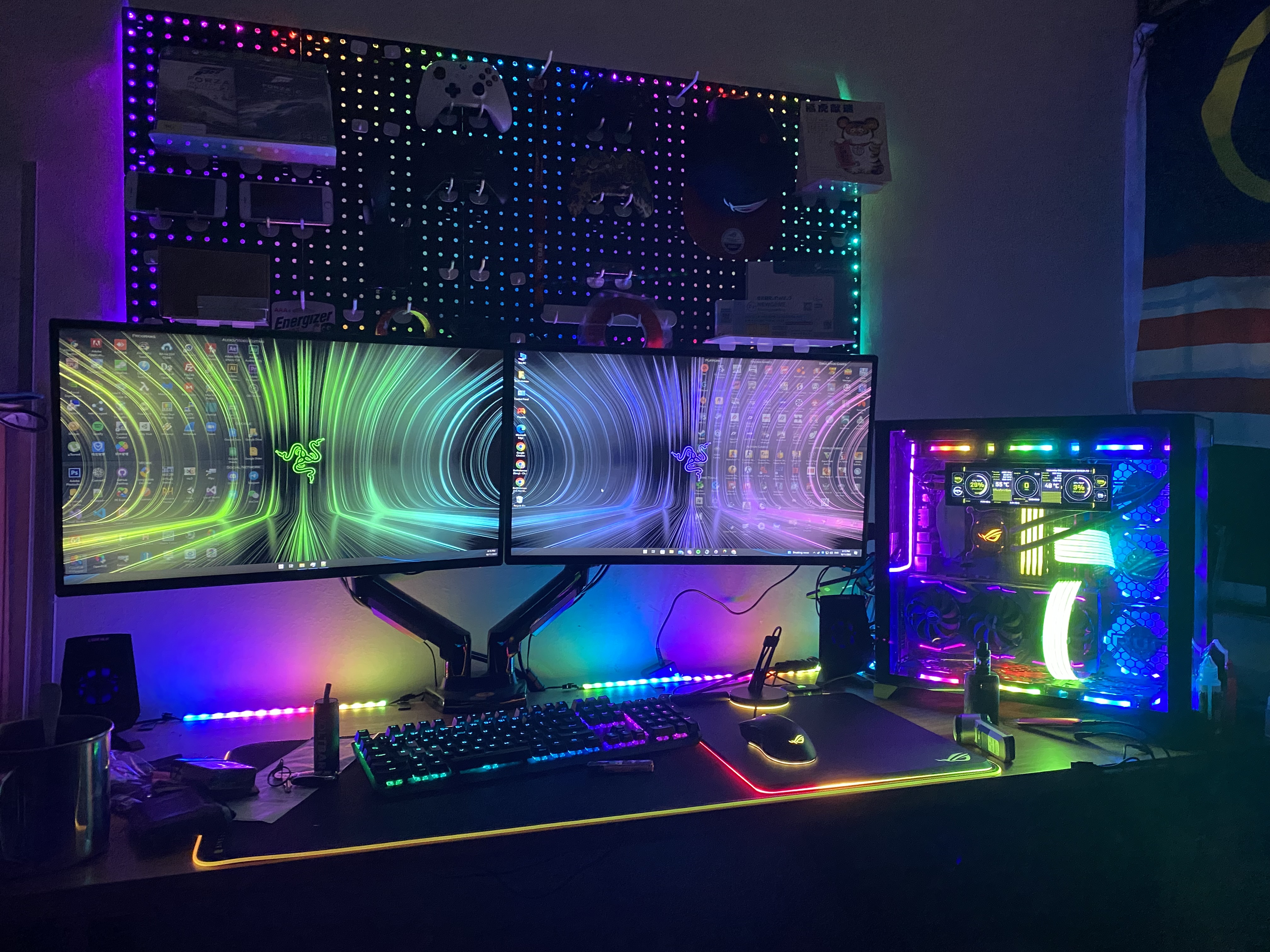
- How it works: By interfacing with the RGB-Wallpaper application inside Wallpaper Engine (or Lively Wallpaper), OpenRGB streams live lighting colors and animated effects directly to your desktop background, matching your PC hardware in real-time.
- Prerequisites:
- OpenRGB installed (version 1.0, 1.0+ or 1.0 RC1 to RC3 Hotfix 1).
- Wallpaper Engine (via Steam) or Lively Wallpaper (free open-source).
- .NET 10.0 Runtime (Windows Desktop Runtime).
- RGB-Wallpaper wallpaper archive downloaded from releases.
System Overview & Architecture
| Component | Role | Source / Requirement |
|---|---|---|
| OpenRGB Plugin | Native plugin (.dll on Windows / .so on Linux) that exposes a virtual LED matrix device inside OpenRGB. |
OpenRGB Plugin Repo |
| RGB-Wallpaper Content | The wallpaper application (containing RGB-Wallpaper.exe) that runs inside Wallpaper Engine or Lively Wallpaper and displays the live matrix. |
Wallpaper Releases |
| Wallpaper Host | Wallpaper Engine (Steam) or Lively Wallpaper hosting and running the dynamic wallpaper. | Wallpaper Engine / Lively Wallpaper |
| .NET Runtime | Executes the wallpaper's background renderer process. | .NET 10.0 Runtime (Microsoft) |
Step-by-Step Installation
Step 1: Install .NET 10.0 Runtime
Download and install the .NET 10.0 Desktop Runtime on your PC.
Step 2: Install the OpenRGB Plugin
- Download the plugin archive matching your OpenRGB version from Plugin Releases:
- OpenRGB 1.0 / 1.0+ Pipeline (API Version 5): Download
API5-qt6-windows-x64.zip - OpenRGB 1.0 RC1 to RC3 Hotfix 1 (API Version 4): Download
API4-qt5-windows-x64.zip
- OpenRGB 1.0 / 1.0+ Pipeline (API Version 5): Download
- Extract the archive to obtain the plugin
.dll(e.g.,AnOpenRGBWallpaperPlugin.dll). - Open OpenRGB, navigate to Settings > Plugins.
- Click Install Plugin and select the
.dllfile. - Check the box next to OpenRGB Wallpaper Engine Plugin to enable it.
- A new Wallpaper Devices option will appear in OpenRGB under the Settings tab.
Step 3: Install the Wallpaper into Wallpaper Engine or Lively Wallpaper
For Wallpaper Engine (Steam)
Note on Steam Workshop: As of Wallpaper Engine update 2.8.42, application-based wallpapers (
.exe) cannot be hosted on the public Steam Workshop due to Steam security policies. However, local side-loading is fully supported.
- Download WPEngineRGBWallpaper.zip from GitLab Releases or GitHub Releases.
- Open your Steam Library, right-click Wallpaper Engine > Properties > Installed Files > Browse….
- In the directory that opens, navigate into the projects folder (e.g.,
projects/myprojects). - Extract the contents of WPEngineRGBWallpaper.zip into this
projectsfolder. - In Wallpaper Engine, open your Installed tab. You will see RGB-Wallpaper listed. Select it to apply it to your desktop!
For Lively Wallpaper
- Download the zip archive for your target monitor from Releases:
LivelyRGBWallpaper1.zip(Display 1)LivelyRGBWallpaper2.zip(Display 2)LivelyRGBWallpaper3.zip(Display 3)LivelyRGBWallpaper4.zip(Display 4)
- Open the Lively Wallpaper application.
- Simply drag and drop the downloaded
.zipfile directly into the Lively Wallpaper window to install. - Once loaded into your library, select the wallpaper to apply it!
For Linux (X11 / GNOME / Desktop)
Run the native RGB Wallpaper application directly under desktop icons and panels on Linux:
- Download the Linux package (
amd64orarm64) and scripts from Releases. - Extract the archive into your preferred directory (e.g.,
~/Applications/RGBWallpaper). - Open a terminal and install the required window management dependencies:
sudo apt update && sudo apt install -y wmctrl x11-utils python3 - Navigate to the folder and grant execution permissions:
cd ~/Applications/RGBWallpaper chmod +x start.sh set_wallpaper_window.py Wallpaper-UI - Launch the wallpaper:
This automatically strips window borders, resizes the display to full screen, and layers the wallpaper beneath desktop icons and taskbars../start.sh - (Optional) To launch on system startup, configure an autostart desktop entry:
(Remember to replacemkdir -p ~/.config/autostart cat << 'EOF' > ~/.config/autostart/rgbwallpaper.desktop [Desktop Entry] Type=Application Name=RGB Wallpaper Comment=Launch RGB Live Wallpaper on login Exec=/home/username/Applications/RGBWallpaper/start.sh Icon=video-display Terminal=false Categories=Utility; X-GNOME-Autostart-enabled=true EOF chmod +x ~/.config/autostart/rgbwallpaper.desktop/home/username/with your actual system username).
Step 4: Configure the Virtual Device in OpenRGB
- In OpenRGB, navigate to the Settings tab at the top, then click Wallpaper Devices in the left sidebar.
- Select your display (e.g., Primary Display) or click Add Device to create a new profile.
- Configure your display and matrix settings:
- Device Name & Network: Assign a name (e.g.,
Primary Display), host IP (127.0.0.1), and UDP port (default8133for Display 1,8134for Display 2). - Aspect Ratio: Match your monitor (e.g.,
16:9 Landscape,21:9 Landscape, etc.). - Grid Density: Set your virtual LED matrix density (
Small,Normal,Large, orX Large). - LED Shape & Blur: Choose your LED shape (
Rectangle,Rounded Rectangle, orSphere), adjust Corner Radius, and set Blur Intensity for a diffused glow. - Shutdown Color & Effect: Choose an optional fallback effect (e.g.,
Fire,Breathing,Rainbow) or static color for when OpenRGB shuts down. - Cover Image & Stretch: Optionally click Browse… to apply a custom diffuser graphic or logo overlay with your preferred stretch mode.
- Device Name & Network: Assign a name (e.g.,
- Click Apply and then Save Changes.
- Your wallpaper now functions as an RGB matrix device! Head to the Devices tab or use the OpenRGB Effects Engine Plugin to assign dynamic animated effects across all your PC components and desktop wallpaper simultaneously.
Troubleshooting & FAQ
- Plugin Fails to Load in OpenRGB:
- Verify that you downloaded the matching API version (
API 5for Qt6 builds orAPI 4for Qt5/1.0 RC builds). - Right-click the
.dllbefore extracting, choose Properties, and check Unblock if Windows flagged it as downloaded from the internet.
- Verify that you downloaded the matching API version (
- Wallpaper Not Appearing in Wallpaper Engine:
- Ensure
WPEngineRGBWallpaper.zipwas extracted inside Wallpaper Engine’sprojects(orprojects/myprojects) directory. - Restart Wallpaper Engine so it re-indexes local projects.
- Ensure
- Lighting Not Syncing with OpenRGB:
- Ensure the .NET 10.0 Runtime is installed.
- Verify that Windows Firewall allows local communication over
localhost. - Ensure OpenRGB’s SDK server is active (Settings > OpenRGB SDK Server > Start Server).
- Free Alternative to Steam Wallpaper Engine:
- You can use the free, open-source Lively Wallpaper with the provided
LivelyRGBWallpaperpackages.
- You can use the free, open-source Lively Wallpaper with the provided