
How to Setup OpenRGB Pixel Screen Plugin
Display scrolling text, live digital clocks, LibreHardwareMonitor system stats, and custom pixel art animations on OpenRGB LED matrices.
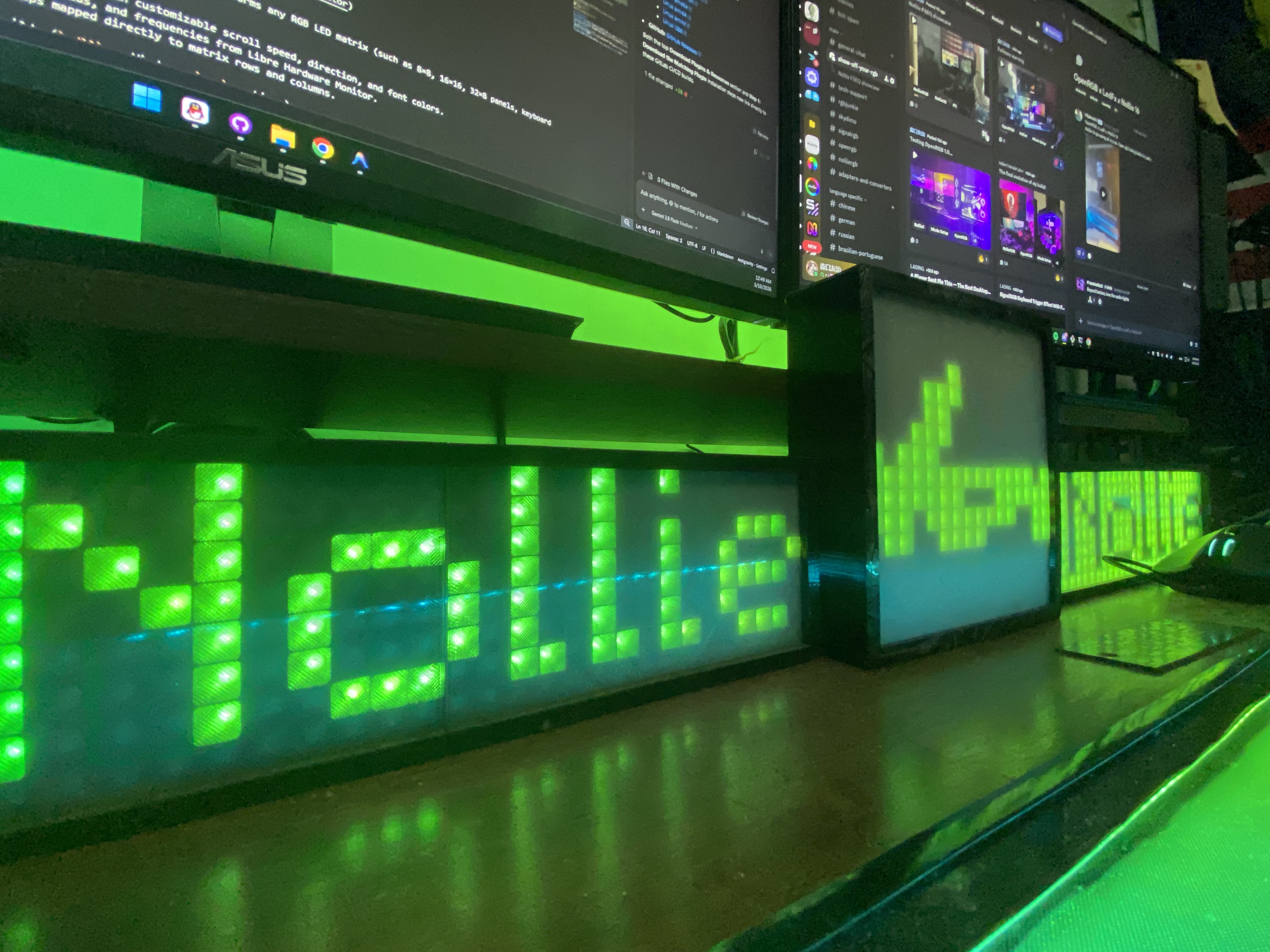
- OpenRGB Pixel Screen Plugin renders scrolling text, live clocks, system sensor metrics, and custom pixel art on any OpenRGB-supported matrix.
- Offers two API builds: API 5 for OpenRGB 1.0 / 1.0+ builds, and API 4 for OpenRGB 1.0 RC1 to RC3 builds.
- Integrates with Libre Hardware Monitor's Remote Web Server to stream live CPU/GPU temperatures, clocks, and loads directly onto LED matrices.
- Supports 2D brightness arrays (1s, 0s, and fractional values like 0.5) created easily with https://pixelart.nolliergb.com/.
Download Plugins & Resources
OpenRGB 1.0 & 1.0+ (Plugin API Version 5)
- GitLab Direct Artifact Downloads:
- GitHub: GitHub Releases
OpenRGB 1.0 RC – 1.0 RC3 (Plugin API Version 4)
- GitLab Direct Artifact Downloads:
- GitHub: GitHub Releases
Tools & Repositories
- GitLab Repository: OpenRGBPixelScreenPlugin on GitLab
- Online Pixel Art Designer: pixelart.nolliergb.com
- Hardware Sensor Server: Libre Hardware Monitor
Introduction
- What is this: The OpenRGB Pixel Screen Plugin is an official extension that transforms any RGB LED matrix (such as 8×8, 16×16, 32×8 panels, keyboard matrices, or desktop ambient displays) into an intelligent information display.
- Key Capabilities:
- Text & Clock: Display custom messages or live time/date formats with customizable scroll speed, direction, and font colors.
- Hardware Telemetry: Fetch real-time CPU/GPU temperatures, loads, and frequencies from Libre Hardware Monitor.
- Pixel Art: Render static or multi-frame pixel art bitmaps mapped directly to matrix rows and columns.
- Compatibility:
- OpenRGB 1.0 and 1.0+ / Pipeline: Use the API 5 builds (
.dllon Windows,.soon Linux). - OpenRGB 1.0 RC1 – RC3: Use the API 4 builds.
- OpenRGB 1.0 and 1.0+ / Pipeline: Use the API 5 builds (
System Overview & Architecture
| Component | Role | Source / Requirement |
|---|---|---|
| OpenRGB Pixel Screen Plugin | Native OpenRGB plugin (.dll / .so) that renders custom text, sensors, and pixel art onto matrix devices. |
GitLab Repository |
| OpenRGB Host | Main lighting controller software managing your physical ARGB controllers and matrix devices. | OpenRGB Official |
| Libre Hardware Monitor | Open-source monitoring tool providing a local JSON web server (http://localhost:8085/data.json) with CPU, GPU, and RAM telemetry. |
Libre Hardware Monitor GitHub |
| Pixel Art Web App | Web-based visual grid editor for drawing matrix art and exporting 2D JSON arrays. | pixelart.nolliergb.com |
Step-by-Step Installation
Step 1: Download the Matching Plugin
- Identify your OpenRGB version:
- OpenRGB 1.0 or 1.0+ / Pipeline: Download the API 5 build for your OS (Windows 64 | Linux amd64).
- OpenRGB 1.0 RC1 – RC3: Download the API 4 build for your OS (Windows 64 | Linux amd64).
- Alternatively, check the GitHub Releases for packaged archives.
- On Windows, right-click the downloaded
.zipor.dll, click Properties, check Unblock if present, and click OK. Extract the file if downloaded as a.zipartifact.
Step 2: Install into OpenRGB
- Launch OpenRGB (on Windows, run as Administrator).
- Click on the Settings tab in the top navigation bar.
- In the left sidebar of the Settings tab, select Plugins.
- Click the Install Plugin button and browse to your downloaded
.dllor.sofile. - Once installed, locate Pixel Screen Plugin in the plugins list and toggle the switch to Enabled.
- A new Pixel Screen tab will appear in the main OpenRGB navigation bar.
Step 3: Select Your Matrix Device
- Click the Pixel Screen tab.
- In the Device drop-down menu, choose your target LED matrix (e.g. 8x8 Matrix, 16x16 Matrix, 32x8 Screen, or any virtual matrix configured via OpenRGB).
- Confirm that the matrix dimensions (Width and Height) match your hardware layout.
Mode 1: Text & Digital Clock Configuration
The plugin includes a dynamic text rendering engine that accepts standard date and time format tokens.
Time & Date Format Tokens
| Format Token | Description | Example Output |
|---|---|---|
d / dd |
Day of the month (1-31) / with leading zero | 5 / 05 |
ddd / dddd |
Short weekday abbreviation / Full weekday name | Tue / Tuesday |
M / MM |
Month number (1-12) / with leading zero | 3 / 03 |
MMM / MMMM |
Short month name / Full month name | Mar / March |
yy / yyyy |
Two-digit year / Four-digit year | 26 / 2026 |
h / hh |
12-hour format / with leading zero | 8 / 08 |
H / HH |
24-hour format / with leading zero | 9 / 09 or 21 |
m / mm |
Minute / with leading zero | 5 / 05 |
s / ss |
Second / with leading zero | 3 / 03 |
t or a |
Single character AM/PM designator | A or P |
tt or aa |
Two-character AM/PM designator | AM or PM |
Common Display Examples
- Standard 24-Hour Digital Clock:
HH:mm:ss - 12-Hour Clock with AM/PM:
hh:mm tt - Date & Time Scrolling Banner:
ddd, MMM dd · HH:mm
Mode 2: Hardware Sensor Monitoring (CPU/GPU Stats)
You can stream live hardware telemetry from your computer straight to your LED matrix using Libre Hardware Monitor.
Setting Up Libre Hardware Monitor
- Download and extract Libre Hardware Monitor.
- Run
LibreHardwareMonitor.exeas Administrator. - In the top menu, go to Options > Remote Web Server > check Run.
- By default, Libre Hardware Monitor serves live JSON data at
http://localhost:8085/data.json. - (Optional) Check Options > Start Minimized and Run on Windows Startup to ensure continuous telemetry.
Formatting Sensor Strings in OpenRGB
In the Pixel Screen tab, switch to the Sensor tab. Available sensors will automatically populate from the local web server.
Combine normal text and sensor tags using brackets [Hardware\SensorType\SensorName]:
CPU: [11th Gen Intel Core i5-11400\Load\CPU Total]% [11th Gen Intel Core i5-11400\Temperatures\Core Average]°C
GPU: [NVIDIA GeForce GTX 1660 SUPER\Load\GPU Core]% [NVIDIA GeForce GTX 1660 SUPER\Temperatures\GPU Core]°C- Live Updating: The plugin periodically polls the local web server and updates the text displayed on the matrix without causing frame drops in your LED lighting animations.
Mode 3: Pixel Art & Animations
Pixel art in the Pixel Screen plugin is defined as a 2D JSON array of numbers. Each inner array corresponds to a horizontal row on your matrix:
1: LED is turned ON (full brightness in selected color).0: LED is turned OFF.0.5: LED is lit at 50% brightness (supports brightness gradients).
Online Grid Editor: pixelart.nolliergb.com
Instead of writing arrays manually, visit https://pixelart.nolliergb.com/:
- Set your matrix canvas dimensions (e.g. 16×16, 32×8).
- Click or drag to draw your design directly on the interactive grid.
- Click Export to copy the generated 2D array and paste it directly into the Pixel Art input field in OpenRGB.
Example 1: 16×16 Dino Art
[
[0, 0, 0, 0, 0, 0, 0, 0, 0, 1, 1, 1, 1, 1, 1, 0],
[0, 0, 0, 0, 0, 0, 0, 0, 1, 1, 0, 1, 1, 1, 1, 1],
[0, 0, 0, 0, 0, 0, 0, 0, 1, 1, 1, 1, 1, 1, 1, 1],
[0, 0, 0, 0, 0, 0, 0, 0, 1, 1, 1, 1, 1, 1, 1, 1],
[0, 0, 0, 0, 0, 0, 0, 0, 1, 1, 1, 1, 1, 0, 0, 0],
[0, 0, 0, 0, 0, 0, 0, 0, 1, 1, 1, 1, 1, 0, 0, 0],
[1, 0, 0, 0, 0, 0, 0, 1, 1, 1, 1, 1, 1, 1, 1, 0],
[1, 1, 0, 0, 0, 0, 1, 1, 1, 1, 1, 1, 0, 0, 0, 0],
[1, 1, 1, 0, 0, 1, 1, 1, 1, 1, 1, 1, 0, 0, 0, 0],
[0, 1, 1, 1, 1, 1, 1, 1, 1, 1, 1, 1, 1, 1, 0, 0],
[0, 0, 1, 1, 1, 1, 1, 1, 1, 1, 1, 1, 0, 1, 0, 0],
[0, 0, 0, 1, 1, 1, 1, 1, 1, 1, 1, 0, 0, 0, 0, 0],
[0, 0, 0, 0, 1, 1, 1, 0, 1, 1, 0, 0, 0, 0, 0, 0],
[0, 0, 0, 0, 1, 1, 0, 0, 0, 1, 0, 0, 0, 0, 0, 0],
[0, 0, 0, 0, 1, 0, 0, 0, 0, 1, 1, 0, 0, 0, 0, 0],
[0, 0, 0, 0, 1, 1, 0, 0, 0, 0, 0, 0, 0, 0, 0, 0]
]
Example 2: 32×8 “On Air” Sign
[
[0, 0, 0, 0, 0, 0, 0, 0, 0, 0, 0, 0, 0, 0, 0, 0, 0, 0, 0, 0, 0, 0, 0, 0, 0, 0, 0, 0, 0, 0, 0, 0],
[0, 1, 1, 1, 1, 1, 0, 0, 1, 0, 0, 0, 0, 1, 0.5, 0, 0, 1, 1, 1, 1, 0, 0, 1, 0.5, 0, 1, 1, 1, 1, 1, 1],
[1, 0.5, 0.5, 0.5, 0.5, 0.5, 1, 0, 1, 1, 0, 0, 0, 1, 0.5, 0, 1, 0.5, 0.5, 0.5, 0.5, 1, 0, 1, 0.5, 0, 1, 0.5, 0.5, 0.5, 0.5, 1],
[1, 0.5, 0, 0, 0, 0, 1, 0, 1, 0.5, 1, 0, 0, 1, 0.5, 0, 1, 0.5, 0, 0, 0, 1, 0, 1, 0.5, 0, 1, 0.5, 0, 0, 0, 1],
[1, 0.5, 0, 0, 0, 0, 1, 0, 1, 0.5, 0.5, 1, 0, 1, 0.5, 0, 1, 0.5, 0, 0, 0, 1, 0, 1, 0.5, 0, 1, 1, 1, 1, 1, 1],
[1, 0.5, 0, 0, 0, 0, 1, 0, 1, 0.5, 0, 0.5, 1, 1, 0.5, 0, 1, 1, 1, 1, 1, 1, 0, 1, 0.5, 0, 1, 0.5, 0.5, 0.5, 1, 0],
[0, 1, 1, 1, 1, 1, 0, 0, 1, 0.5, 0, 0, 0.5, 1, 0.5, 0, 1, 0.5, 0, 0, 0, 1, 0, 1, 0.5, 0, 1, 0.5, 0, 0, 0, 1],
[0, 0, 0, 0, 0, 0, 0, 0, 0, 0, 0, 0, 0, 0, 0, 0, 0, 0, 0, 0, 0, 0, 0, 0, 0, 0, 0, 0, 0, 0, 0, 0]
]
Compiling from Source (Optional / Linux Developers)
If you prefer building directly from source or run a custom Linux distribution:
Prerequisites
- C++17 compiler (GCC / Clang or MSVC)
- Qt development kit (
qmake):- API 5: Qt 6.8.x
- API 4: Qt 5.15.x
Build Commands
# Clone the repository with its OpenRGB submodules
git clone --recurse-submodules https://gitlab.com/nollie/OpenRGBPixelScreenPlugin.git
cd OpenRGBPixelScreenPlugin

# For OpenRGB 1.0 / 1.0+ (API 5):
cd API5
qmake PixelScreenPlugin.pro
make -j$(nproc)

# Install into OpenRGB standard plugin path
sudo make install PREFIX=/usr
Troubleshooting & FAQ
1. The plugin fails to load or shows an error in OpenRGB Settings
- API Mismatch: Verify that your OpenRGB build matches the plugin build. OpenRGB 1.0 / 1.0+ requires API 5, while OpenRGB 1.0 RC1 to RC3 requires API 4.
- Architecture Mismatch: Ensure both OpenRGB and the plugin
.dllare 64-bit (or both 32-bit). - Missing VC++ Redistributable: On Windows, install the latest Visual C++ Redistributable 2015–2022.
2. Sensor values show blank or [Error]
- Verify that Libre Hardware Monitor is currently running as Administrator.
- Open your browser and navigate to
http://localhost:8085/data.json. If this page does not load, open Libre Hardware Monitor and ensure Options > Remote Web Server > Run is enabled.
3. Text scrolling appears choppy or laggy
- Increase the plugin’s refresh rate (FPS) slider to 30 or 60 FPS in the Pixel Screen settings.