
SignalRGB PluginIntegration·4 min read·Oct 4, 2026
How to Play SignalRGB Effects on Your Desktop Wallpaper
Turn your Windows desktop into a virtual LED matrix and display live SignalRGB effects using Wallpaper Engine.
N
nuonuo
Nollie Team
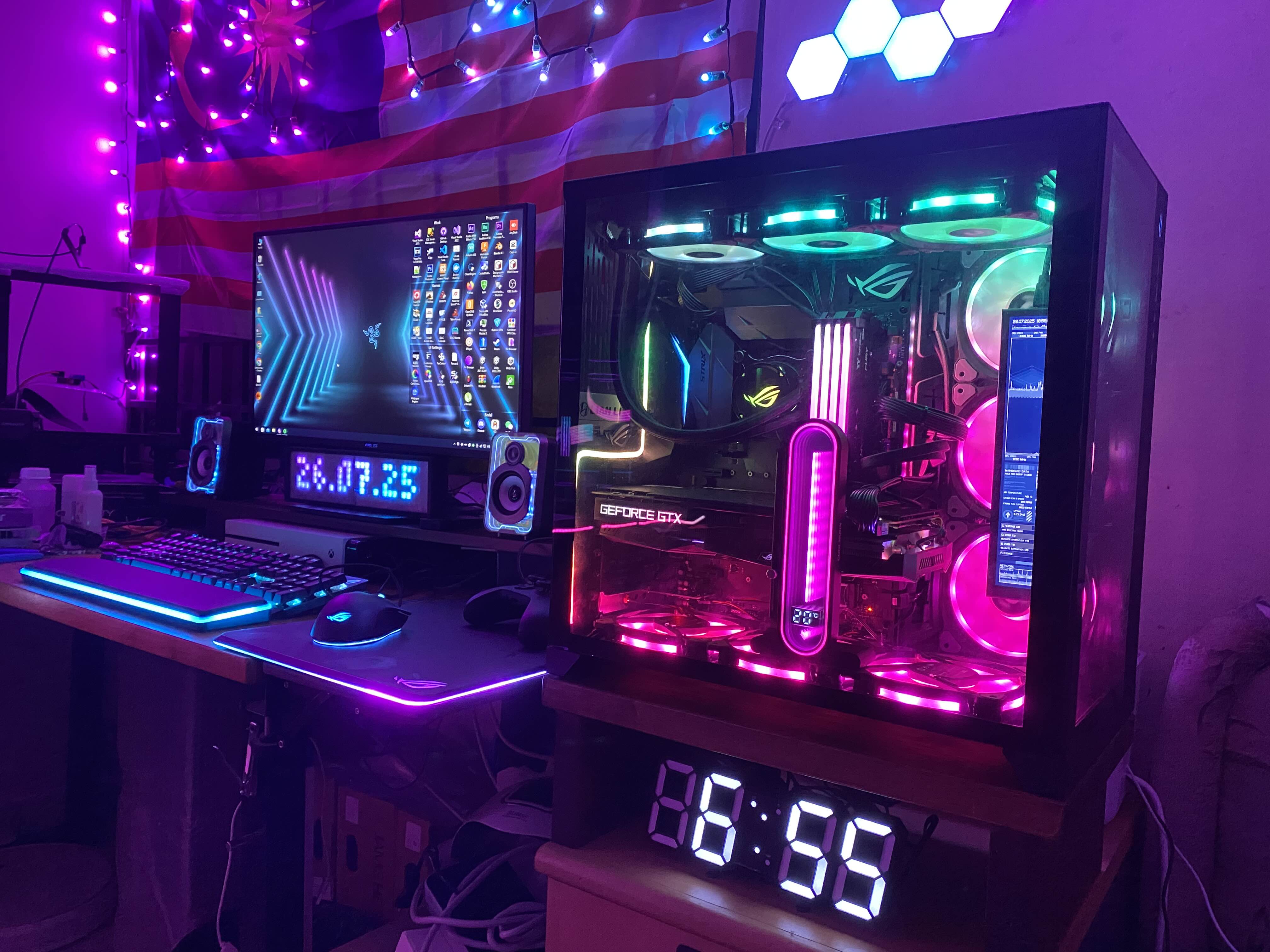
Key Takeaways
- SignalRGB Wallpaper Engine 2 is a virtual LED matrix device that displays SignalRGB effects on your desktop wallpaper.
- Install the RGB-Wallpaper package directly into Wallpaper Engine's projects directory or drag-and-drop into Lively Wallpaper.
- Install .NET 10.0 Runtime and configure your virtual screen matrix settings (aspect ratio, LED shape, and cover image) in SignalRGB.
Download Plugins & Wallpaper Content
- Plugin Repository: GitLab Repository
- 1-Click Install: Add to SignalRGB
- Wallpaper Content Packages: Download Releases (GitLab) or Download Releases (GitHub)
Introduction
- What is this: SignalRGB Wallpaper Engine 2 is a virtual device plugin for SignalRGB. It creates an interactive, customizable virtual LED matrix inside SignalRGB and renders your active lighting effects directly onto your Windows desktop wallpaper.
- How it works: Whatever effect or visualizer you play on your SignalRGB canvas (such as Audio Visualizer, Rainbow Wave, Neon Wave, or game integrations) is streamed in real-time to your desktop wallpaper through the RGB-Wallpaper wallpaper application installed in Wallpaper Engine (or Lively Wallpaper).
- Prerequisites:
- SignalRGB installed (latest stable build recommended).
- Wallpaper Engine (via Steam) or Lively Wallpaper (free open-source).
- .NET 10.0 Runtime (Windows Desktop Runtime).
- RGB-Wallpaper wallpaper archive downloaded from releases.
System Overview & Architecture
| Component | Role | Source / Requirement |
|---|---|---|
| Wallpaper Engine 2 Plugin | Virtual network device inside SignalRGB (wallpaper2.js / wallpaper2.qml) that outputs canvas LED matrix data over local network. |
GitLab Repository |
| RGB-Wallpaper Content | The wallpaper application (containing RGB-Wallpaper.exe) that runs inside Wallpaper Engine or Lively Wallpaper and displays the live matrix. |
Wallpaper Releases |
| Wallpaper Host | Wallpaper Engine (Steam) or Lively Wallpaper hosting and running the dynamic wallpaper. | Wallpaper Engine / Lively Wallpaper |
| .NET Runtime | Executes the wallpaper's background renderer process. | .NET 10.0 Runtime (Microsoft) |
Step-by-Step Installation
Step 1: Install .NET 10.0 Runtime
Download and install the .NET 10.0 Desktop Runtime on your PC.
Step 2: Install the SignalRGB Plugin
Method 1: 1-Click Installation (Recommended)
- Make sure SignalRGB is running on your PC.
- Click to install: Add SignalRGB Wallpaper Engine to SignalRGB.
- Confirm the installation prompt inside SignalRGB.
- Restart SignalRGB from your system tray.
Method 2: Manual Installation
- Locate your SignalRGB Plugins directory: Click here (or navigate to
%USERPROFILE%\Documents\WhirlwindFX\SignalRGB\Plugins). - Download
wallpaper2.jsandwallpaper2.qmlfrom the GitLab Repository. - Place these files directly into your
Pluginsfolder. - Fully exit SignalRGB (right-click SignalRGB icon in tray > Quit) and relaunch it.
Step 3: Install the Wallpaper into Wallpaper Engine or Lively Wallpaper
For Wallpaper Engine (Steam)
Note on Steam Workshop: As of Wallpaper Engine update 2.8.42, application-based wallpapers (
.exe) cannot be hosted on the public Steam Workshop due to Steam security policies. However, local side-loading is fully supported.
- Download WPEngineRGBWallpaper.zip from GitLab Releases or GitHub Releases.
- Open your Steam Library, right-click Wallpaper Engine > Properties > Installed Files > Browse….
- In the directory that opens, navigate into the projects folder (e.g.,
projects/myprojects). - Extract the contents of WPEngineRGBWallpaper.zip into this
projectsfolder. - In Wallpaper Engine, open your Installed tab. You will see RGB-Wallpaper listed. Select it to apply it to your desktop!
For Lively Wallpaper
- Download the zip archive for your target monitor from Releases:
LivelyRGBWallpaper1.zip(Display 1)LivelyRGBWallpaper2.zip(Display 2)LivelyRGBWallpaper3.zip(Display 3)LivelyRGBWallpaper4.zip(Display 4)
- Open the Lively Wallpaper application.
- Simply drag and drop the downloaded
.zipfile directly into the Lively Wallpaper window to install. - Once loaded into your library, select the wallpaper to apply it!
Step 4: Configure the Virtual Device in SignalRGB
- In SignalRGB, navigate to Devices > Wallpaper Engine 2.
- Customize your virtual matrix settings:
- Aspect Ratio: Select your screen format (e.g.,
16:9 Landscape,21:9 Landscape,32:9 Landscape, etc.). - Display Size / Grid Tier: Choose from
Small,Normal,Large, orX Largeto adjust matrix resolution. - LED Shape & Blur: Choose
Rectangle,Rounded Rectangle, orSphere, and set the blur intensity for sharp LEDs or a diffused glow. - Cover Image: Optionally load a diffuser image (such as custom logo or graphic artwork) over the virtual LED grid.
- Aspect Ratio: Select your screen format (e.g.,
- In SignalRGB’s Layouts tab, arrange the Wallpaper Engine 2 device on your canvas. Your desktop wallpaper will now mirror live SignalRGB effects across your screen!
Troubleshooting & FAQ
- Wallpaper Not Appearing in Wallpaper Engine:
- Verify that
WPEngineRGBWallpaper.zipwas extracted inside Wallpaper Engine’sprojects(orprojects/myprojects) directory. - Restart Wallpaper Engine to refresh your installed library.
- Verify that
- Virtual Device Not Showing in SignalRGB:
- Fully quit SignalRGB from the system tray and reopen it to allow plugins to re-index.
- Verify that
wallpaper2.jsandwallpaper2.qmlare present in%USERPROFILE%\Documents\WhirlwindFX\SignalRGB\Plugins.
- Desktop Wallpaper Not Reacting to Colors:
- Ensure the .NET 10.0 Runtime is installed.
- Check that your firewall allows local loopback communication on
localhost. - Ensure the Wallpaper Engine 2 device is placed on the active lighting canvas in SignalRGB.
- Custom Wallpaper Covers:
- Check out the Official Wallpaper Covers Wiki and Community Covers for custom diffuser overlays.