
How to Downgrade Nollie Firmware Back to 1.0
Flash the original NollieRGB 1.0 firmware onto your controller using NollieRGB 2.2.
- Copy your model's firmware file from NollieRGB 1.0's config folder into NollieRGB 2.2's config folder, and rename it (for example Nollie32_1.0.config) without replacing any existing file.
- Start NollieRGB 2.2 with the --internal option to choose which firmware to flash.
- Keep the USB cable connected and the PC powered on until flashing finishes.
- Your 2.x settings (canvases, effects, VMAPs) are not kept. Set the controller up again in NollieRGB 1.0 afterwards.
Upgrading instead? See How to Setup/Update NollieRGB 2.2.
This guide puts the original 1.0 firmware back on a Nollie controller that has been updated to firmware 2.x. You’ll use NollieRGB 2.2 to do the flashing, with the firmware file taken from NollieRGB 1.0.
Before you start
- Use a direct USB connection and make sure the PC won’t sleep or lose power during flashing.
- Settings saved on the controller under firmware 2.x, such as canvases, effects, VMAPs and LED sizes, won’t carry over. Write down anything you want to set up again.
- Close SignalRGB, OpenRGB, Skydimo and any other RGB software, so nothing else talks to the controller while it’s being flashed.
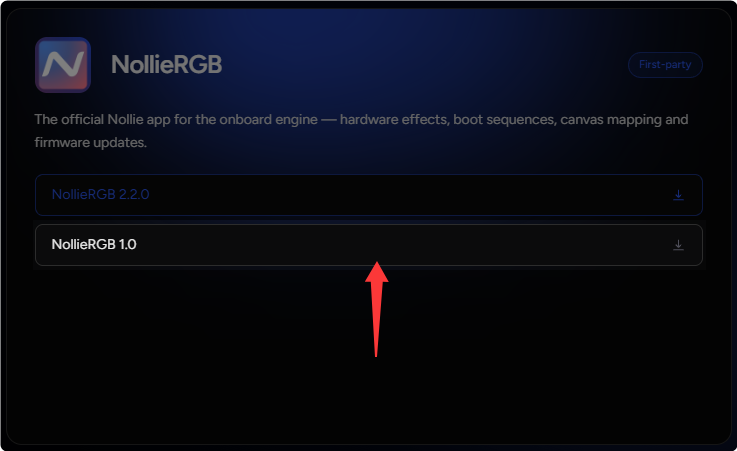
Step 1: Download NollieRGB 1.0
- Download NollieRGB 1.0 from the Software page.
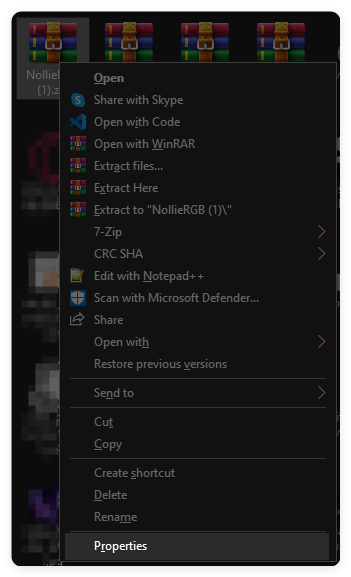
- Right-click the downloaded
.zipfile and click Properties.
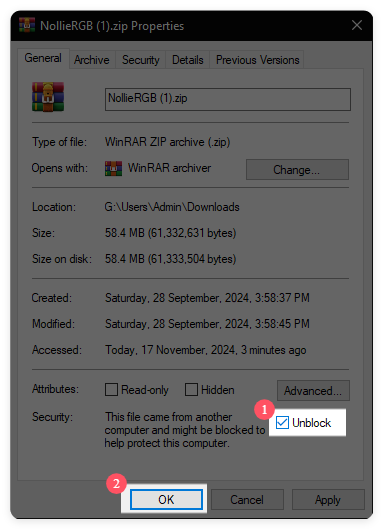
- Check Unblock and click OK.
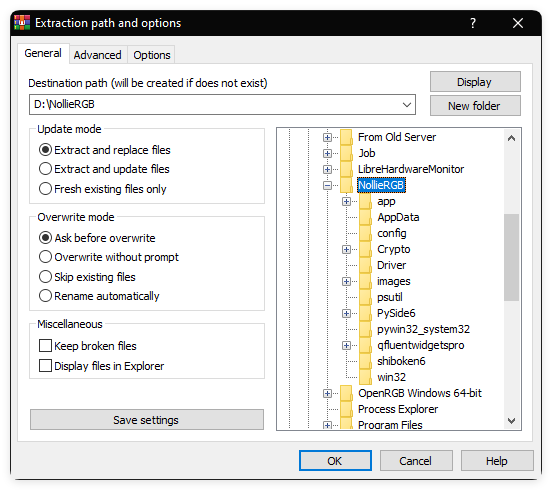
- Extract the
.zipto a different folder from your NollieRGB 2.2 folder, so the two versions don’t mix.
Step 2: Copy the 1.0 Firmware into NollieRGB 2.2
The 1.0 firmware files are in NollieRGB 1.0’s config folder, named after the controller model:
| Your controller | File in NollieRGB 1.0’s config folder |
Rename the copy to |
|---|---|---|
| Nollie1 | 1.config |
1.bin |
| Nollie8 | 8.config |
8.bin |
| Nollie16 | 16.config |
16.bin |
| Nollie32 | 32.config |
32.bin |
- Open the
configfolder inside your NollieRGB 1.0 folder and copy the file for your controller. - Paste it into the
configfolder inside your NollieRGB 2.2 folder. - Rename the pasted file as shown in the table, for example
32.config→32.bin.
Don’t replace or delete any existing file in NollieRGB 2.2’s config folder. Files like Nollie32.bin are the 2.2 firmware, and you’ll need them to update again later. Renaming the 1.0 file keeps both versions side by side.
For example, a Nollie32 owner’s NollieRGB 2.2 config folder should end up like this:
NollieRGB 2.2\config\
├── Nollie1.bin
├── Nollie8.bin
├── Nollie16.bin
├── Nollie32.bin
├── 32.bin   ← the file you copied and renamed
└── Prism8.bin
Step 3: Start NollieRGB 2.2 in Internal Mode
NollieRGB 2.2 only lets you choose a firmware file when it’s started with the --internal option. Use either method:
Option A: Terminal
- Open your NollieRGB 2.2 folder in File Explorer.
- Right-click an empty space in the folder and choose Open in Terminal.
- Type the following and press Enter:
.\NollieRGB.exe --internal
Option B: Shortcut
- Right-click
NollieRGB.exeand choose Show more options → Create shortcut. - Right-click the new shortcut and choose Properties.
- In Target, add
--internalafter the closing quote. For example:"D:\NollieRGB 2.2\NollieRGB.exe" --internal - Click OK, then double-click the shortcut.
Step 4: Flash the 1.0 Firmware
- In NollieRGB 2.2, click your Nollie controller.
- Choose the 1.0 firmware you copied, for example
32.bin.
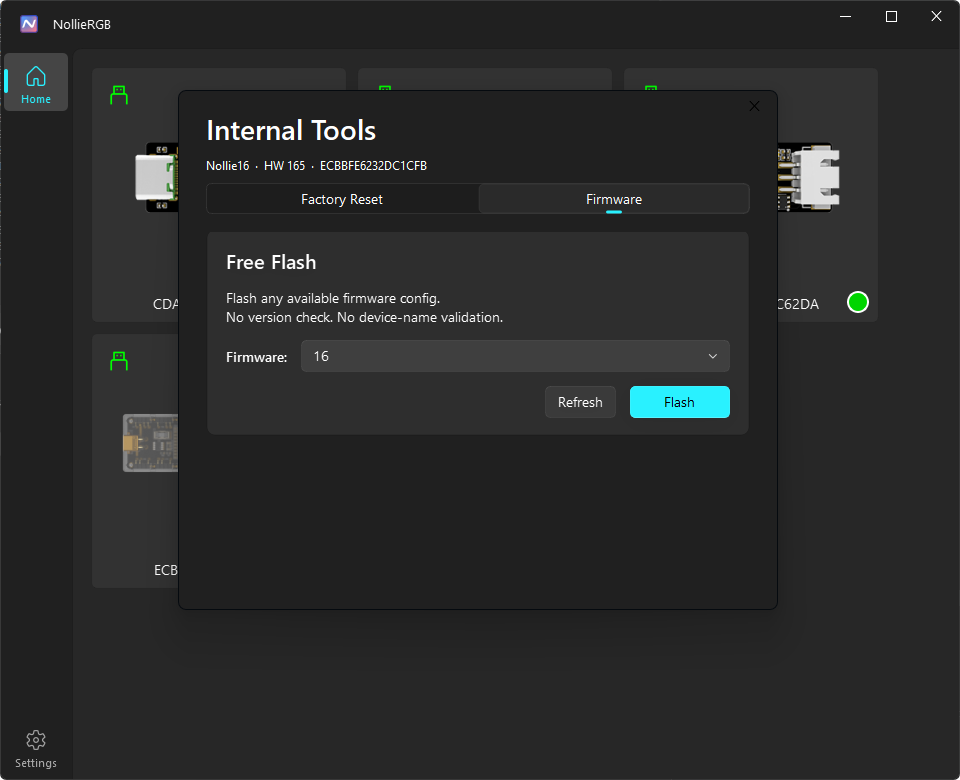
- Start flashing, and wait until NollieRGB says it has finished. Don’t unplug the controller or close NollieRGB while it’s flashing.
- Close NollieRGB 2.2.
Your controller is now running firmware 1.0.
After Downgrading
- Use NollieRGB 1.0 to set up LED sizes and effects. See How to Setup NollieRGB 1.0.
- Features that need firmware 2.x, such as VMAPs, multi-segment effects and FSEQ playback, aren’t available on 1.0.
- To go back to firmware 2.2, open NollieRGB 2.2 normally (without
--internal) and click your controller to run the firmware update. See How to Setup/Update NollieRGB 2.2.
Troubleshooting
The 1.0 firmware isn’t listed
- Check that the file is in NollieRGB 2.2’s
configfolder, not 1.0’s. - Check the name matches your controller model, for example
Nollie32_1.0.configfor a Nollie32. - Make sure NollieRGB 2.2 was started with
--internal. Opened normally, it only offers the 2.2 update.
“Windows protected your PC” or the app won’t open
Right-click the original .zip, open Properties, tick Unblock, then extract it again.
Flashing stopped part-way or the controller no longer responds
Don’t panic. Reconnect the controller and try flashing again. If it stays unresponsive, see How to Fix Nollie Stuck in Bootloader, or contact support.