Firmware 2.2Software·6 min read·Apr 9, 2026
How to setup/update NollieRGB 2.2
Upgrading to NollieRGB 2.2, firmware flashing, Component visual resizing, and GPIO modes.
N
nuonuo
Nollie Team
Key Takeaways
- Write down your OpenRGB zone sizes or SignalRGB components before updating (previous settings will reset).
- Firmware update is performed directly with 1-click inside NollieRGB 2.2.
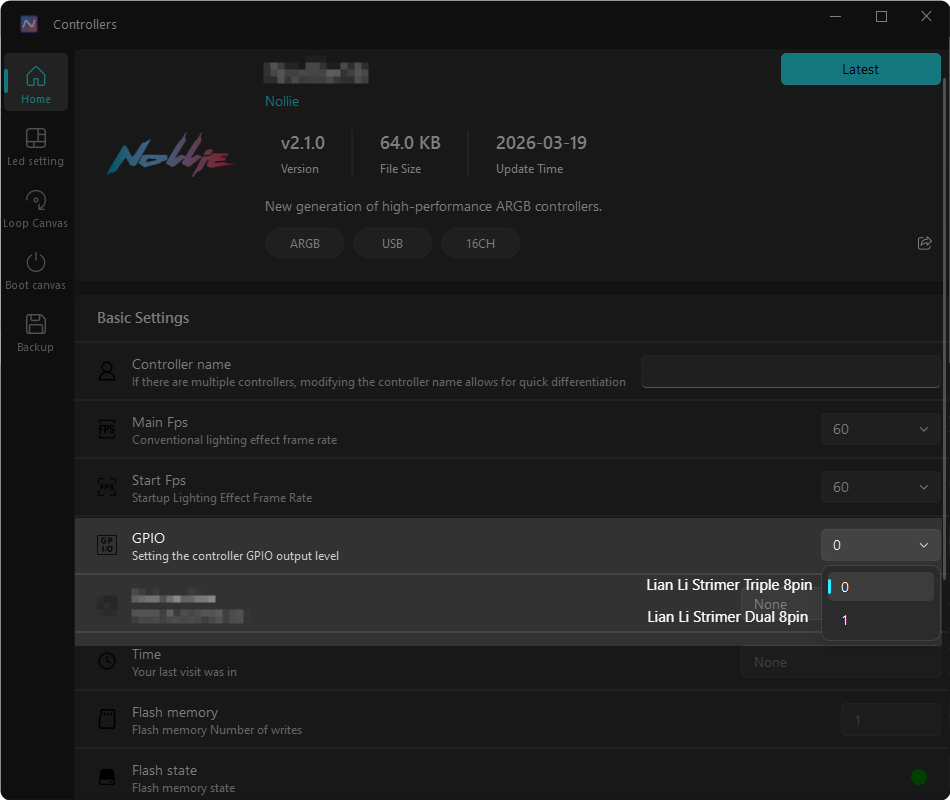
- Set GPIO to 1 for Dual 8-pin Strimer (0 for Triple 8-pin) on Nollie 32; for Nollie 1, set GPIO to 1 if using external power.
For NollieRGB 1.0, see How to Setup NollieRGB.
Our controllers currently shipped with NollieRGB 1.0 firmware, so a firmware update is required upon first use. Please ensure a stable connection and that there is no power interruption during the update.
What’s new?
Version 2.2
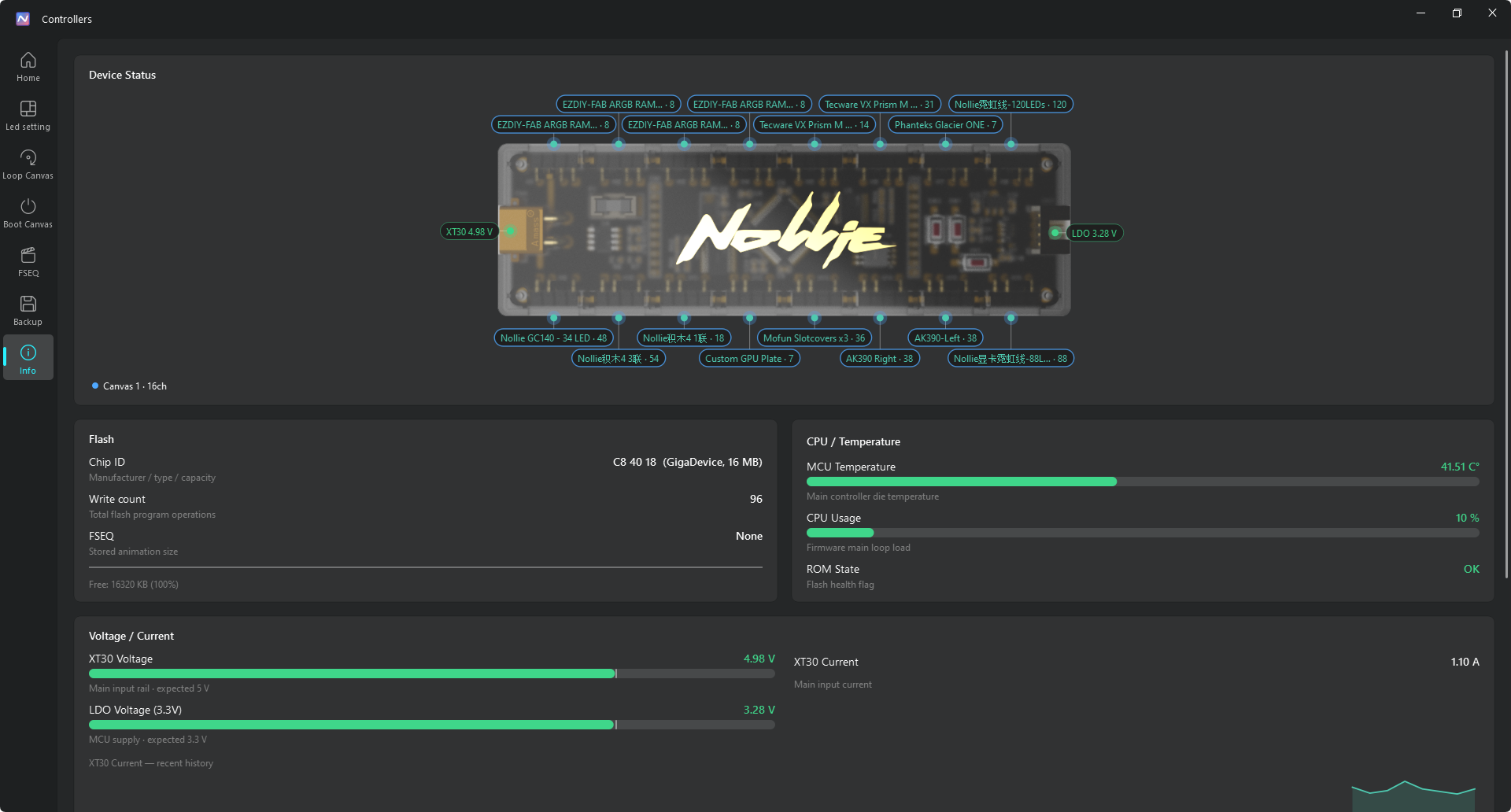
- All-new device status map on the Info page: a top-down view of the device with live per-port annotations — supply voltages, LED count and mapping name per channel; click a channel marker to jump straight to its LED settings (Nollie8 / 16 / 32)
- Canvas-colored channels: channels on the status map are color-coded by the Loop canvas they belong to; hovering a legend chip below highlights every channel of that canvas, and clicking it jumps to the canvas page
- Canvas overview on the Info page: effect parameters, channels, and LED statistics for Loop / Boot canvases at a glance, showing only the parameters relevant to each effect type
- Direct-drive fallback timeout: configure how long the device waits after the direct-drive signal stops before returning to built-in effects; channel identification now restores the previous effect when finished
- FSEQ authoring guide: new documentation in Chinese and English (docs/FSEQ_AUTHORING.md) for creating your own animations
- New Languages: Vietnamese, Brazilian Portuguese, Russian
Version 2.1.x
- NollieOS 2.1 currently supports multi-segment lighting effects.
- When the device is powered on, a startup lighting effect will be activated (if you have configured it).
- The startup lighting effect will only play once, after which it will switch to the permanent lighting effect.
- If SignalRGB/OpenRGB/Skydimo/Nexus software is launched, it will automatically switch to control via the SignalRGB/OpenRGB/Skydimo/Nexus client.
- Exiting the SignalRGB/OpenRGB/Skydimo/Nexus client will automatically switch back to the permanent lighting effect after 3 seconds. (you can turn off this option with version 2.2)
- For Nollie1 and Nollie8 models, this update brings significant improvements. You can now achieve higher framerate in SignalRGB.
Download NollieRGB 2.2
- Head over to https://nolliergb.com/software and download NollieRGB.
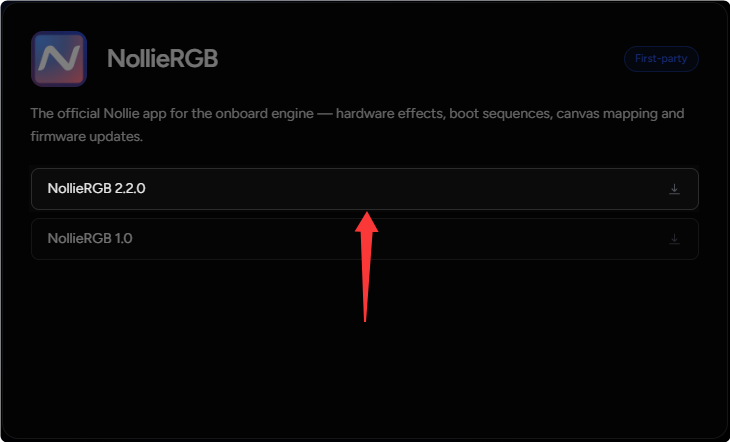
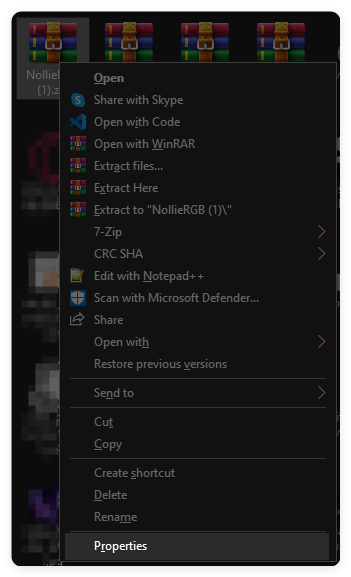
- Right click
NollieRGB.zipand click Properties.
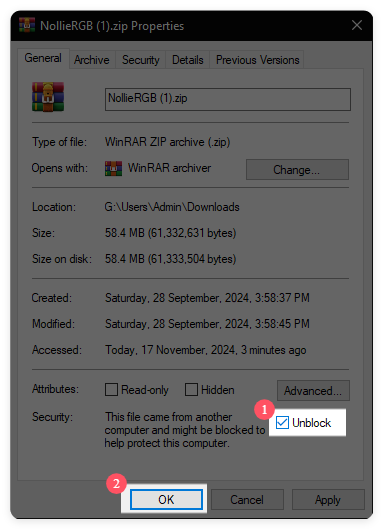
- Check the Unblock checkbox and click OK.
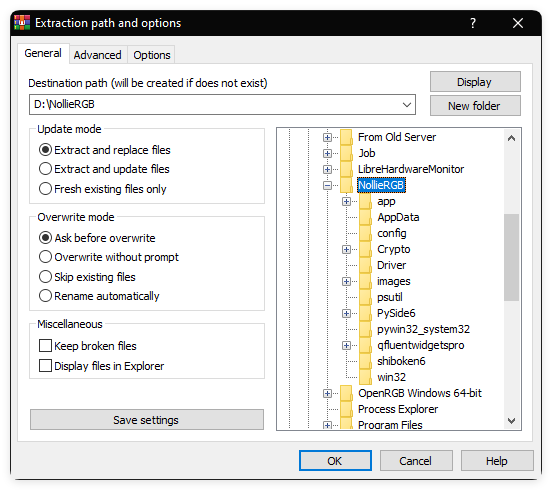
- Extract
NollieRGB.zipto your Computer.
Setup
- If you are updating from older Nollie firmware, please write down your OpenRGB zone size, SignalRGB components, Skydimo layouts or Nexus zone size, because you’ll lose all your previously saved settings.
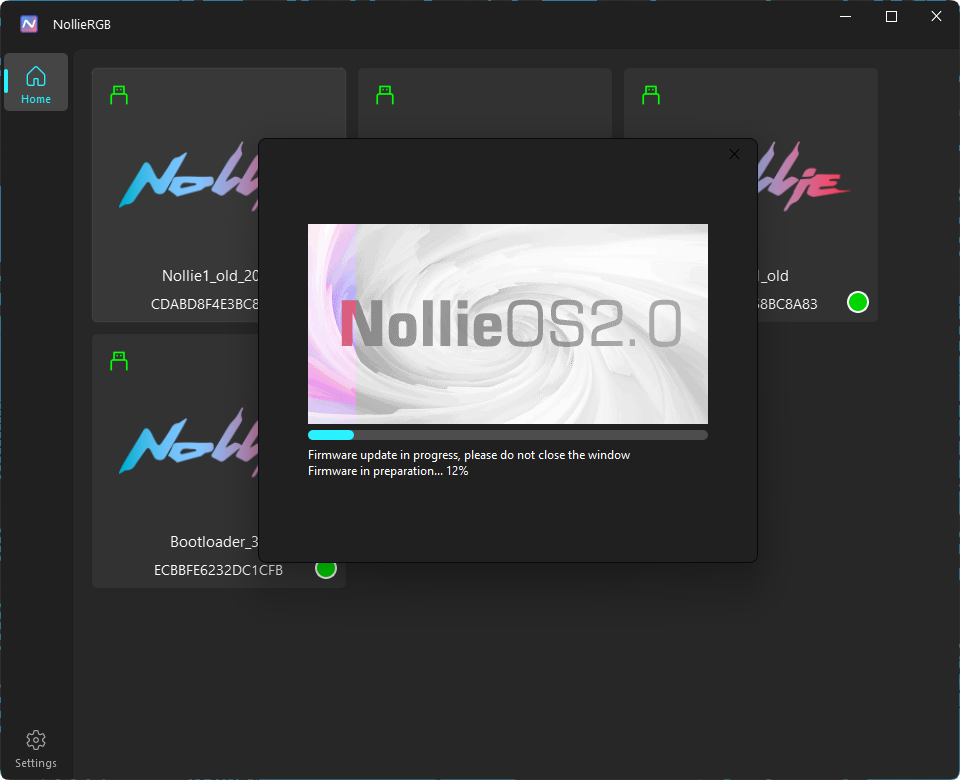
- Now run NollieRGB 2.2 and click on one of your Nollie controllers to perform the automated firmware update.
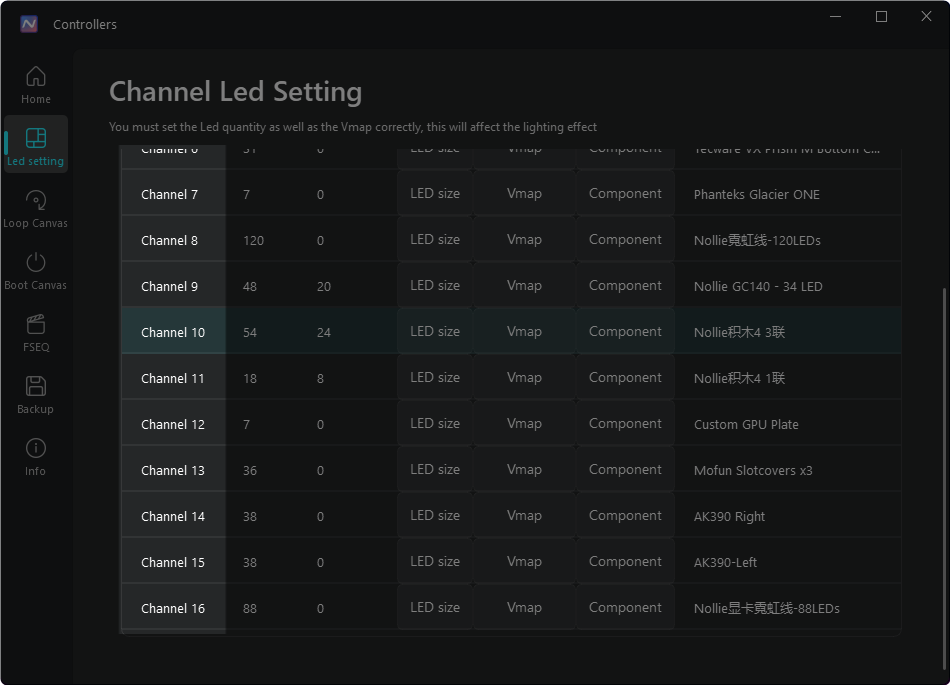
- On the left you have LED settings, click on it to see the Channel Led Setting page.
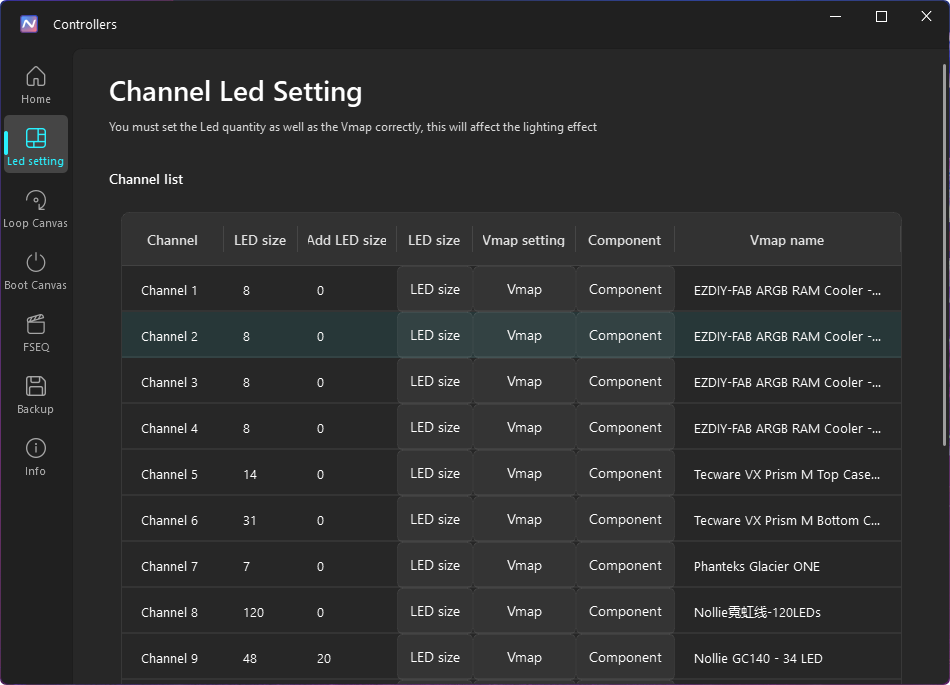
-
There are 3 ways to resize zones:
- Good old LED Size
- Vmap (not compatible with NollieRGB 1.0)
- SignalRGB’s Component presets
-
Click on Components and choose one of the presets.
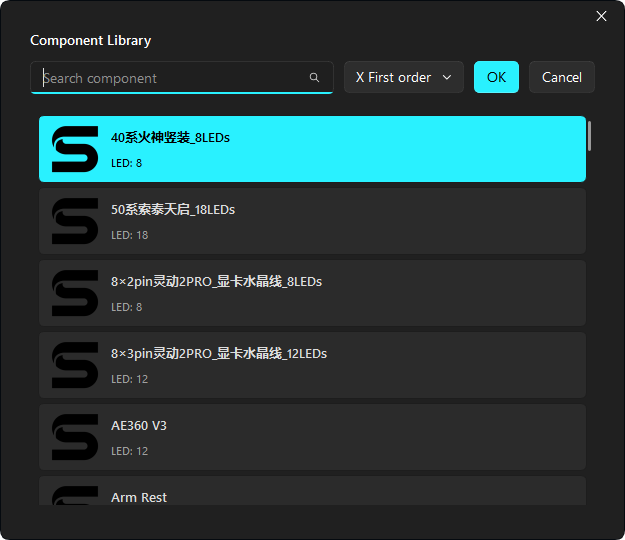
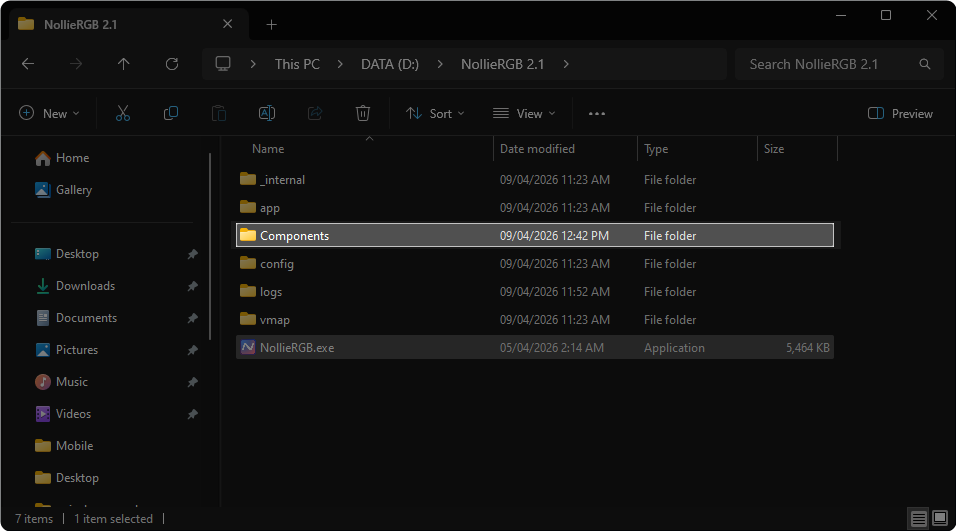
- If your component is not in the list, use our Nollie x SignalRGB Component Editor and save it into the
Componentsfolder in your NollieRGB 2.2 directory.
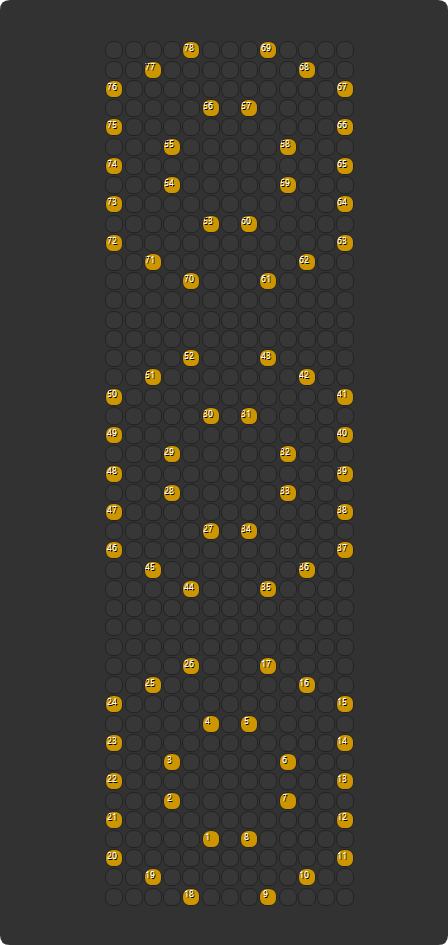
- If your components are daisy-chained into one channel, create a custom chained component:
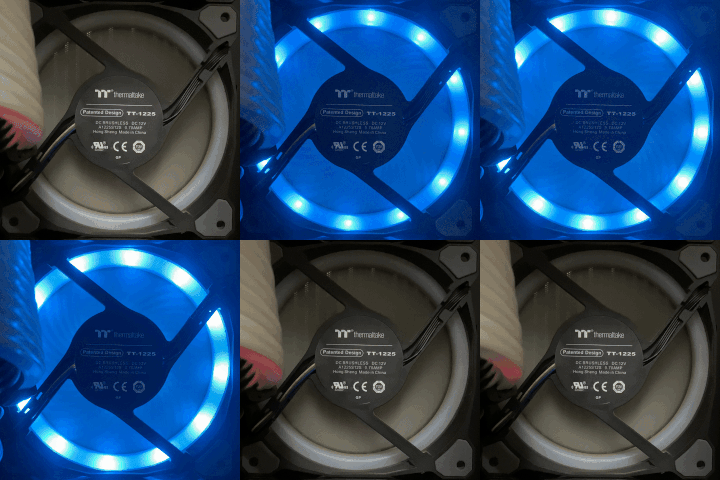
- If you’re unsure which channel corresponds to which component, click on the Channel name on the left — it will pulse green on the physical component for instant visual verification.
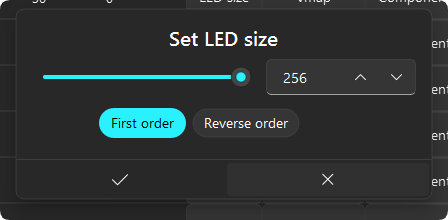
- You can also just create a linear LED strip by clicking on LED size button.
Nollie 32CH Lian Li Strimer & Nollie 1CH GPIO Modes
- Lian Li Strimer 24-pin: Resize Channel ATX 1, ATX 2, ATX 3, ATX 4, ATX 5 and ATX 6 to 20 LEDs. (This step is only applicable for Nollie32)
- Lian Li Strimer GPU dual 8-pin or triple 8-pin: Resize Channel GPU 1, GPU 2, GPU 3, GPU 4, GPU 5 and GPU 6 to 27 LEDs. For dual 8-pin, leave Channel GPU 5 and GPU 6 at 0 LED. (This step is only applicable for Nollie32)
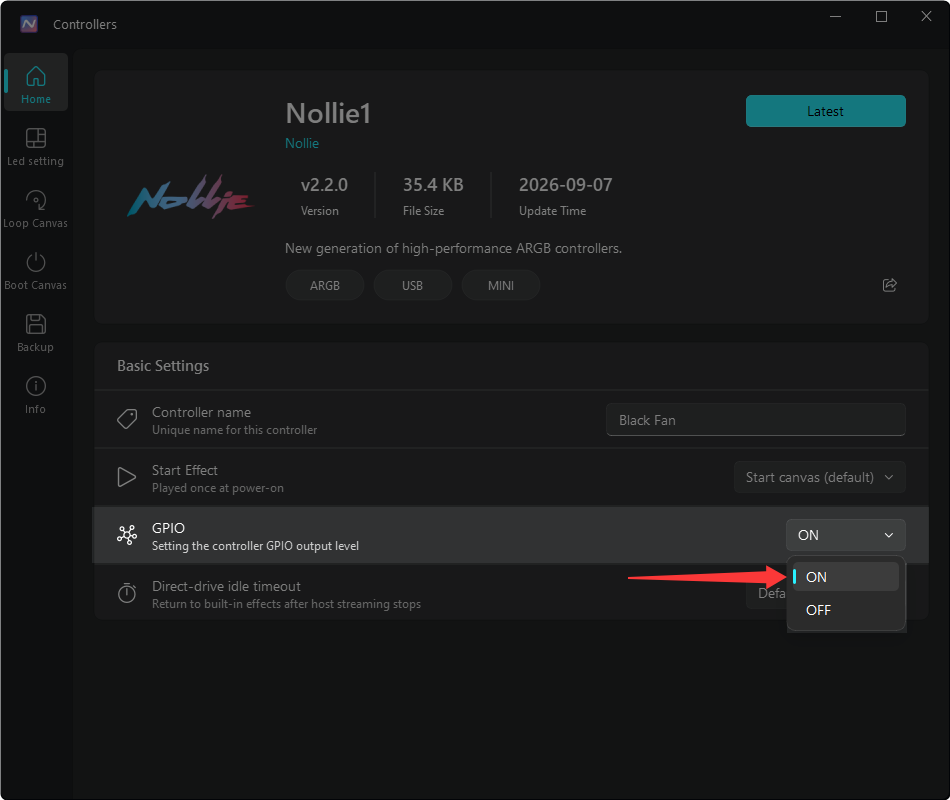
- Go back to Home on the top left: Change GPIO to 1 if you have Dual 8-pin and leave it at 0 if you have Triple 8-pin. (This step is only applicable for Nollie32)
- For Nollie 1CH users: Change GPIO to OFF if you are powering your LEDs via external power supply, leave it at ON if you are powering via USB. (This step is only applicable for Nollie1)
Setup Canvas & Effects
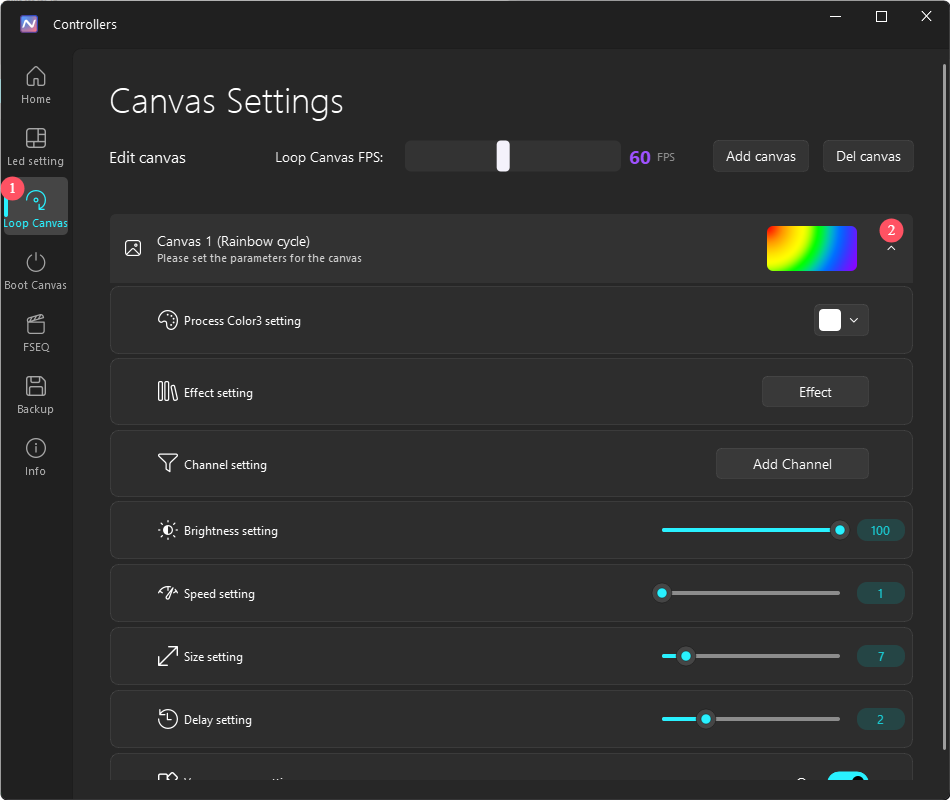
- Click on Loop Canvas on the left and expand Canvas 1. If you don’t see a Canvas, add one.
- Solid color: click on the Effect button, choose Solid Color, and change the color from Color 1 setting.
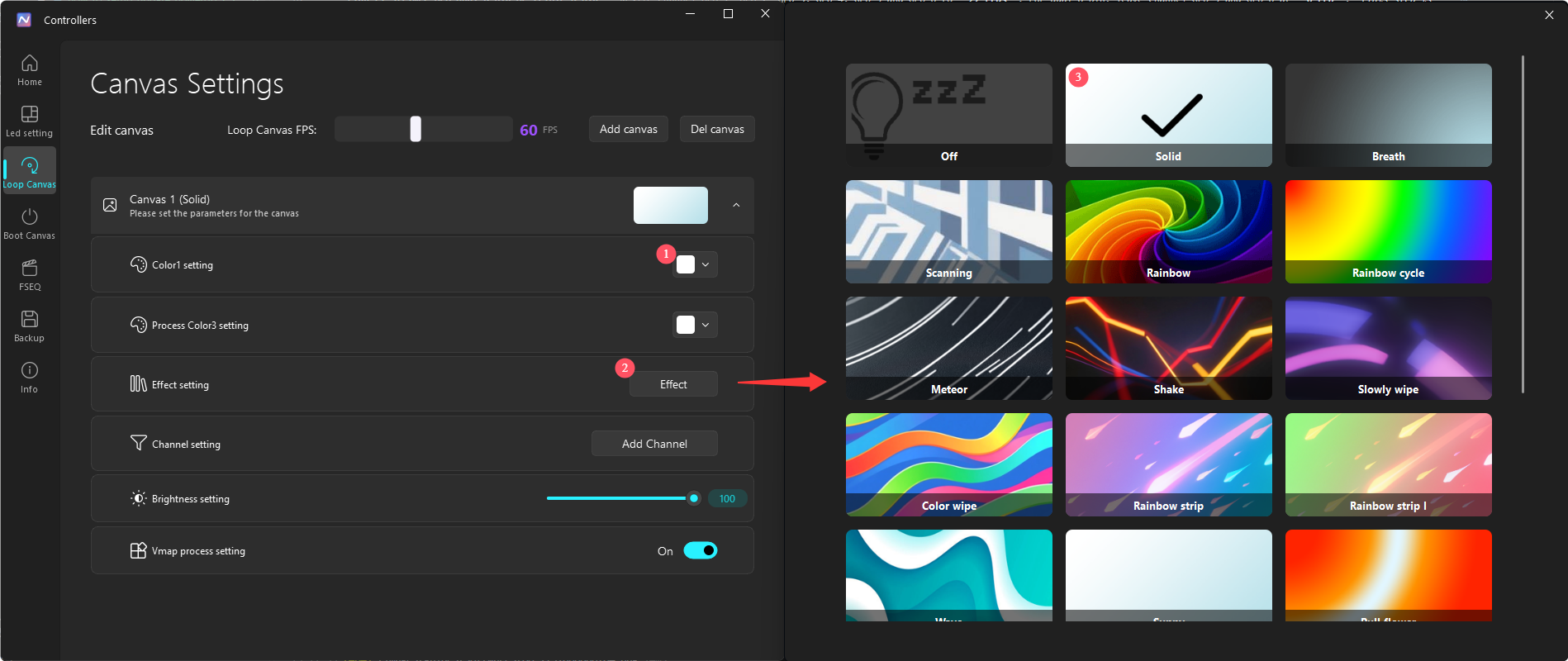
- For other effects: click on Effect button and choose any effect.
- You can rearrange channels by clicking Add Channel and dragging channels up or down to set effect travel order.
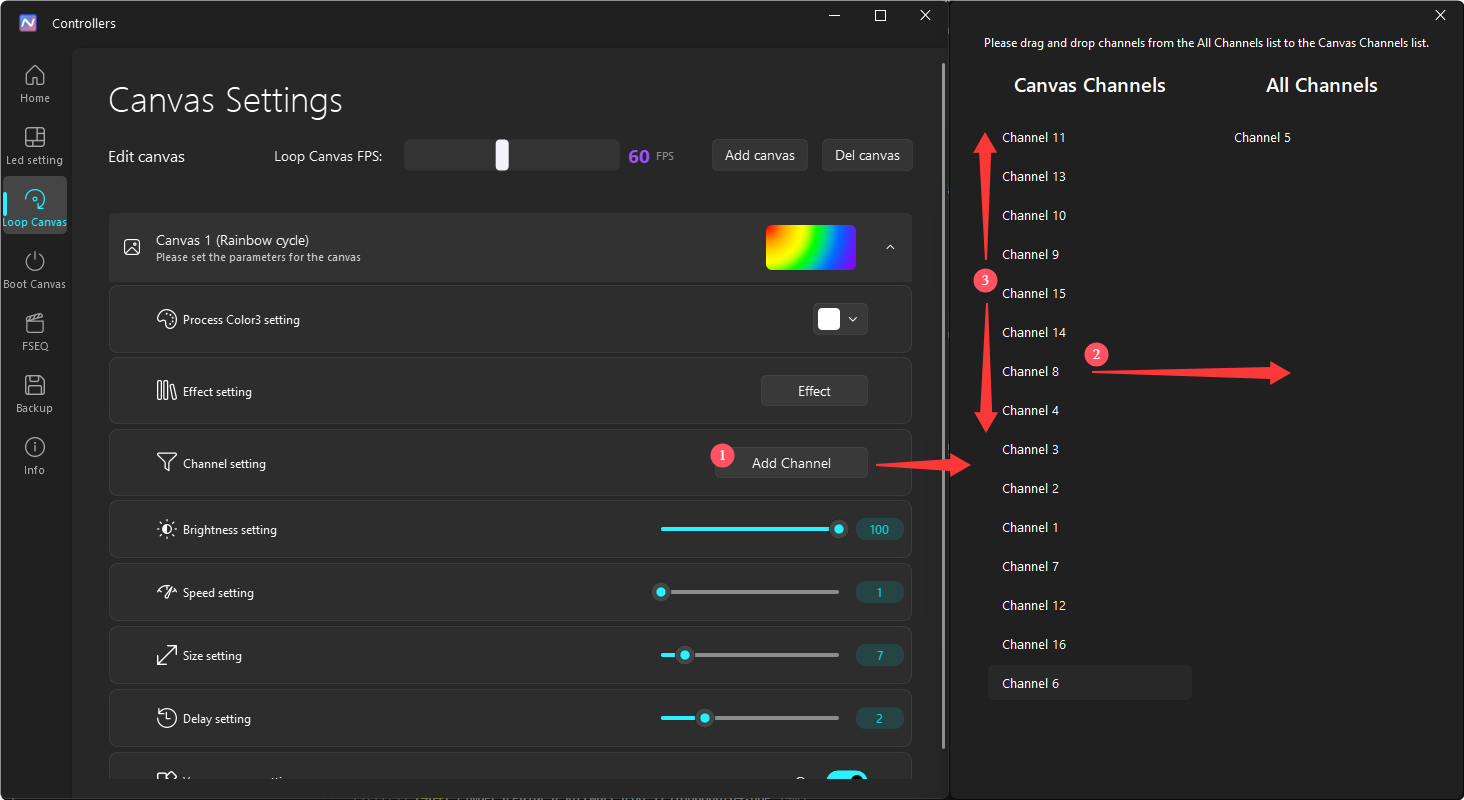
- Drag channels you don’t want the current effects to play on from Canvas Channels to All Channels.
Third-Party RGB Software Integration
- OpenRGB: Download 1.0.
- SignalRGB: Install the Nollie SignalRGB Addon. Add to SignalRGB
- Skydimo: Install the Nollie Plugin.
- Nexus: Download latest version.