
How to Use the Pixel Art Painter
Draw pixel art and animations for LED matrices in SignalRGB (WLED, Nollie1) and the OpenRGB Pixel Screen plugin.
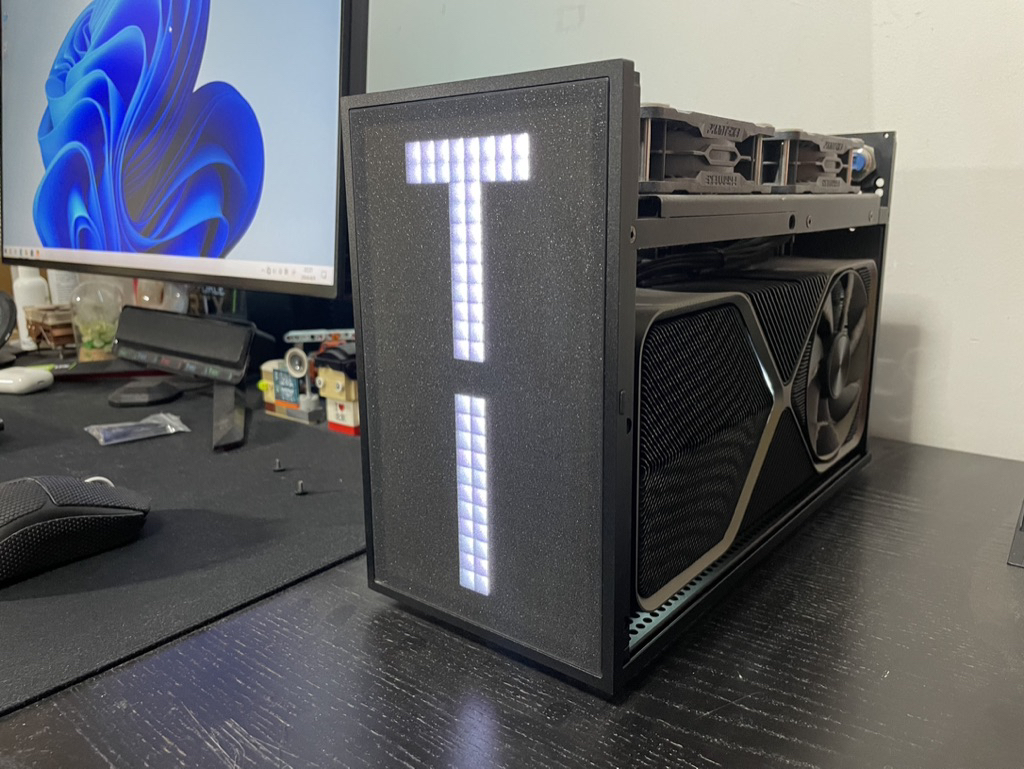
- Draw in the browser at nolliergb.com/tools/pixel-art-painter, then use File → Export code and paste the code into your plugin.
- The WLED plugin in SignalRGB supports everything: animations, custom colours, Forced and both Translucent levels.
- OpenRGB Pixel Screen only understands white (1) and black (0) cells in a single frame. Custom colours or animations stop the art from showing.
- Saving, sharing and the community gallery need a free Pixel Art account. Saved drawings are public.
The Pixel Art Painter draws pixel art and short animations for LED matrices. It produces a small block of code that you paste into one of three plugins:
- WLED plugin in SignalRGB: full support, including animations and colours.
- Nollie1 plugin in SignalRGB: simple on/off art.
- OpenRGB Pixel Screen plugin in OpenRGB: simple on/off art.
Drawing happens in your browser and is autosaved on your computer. You only need an account to save drawings online, share them, or browse the community gallery.
Which Plugin Supports What
Each cell in your drawing is one of these types. The plugins treat them differently, so pick the cells that suit where the art will be shown.
| Cell type | Key | WLED | Nollie1 | OpenRGB Pixel Screen |
|---|---|---|---|---|
| Transparent | 1 |
Effect shows | Effect shows | Text Color |
| Black | Off | Off | Effect shows | |
| Translucent 1 | 3 |
Dimmed effect¹ | Effect shows | As Black |
| Translucent 2 | 4 |
Dimmed effect¹ | Effect shows | As Black |
| Forced | 2 |
Forced Color | Effect shows | As Black |
| Custom colour | 6 |
Exact colour | Effect shows | ✕ Art won’t show |
| Animation | Plays | ✕ Not supported | ✕ Art won’t show |
¹ Set by the WLED plugin’s Translucent 1 Level and Translucent 2 Level (defaults 30% and 80% brightness).
“Effect shows” means the SignalRGB or OpenRGB lighting effect shows through that cell. Paint Black with the black colour preset.
Summary:
- For WLED, anything goes.
- For Nollie1 and OpenRGB Pixel Screen, draw a single frame using only Transparent and Black.
- OpenRGB’s Invert Background / Text Colors and WLED’s Invert Text options swap what Transparent and Black do.
Interface Overview
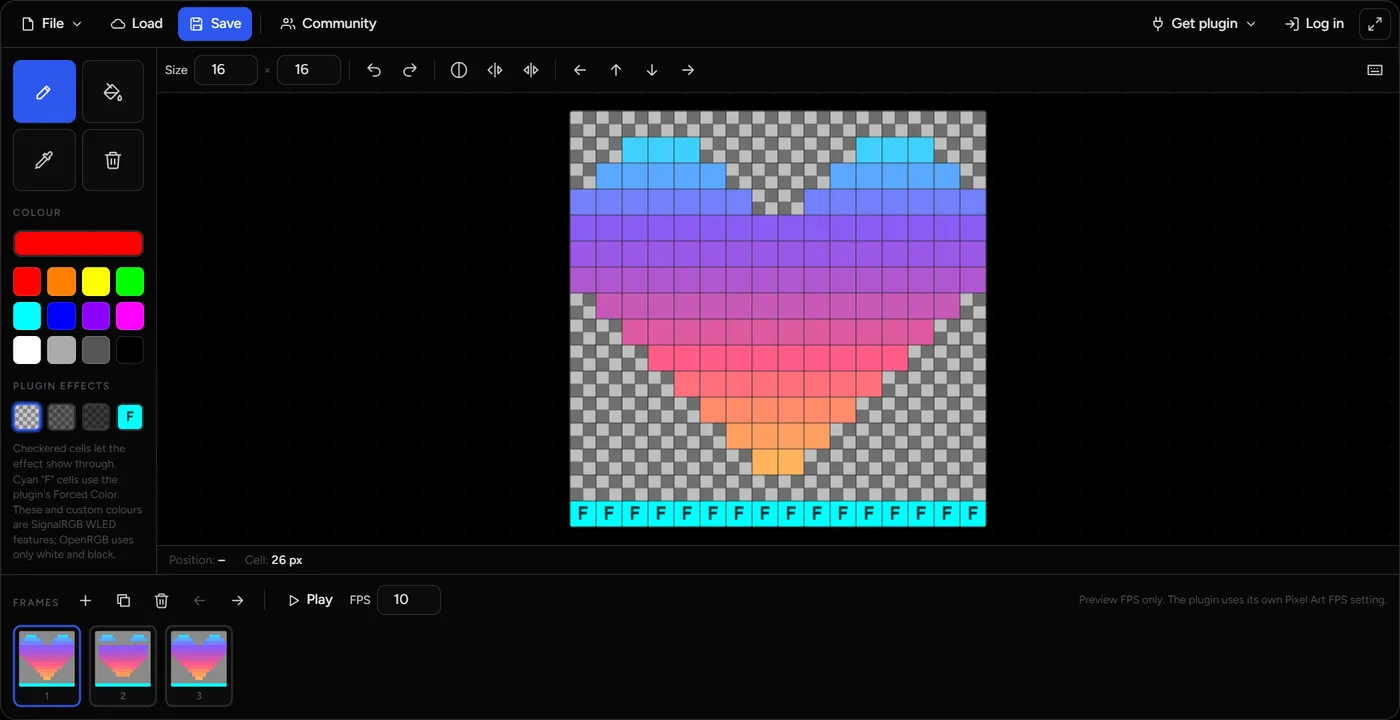
- Top bar:
- File menu, with New, Import code, Import image or GIF, and Export code.
- Load and Save for your account, Community, and Share.
- Get plugin, your account, and full screen.
- Tool rail (left): drawing tools, colours and plugin effects.
- Toolbar:
- Size (columns × rows, up to 99 × 99).
- Undo / Redo, then the Invert, Mirror and Flip menus.
- Shift arrows, and the keyboard shortcuts list.
- Canvas: your drawing. The status bar shows the cell under your mouse and the cell size.
- Frames: the animation strip, with play/pause and preview FPS.
Drawing
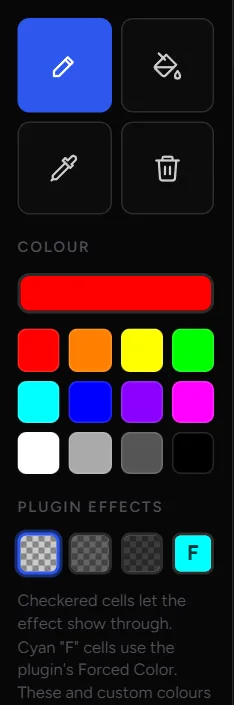
- Set the Size to match your matrix (for example 16 × 16, or 32 × 8). Changing the size keeps what you’ve drawn in the top-left corner.
- Pick a tool:
- Draw (
D): click or drag to paint cells. - Fill (
F): flood-fill an area of one colour. - Pick colour (
K): click a cell to pick up its colour or effect, then return to the previous tool. - Clear (
C): reset the frame to black.
- Draw (
- Pick what to paint:
- Colour: click the big swatch for any colour, or one of the presets. The black preset paints Black cells.
- Plugin effects: Transparent, Translucent 1, Translucent 2 and Forced. See the table above for what they do.
Undo with Ctrl + Z and Redo with Ctrl + Y. Each frame has its own undo history.
Transform the drawing
- Invert: swap Transparent ↔ Black, swap the two Translucent levels, or both.
- Mirror: copy the left half onto the right half, or the top half onto the bottom.
- Flip: reverse the drawing horizontally or vertically.
- Shift (arrow keys): move everything one cell. Whatever falls off one edge wraps around to the other.
Animations

- Click + to add a blank frame after the current one, or the copy button to duplicate it. Duplicating is usually easier when frames only change a little.
- Click a frame in the strip to edit it. Use the arrows to reorder frames, and the bin to delete one.
- Click Play to preview. FPS only sets the preview speed. In SignalRGB, the WLED plugin’s Pixel Art FPS setting controls the real speed.
Animations only play in the WLED plugin. For Nollie1 or OpenRGB, keep a single frame.
Importing Images and GIFs
Choose File → Import image or GIF… and pick a file:
- The image is scaled to the current Size, so set the size first.
- Pixels that are mostly see-through become Transparent cells.
- Everything else becomes a custom colour, so imported images are best shown on WLED.
- Animated GIFs become one frame per GIF frame, up to 60 frames, and set the preview FPS from the GIF’s timing.
Exporting to Your Plugin
Choose File → Export code (or press Ctrl + E), then click Copy code. Pressing Ctrl + C on the canvas copies the code too.
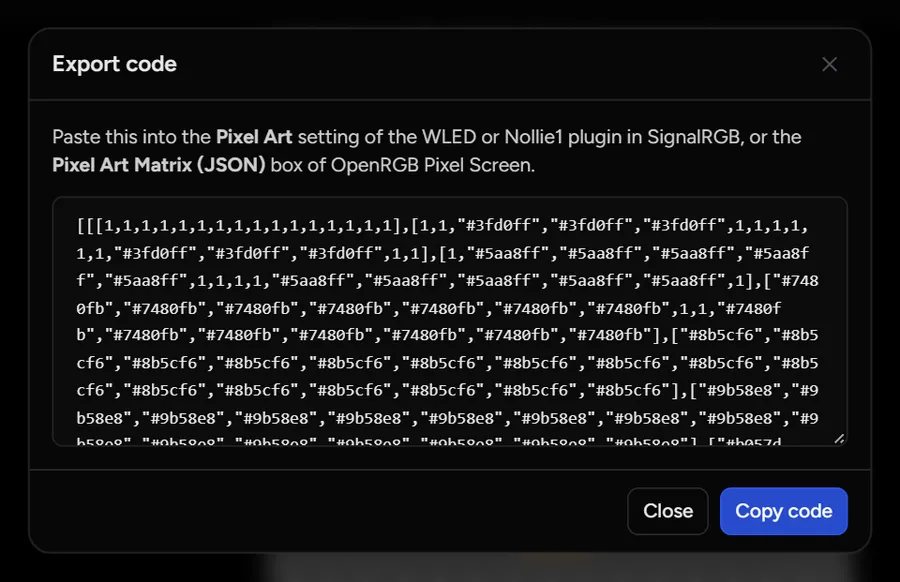
WLED in SignalRGB
- Set up your matrix as a 2D layout in WLED’s own settings.
- Use the WLED plugin from Nollie’s SignalRGB-WLED-Clock-PixelArt-Plugin (
wled-clockbranch). It has the Pixel Art FPS, Translucent and Forced Color settings. - In SignalRGB, open your WLED device and set Matrix Display Mode to Pixel Art.
- Paste the code into the Pixel Art setting.
- Adjust Pixel Art FPS, Translucent 1 Level, Translucent 2 Level and Forced Color to taste. Use Padding X / Y and Scroll Direction to position or scroll the art.
Nollie1 in SignalRGB
- In SignalRGB, open the Nollie1 device and set Display Mode to Pixel Art.
- Paste the code into Display Mode: Pixel Art.
- Use Padding X / Y to position it. The Nollie1 display is 32 × 8.
OpenRGB Pixel Screen
- Install the plugin. See How to Setup OpenRGB Pixel Screen Plugin.
- In the Pixel Screen tab, select your matrix and set Display Mode to Pixel Art.
- Paste the code into Pixel Art Matrix (JSON).
- Choose the Text Color: that’s the colour of your Transparent cells. Black cells show the OpenRGB effect underneath.
Importing code back
To edit art from a plugin, copy its code and choose File → Import code…, or just press Ctrl + V on the canvas. Importing replaces the current drawing.
Saving, Sharing and the Community
Your drawing is autosaved in this browser every couple of seconds. Reopening the page brings it back.
To keep drawings online, you need a free account. Click Log in, then Sign up.
- Save (Ctrl + S): saves to your account. Once saved, the button changes to Update, and saving again updates the same drawing. Tick Save as a copy to keep the original. Cancel edit starts a fresh drawing.
- Load (Ctrl + O): opens My drawings.
- Share: publishes a copy of the drawing to the community without putting you in edit mode.
- Community: browse the Latest drawings, Search by name or author, see your Favorites (the heart button, remembered in this browser), and open My drawings.
- The share button on any drawing gives you a link that opens it straight in the painter.
Drawings saved to your account are public. Anyone can see them in the community gallery.
Keyboard Shortcuts
| Shortcut | Action |
|---|---|
| D / F / K | Draw, Fill, Pick colour |
| C | Clear the frame |
| 1 / 2 / 3 / 4 | Transparent, Forced, Translucent 1, Translucent 2 |
| 6 | Custom colour |
| Arrow keys | Shift the frame by one cell (wraps around) |
| I | Invert all |
| Ctrl + I / Alt + I | Invert black & white / invert translucents |
| Ctrl + Z / Ctrl + Y | Undo / redo |
| Ctrl + C / Ctrl + V | Copy the code / paste code to import it |
| Ctrl + E | Export code |
| Ctrl + S / Ctrl + O | Save / open your drawings |
On a Mac, use ⌘ in place of Ctrl.
Troubleshooting
Nothing shows in OpenRGB Pixel Screen
The plugin rejects any drawing that contains a custom colour or has more than one frame. Remove extra frames, then repaint coloured cells as Transparent or Black.
Translucent or Forced cells look the same as the effect
That’s expected on Nollie1. Only the WLED plugin supports these. On WLED, check the plugin’s Translucent 1 / 2 Level and Forced Color settings, and make sure you’re using the plugin linked above.
The art is cut off or in the wrong place
Make sure the Size matches your matrix. Then use the plugin’s Padding X / Y to move the art.
My account drawings or the gallery won’t load
These come from the Pixel Art server, which can take a few seconds. Check your connection and try again. Your current drawing is safe either way: it’s autosaved in your browser.