
How to Create custom Components with the Nollie x SignalRGB Component Editor
Design custom LED components for SignalRGB and create VMAPs & components for NollieRGB.
- Requires .NET 8.0 Runtime on Windows; download from the official GitLab repository.
- Save as 'SignalRGB Component' directly into Documents/WhirlwindFX/Components.
- Save as 'NollieRGB VMAP' to take advantage of LED hiding (Ctrl+H) and custom channel remapping for Nollie controllers.
- Import guide background images to trace complex fans, AIO blocks, and custom PC layouts with 1:1 accuracy.
The Nollie x SignalRGB Component Editor is an offline desktop tool created by qiangqiang101 and the Nollie community. It allows you to visually design, edit, and export custom LED layouts as:
- SignalRGB Components (
.json) — Placed into%USERPROFILE%\Documents\WhirlwindFX\Componentsto give SignalRGB accurate physical LED locations for smooth, non-warped lighting effects across fans, strips, blocks, and custom rigs. - NollieRGB VMAPs & Components (
.json) — Loaded into NollieRGB 2.2, supporting custom LED indexing and LED shielding (hiding) to disable unwanted LEDs (e.g. inner fan rings or daisy-chain bridges). - OpenRGB Visual Map Converter — Converts existing OpenRGB visual maps into ready-to-use SignalRGB components or NollieRGB VMAPs.
Prerequisites & Download
- Ensure .NET 8.0 Desktop Runtime is installed on your Windows system.
- Download the latest release
.zipfrom:- GitLab: Nollie-SignalRGB-Component-Editor Releases
- GitHub: SignalRGB-CompGen Releases
- Right-click the downloaded
.zipfile, open Properties, check Unblock if present, and click OK. - Extract the
.ziparchive and launchcompeditor.exe.
Interface Overview & Navigation
The interface is divided into three key sections:
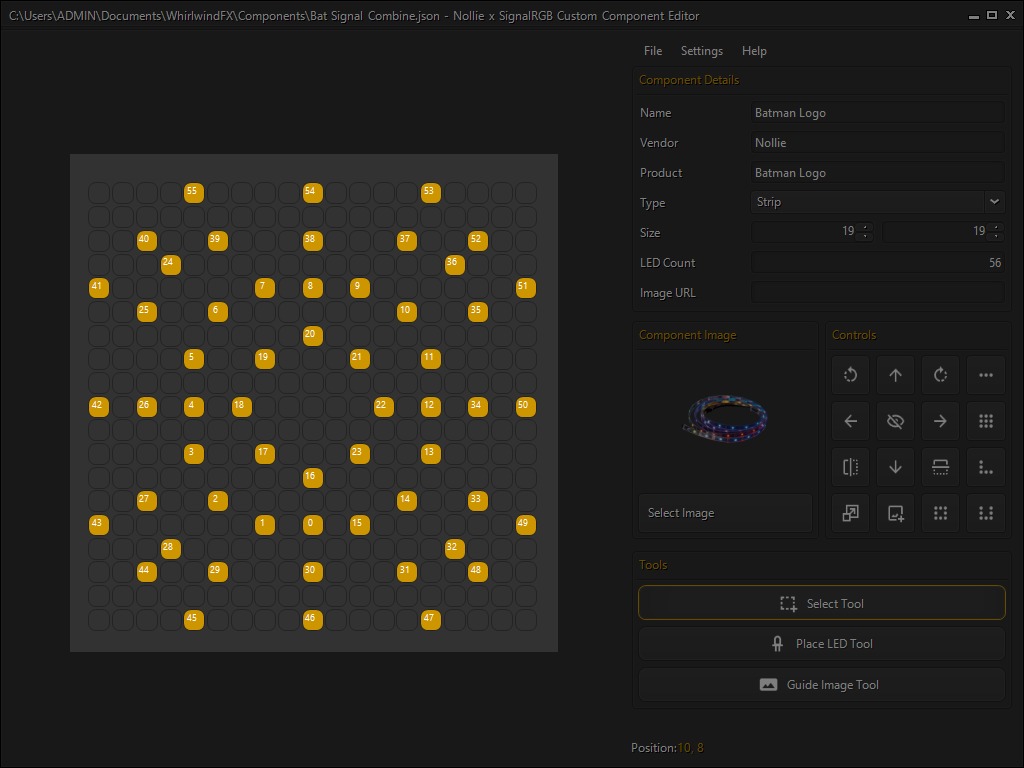
- Toolbar & Controls: Shape generators (Linear, Matrix, L-Shape, U-Shape, Rectangle), transformation tools (Move, Rotate, Flip, AutoResize, Hide), and Tool Selector (Select, Place LED, Guide Image).
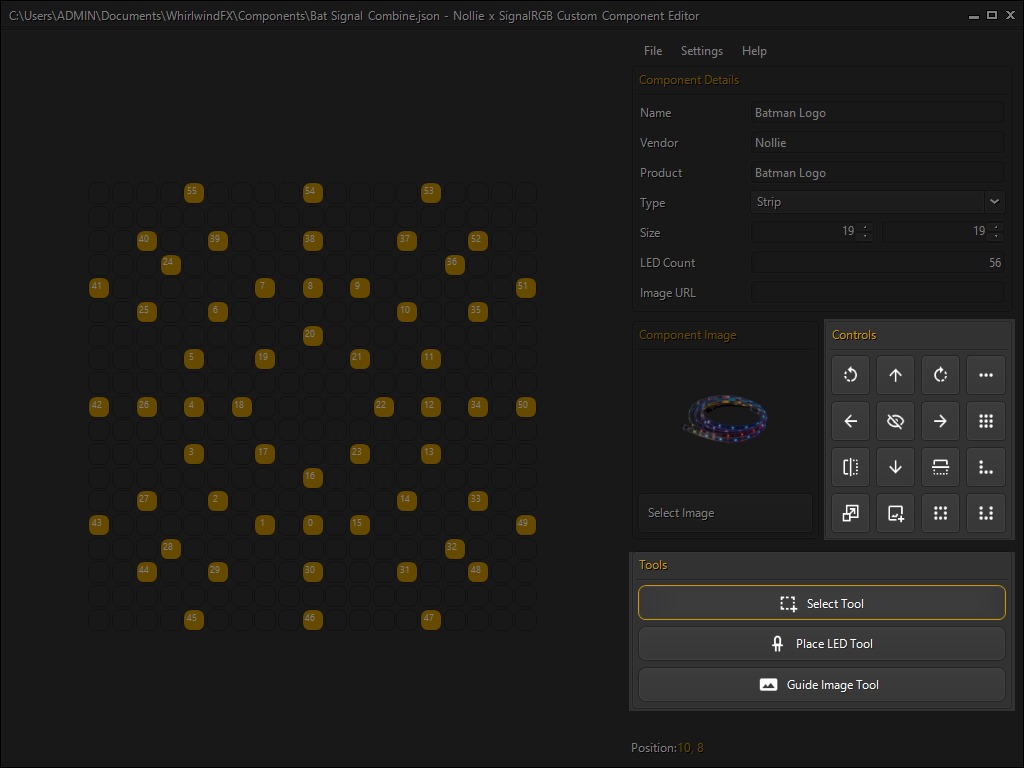
- Canvas: Interactive grid displaying placed LEDs (with their channel mapping index), drag-selection box, and reference guide image.
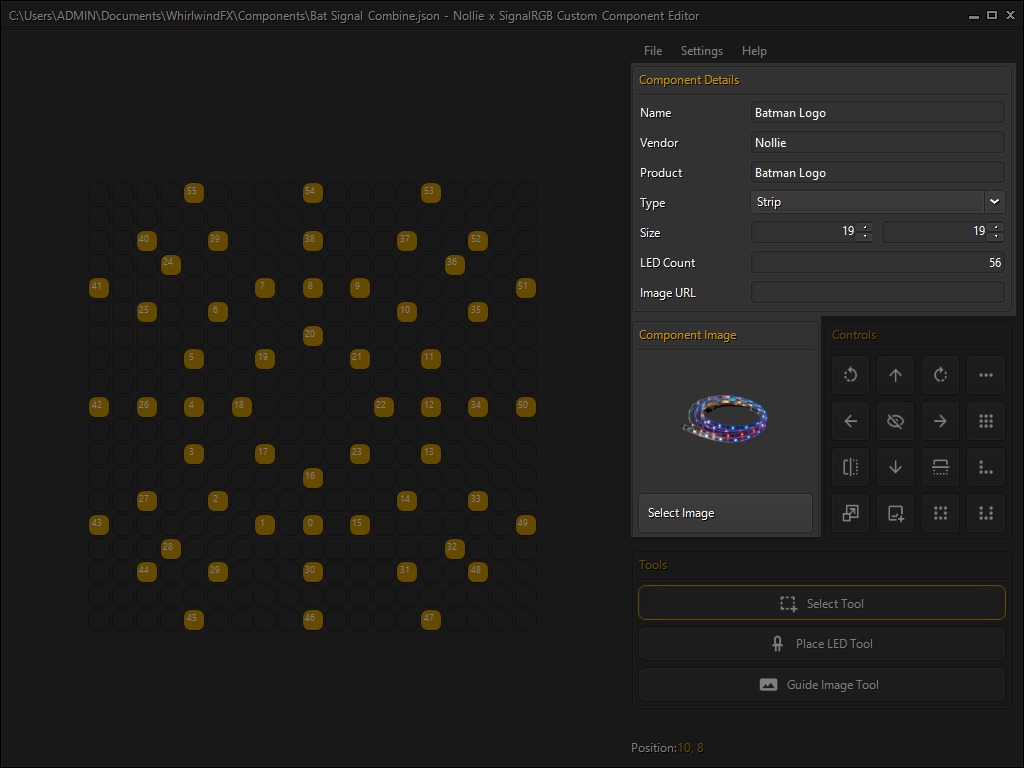
- Details Panel: Device metadata (Name, Vendor, Product, Type, canvas Width/Height, LED Count, and Component icon/URL).
Canvas Navigation
| Action | Mouse / Shortcut |
|---|---|
| Pan Canvas | Hold Middle Mouse Button and drag |
| Zoom In / Out | Mouse Scroll Wheel |
| Open Context Menu | Right-Click anywhere on the canvas |
| Inspect LED | Hover mouse over any LED to view its Index, Name, and (X, Y) Coordinates |
How to Draw Components
Method A: Manual Drawing with the Place LED Tool
- Under Tools, select Place LED Tool (or use the left toolbar).
- Click on any grid cell to place a single LED.
- Click and drag across consecutive cells to rapidly “paint” sequential LEDs in order.
- Each LED automatically increments in index number (
0, 1, 2, ...or1, 2, 3...depending on your index shift settings).
Method B: Tracing with a Guide Image
For fans with circular rings, GPU waterblocks, or intricate case panels, trace directly over a physical photo:
- Click Insert Guide Image (or right-click canvas > Insert Guide Image).
- Select a
.png,.jpg, or.webpphoto of your device. - Switch to the Guide Image Tool under Tools.
- Drag the corner handles to resize the background image to match your canvas scale, or drag the center to reposition it.
- Switch back to Place LED Tool and click directly on each physical LED location visible on the picture.
Method C: Shape Generators
For common geometric patterns, generate them with precise spacing in seconds:
- Linear Generator: Perfect for straight LED strips or GPU backplates. Choose LED count, direction (Up, Down, Left, Right), and spacing.
- Matrix Generator: Ideal for 2D LED matrix panels. Enter Rows and Columns, select starting corner/direction, and enable Serpentine if the LED wiring zigzags back and forth.
- L-Shape / U-Shape: Great for corner accents and cable routing. Configure corner bend position and optional Rounded Corners.
- Rectangle Generator: Creates closed rectangular perimeters (e.g. square fan frames or AIO pump heads).
Editing, Transforming & Daisy-Chaining
Selection & Multi-Select
- Select the Select Tool.
- Click an individual LED, or click and drag a rectangular bounding box across multiple LEDs.
- Hold Ctrl and click individual LEDs to add them to your selection.
- Drag selected LEDs to move the entire group to a new position on the canvas.
Transformations
- Rotate Clockwise / Counterclockwise: Rotates selected LEDs (or all LEDs if none selected) by 90 degrees and automatically adapts canvas width and height.
- Flip Horizontal / Flip Vertical: Mirrors LED coordinates.
- AutoResize: Click AutoResize to instantly trim empty margins, aligning the top-left to coordinate (0, 0) and shrinking canvas dimensions to fit snugly.
Daisy-Chaining Fans & Strips (Copy & Paste)
If you have 3 identical fans chained together:
- Draw the first fan completely.
- Drag-select all LEDs in the fan.
- Press Ctrl + C (or right-click > Copy).
- Move your cursor to the right of the first fan and press Ctrl + V (or right-click > Paste).
- The pasted LEDs will automatically continue the mapping index from the end of the previous fan!
Hiding / Shielding LEDs (For NollieRGB VMAP)
NollieRGB controllers allow you to disable or shield specific LEDs in a chain so they do not light up during hardware effects, without breaking the sequential numbering expected by the controller:
- Use the Select Tool to highlight the LEDs you wish to deactivate (e.g. the 6 inner LEDs of a dual-ring fan).
- Press Ctrl + H (or click the Hide/Show LEDs eye icon).
- Hidden LEDs will change from orange to silver/grey.
- When exported to NollieRGB VMAP, these LEDs are placed into
fx_ch_zled_num/ZLedMapping. Nollie controllers will turn off these specific LEDs while seamlessly mapping effects across the active ones.
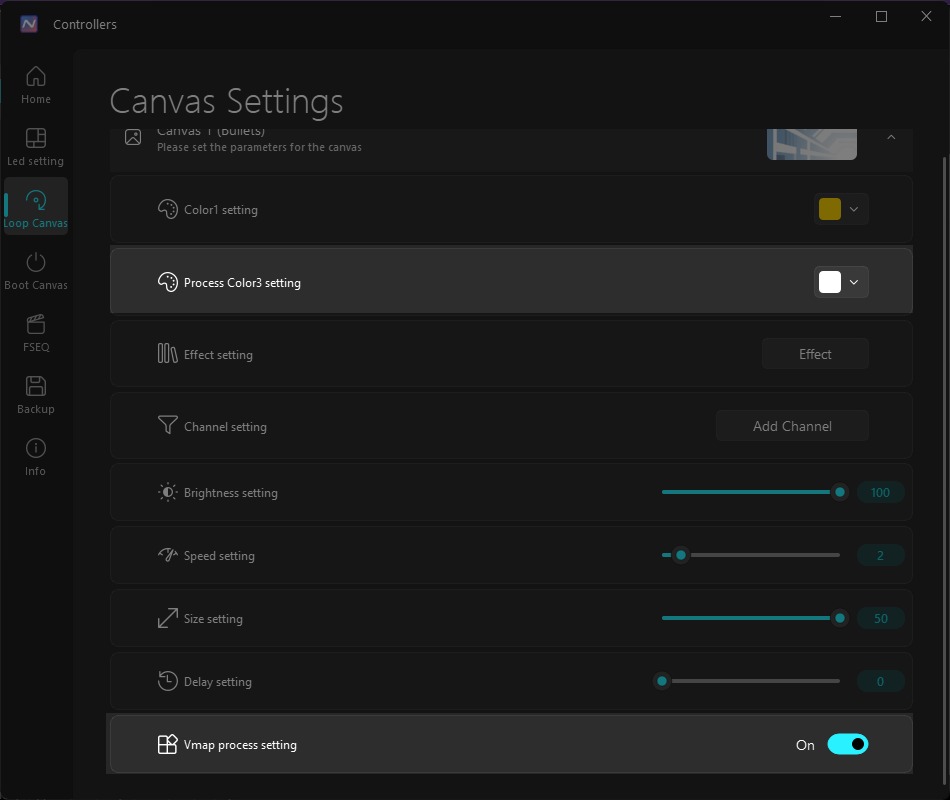
Tips: if the NollieRGB effect you chosen supports Process Color3 setting, the hidden LEDs will light up as color3. Remember also enable Vmap process setting for it to work.
Exporting for SignalRGB
- In the right panel, fill in the metadata:
- Name: Component display name (e.g., Thermalright TL-C12C Fan).
- Vendor: Manufacturer brand (e.g., Thermalright).
- Product: Product model.
- Type: Choose from Fan, Strip, AIO, GPU, Case, etc.
- Component Image: Click Select Image or paste an Image URL for the SignalRGB device card icon.
- Click AutoResize to remove unnecessary canvas padding.
- Go to File > Save As > SignalRGB Component.
- Save the
.jsonfile to your SignalRGB user components folder:
(e.g.,%USERPROFILE%\Documents\WhirlwindFX\Components\C:\Users\<YourUsername>\Documents\WhirlwindFX\Components\my_fan.json) - Restart SignalRGB.
- Inside SignalRGB:
- Go to Devices.
- Select your controller (e.g., Nollie16 or Nollie32).
- Click on the desired Channel > Click Add Component (
+). - Your newly created component will appear in the library with its custom LED layout!
Exporting for NollieRGB (VMAP & Component)
Starting with NollieRGB 2.0, it supports custom visual components and hardware VMAPs:
Saving as NollieRGB VMAP
- Ensure you have marked any shielded LEDs with Ctrl + H.
- Go to File > Save As > NollieRGB VMAP.
- Save the
.jsonfile. - Open NollieRGB > go to LED Settings > select Vmap.
- Load your saved
.jsonfile. Active LEDs appear white, disabled/hidden LEDs appear black. Click Save to flash the layout to your Nollie hardware.
Adding to NollieRGB Component Presets
You can also drop your exported SignalRGB component or VMAP file directly into the Components folder inside your NollieRGB program folder:
<NollieRGB_Directory>\Components\Restart NollieRGB, open LED Settings > Component, and your custom device will be ready to assign to any channel with 1 click.
Importing OpenRGB Visual Maps
If you already created visual maps in OpenRGB using its Visual Map plugin:
- Click File > Import OpenRGB Visual Map.
- Navigate to your OpenRGB settings folder:
%APPDATA%\OpenRGB\plugins\settings\virtual-controllers\ - Select the visual map file.
- Pick the specific device/zone from the dropdown in the import dialog.
- The component editor will automatically extract LED coordinates, matrix layouts, and indices into the canvas, ready to be exported to SignalRGB or NollieRGB!
Keyboard & Mouse Shortcut Cheatsheet
| Shortcut / Input | Function |
|---|---|
| Left Click | Select LED (Select Tool) / Place single LED (Place LED Tool) |
| Left Click Drag | Box multi-select (Select Tool) / Continuous LED paint (Place LED Tool) |
| Middle Click Drag | Pan canvas |
| Scroll Wheel | Zoom in / Zoom out |
| Right Click | Open context menu at mouse position |
| Delete (Tap) | Remove last placed LED / object |
| Delete (Hold > 3s) | Clear all LEDs from canvas |
| Ctrl + C | Copy selected LEDs to clipboard |
| Ctrl + V | Paste copied LEDs at current mouse position |
| Ctrl + H | Toggle Show / Hide (Silver = Shielded LED for VMAP) |
| Arrow Keys | Shift entire canvas LEDs Up / Down / Left / Right by 1 unit |
| Shift + Arrow Keys | Move selected LEDs independently |
| Spacebar | Place LED at current mouse position |