
Popular GuideSoftware·4 min read·Sep 20, 2024
How to setup SignalRGB
Complete guide to installing SignalRGB, resolving process conflicts, adding components, and configuring Strimers.
N
nuonuo
Nollie Team
Key Takeaways
- Always run the SignalRGB installer as Administrator and close conflicting vendor RGB software.
- Remove all auto-generated default strips on the controller before adding custom components.
- Nollie 32 users can activate Lian Li Strimer 24-pin and GPU cables directly in the Lighting tab.
Download SignalRGB
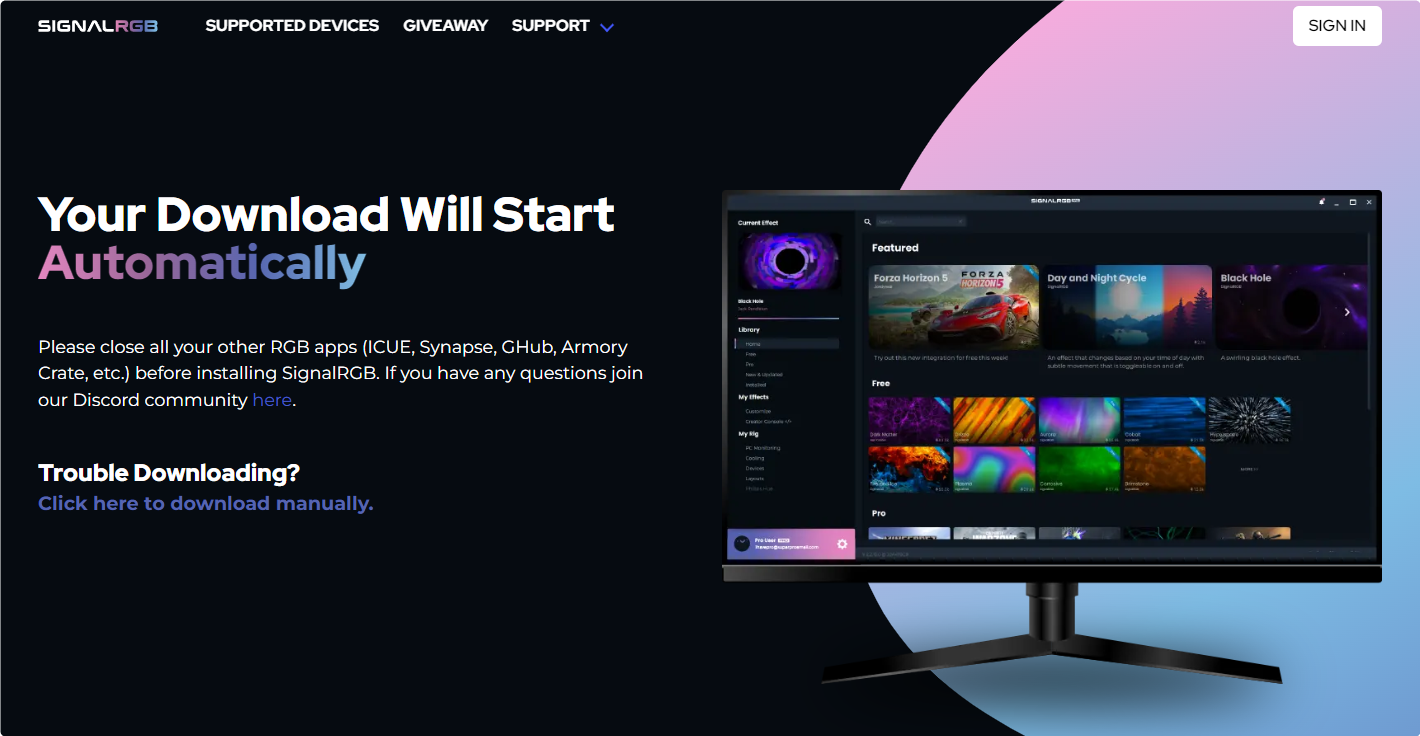
- Head over to https://signalrgb.com/download and download SignalRGB.
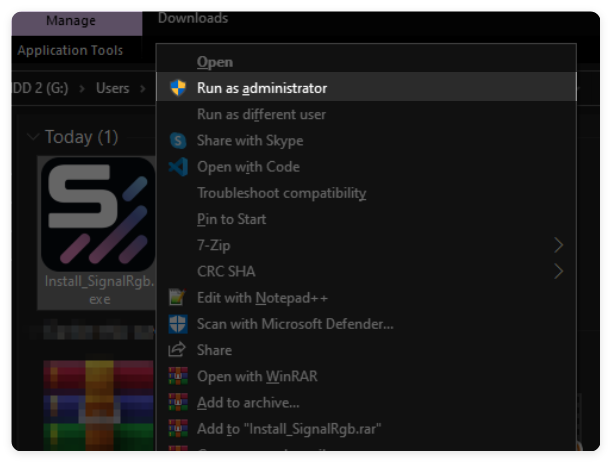
- Run the SignalRGB installer as Administrator.
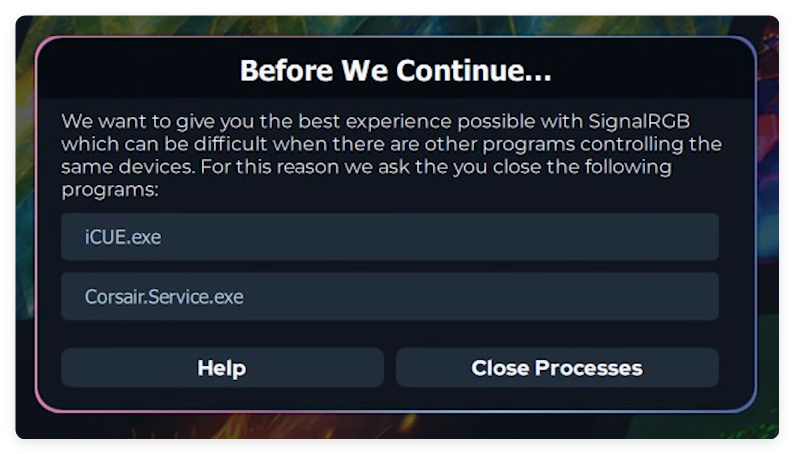
- If you see a pop-up with a list of conflicting exes, that means you didn’t uninstall or at least close the applications associated with the exes. Click on the Close Processes button.
Setup
- Once inside the application, click on the Devices button on the left.
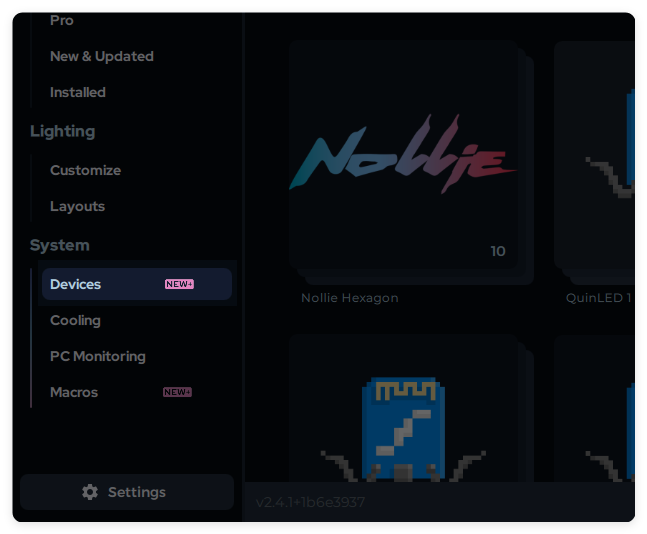
- Now click on one of your RGB Controllers.
- SignalRGB will create a custom Strip on every addressable RGB header by default, you’ll need to remove all of them.
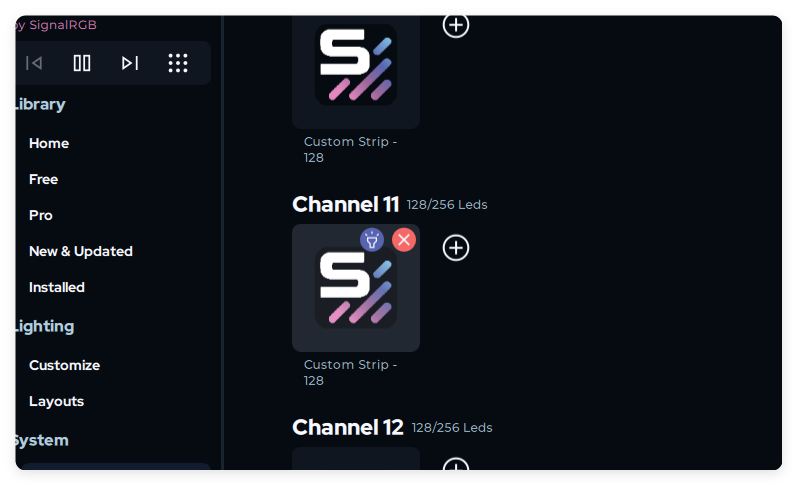
- Now you will see each component on your PC is pulsing the color corresponding to the channel number.
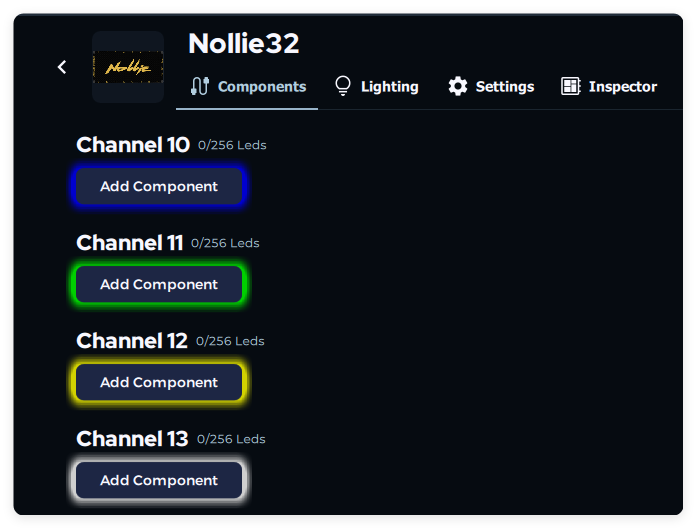
- Simply click Add Component which will pop open a menu and select your component.
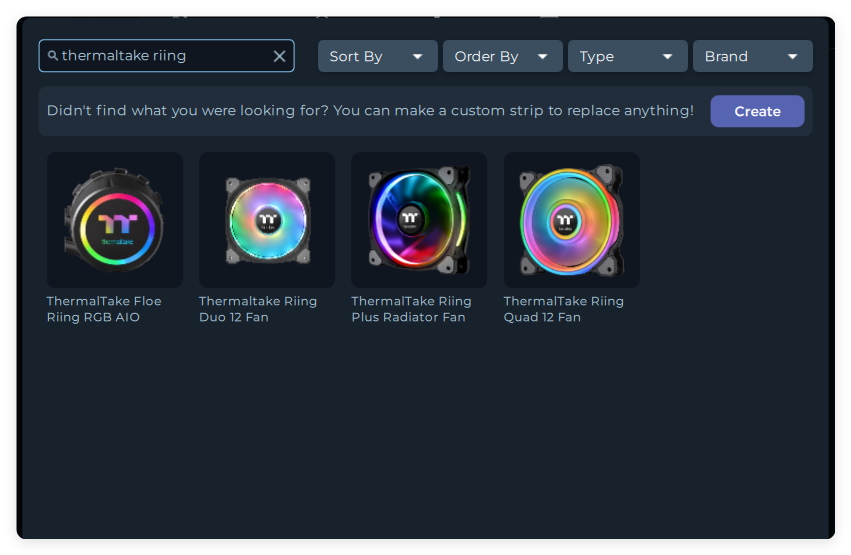
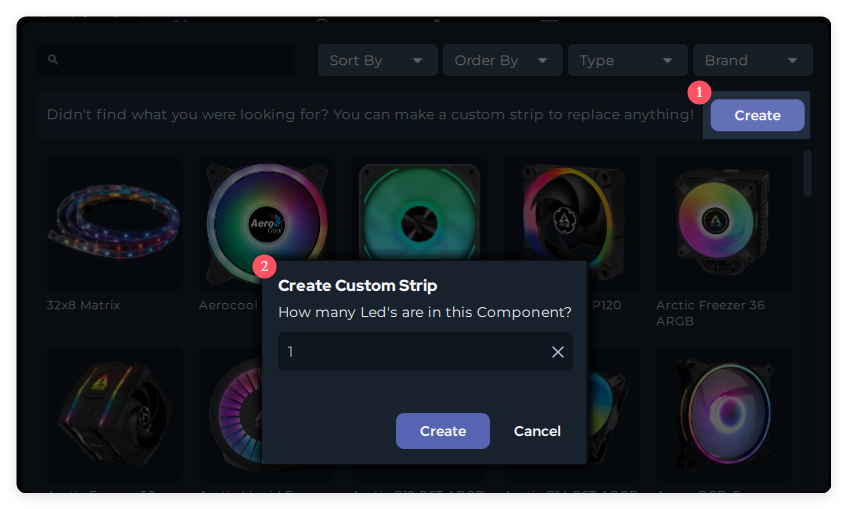
- You can also create a Custom Strip if your component is not found.
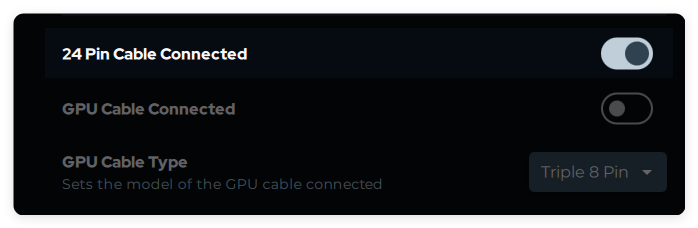
- If you have Lian Li Strimer 24-pin motherboard, enable 24 Pin Cable Connected in Lighting tab. (This step is only applicable for Nollie 32)
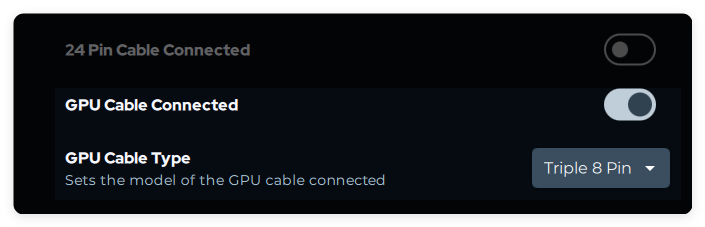
- If you have Lian Li Strimer GPU dual 8-pin or triple 8-pin, enable GPU Cable Connected and set the corresponding cable type in Lighting tab. (This step is only applicable for Nollie 32)
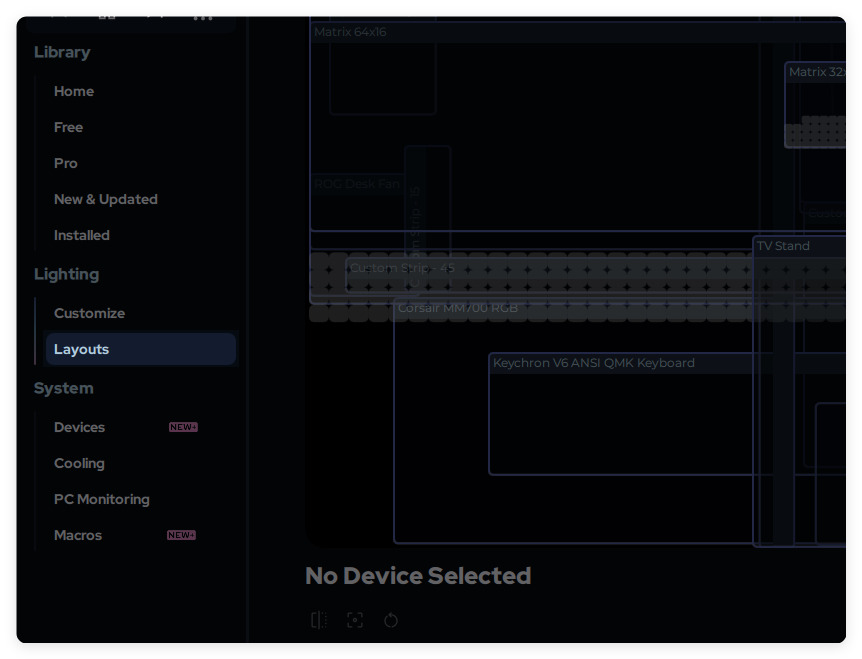
Canvas Layout
- When you done with all other components, head over to the Layouts tab.
- Start by hiding all devices, click the eyeball button.
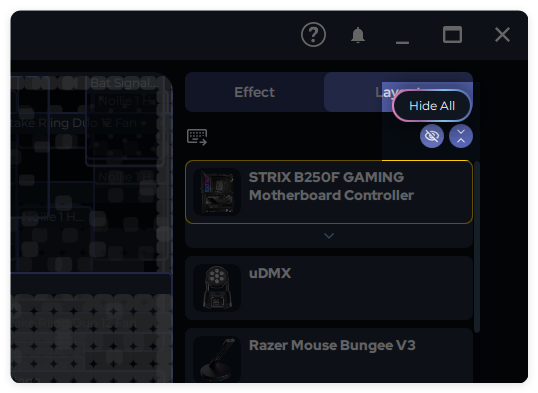
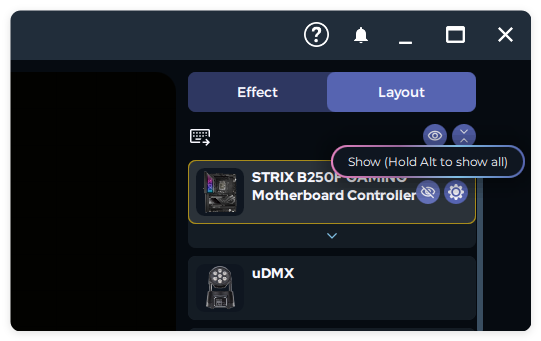
- Now Unhide your devices and components one by one by clicking the eyeball button on the device or component.
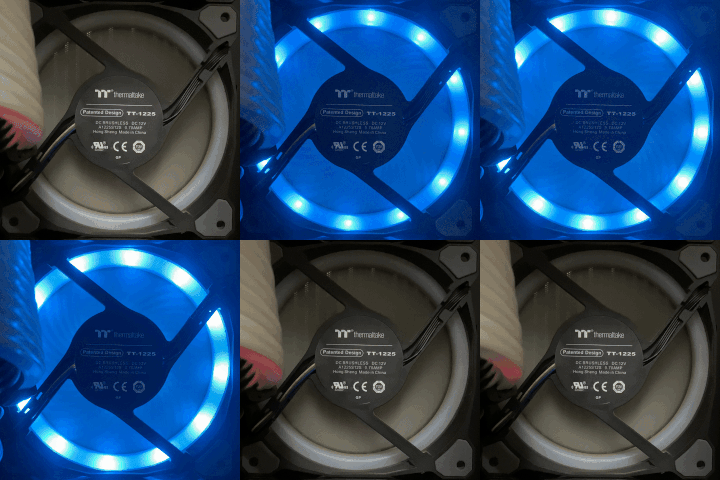
- You can find out which device you’re selecting by simply clicking on it and looking over at your PC, it will start pulsing blue when you click on it.
- Now arrange all your components and devices into position until the effect is flowing perfectly through your entire PC.
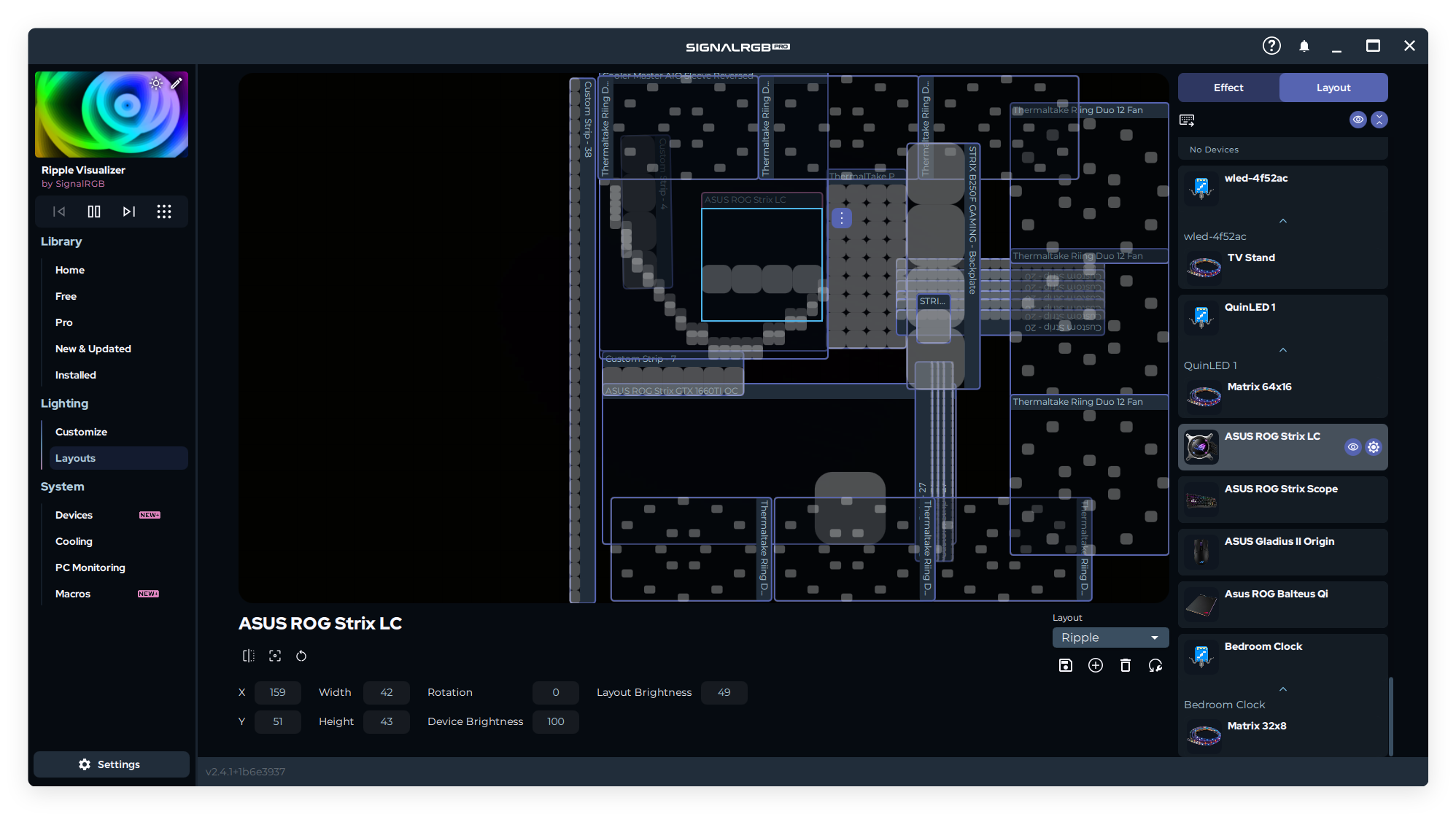
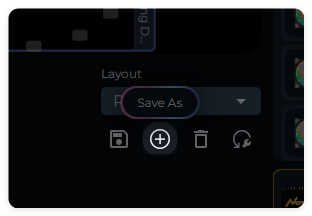
- After you create you layout, be sure to save it by clicking Save As at the bottom right corner.
- If you need more examples, check out this video by SignalRGB.