
Open SourceSoftware·8 min read·Aug 14, 2024
How to setup OpenRGB and Effects Engine Plugin
Step-by-step installation of OpenRGB Pipeline, Effects Plugin, Visual Map, and channel resizing.
N
nuonuo
Nollie Team
Key Takeaways
- Unblock downloaded zip files in file properties before extracting on Windows.
- Resize each channel's zone to match physical device LED counts (e.g. SL120 Infinity = 20 LEDs).
- Strimer 24-pin: Resize ATX 1-6 to 20 LEDs; GPU Strimer: Resize GPU 1-6 to 27 LEDs.
Download OpenRGB
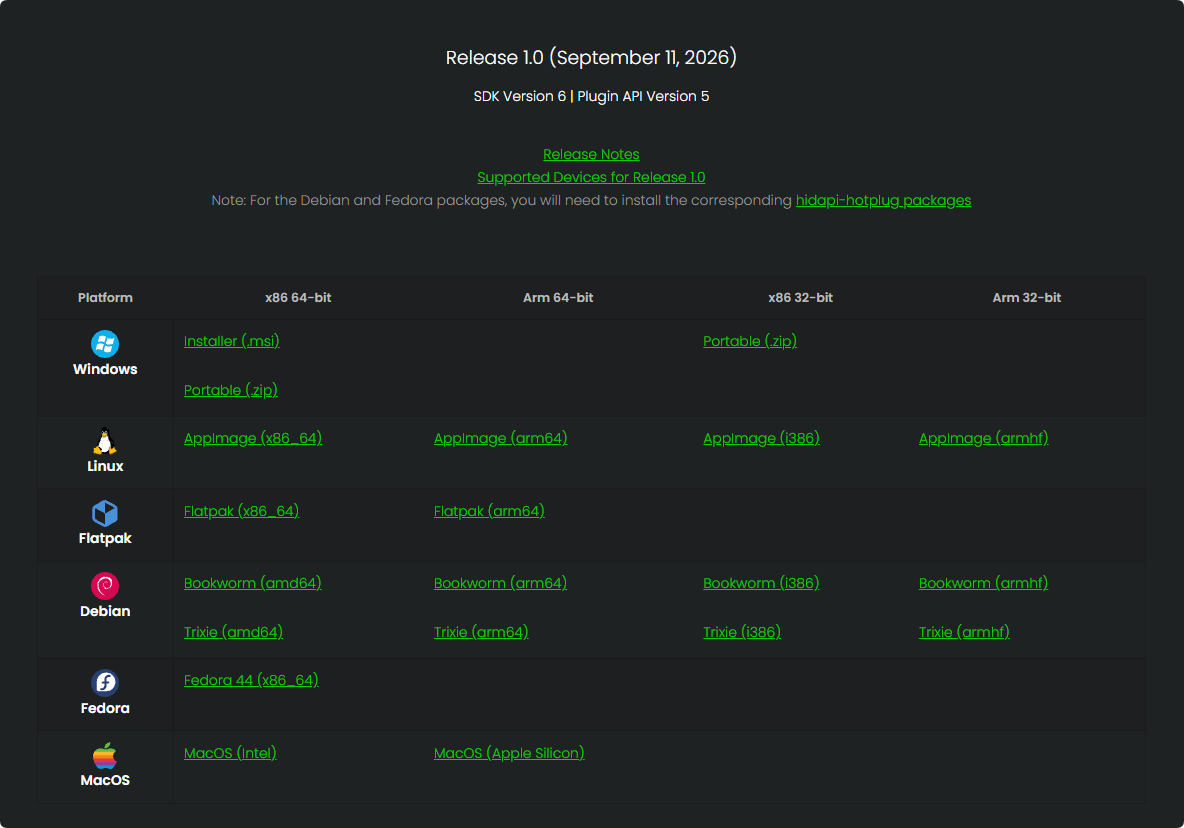
- Head over to https://openrgb.org/releases.html#1_0 and download OpenRGB Release 1.0.
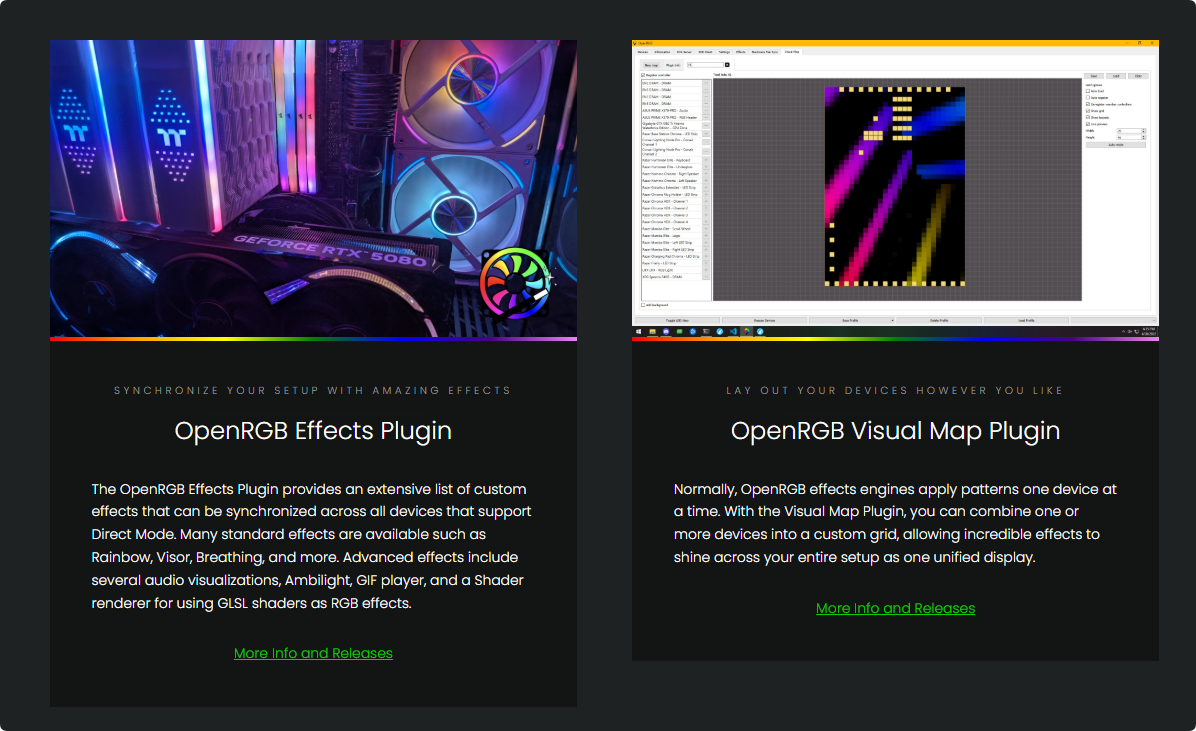
- Head over to https://openrgb.org/plugins.html and download OpenRGB Effects Plugin Pipeline and OpenRGB Visual Map Plugin Pipeline.
🪟 Windows
-
If you download Portable:
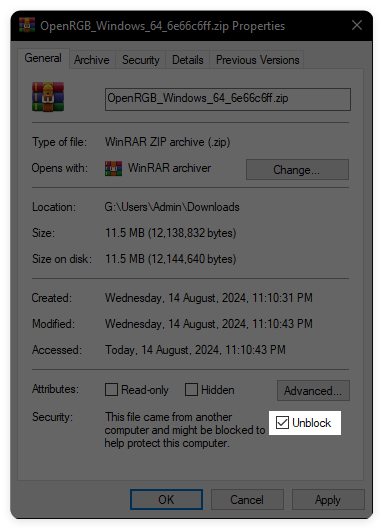
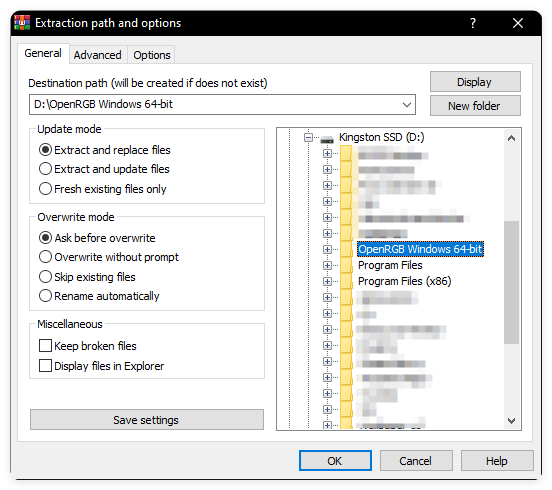
- Right click the downloaded zip files, click Properties, check the Unblock check box and click OK.
- Extract the contents of OpenRGB to your drive. (e.g.,
C:\OpenRGB Windows 64-bit)
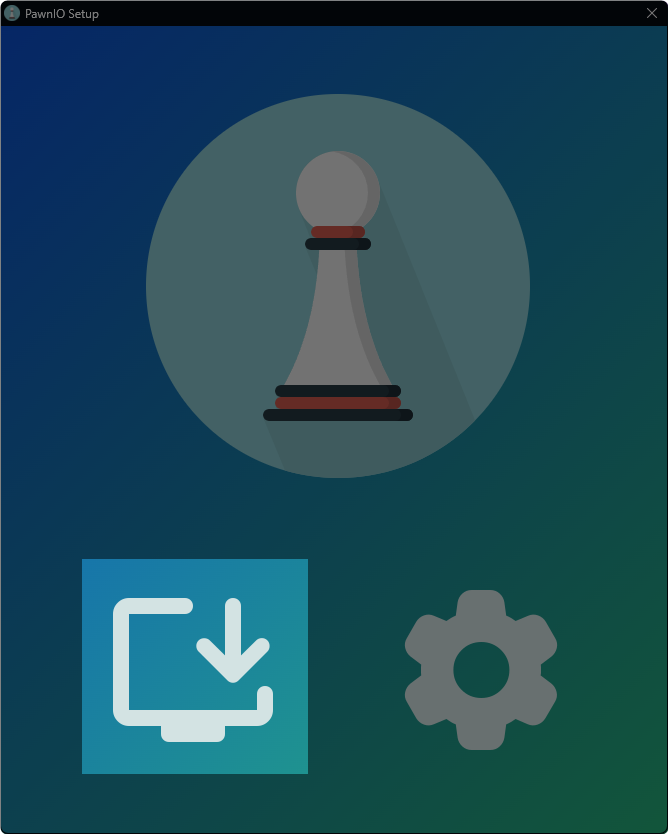
- Head over to https://pawnio.eu/ and download PawnIO.

- Run
PawnIO_setup.exeand click the install button.
- Run
OpenRGB.exe.
-
If you download Installer:
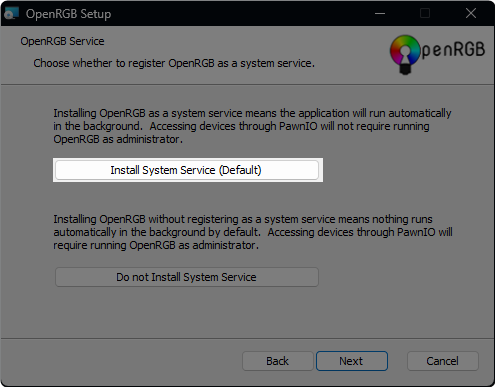
- Run
OpenRGB_1.0_Windows64_xxx.msi, click Install System Service (Default) during installation.
- Head over to https://pawnio.eu/ and download PawnIO.
- Run
PawnIO_setup.exeand click the install button.
- Run
OpenRGB.exe.
- Run
🐧 Linux
- Choose the Right Package for your Distribution.
| Package | Best For | Filename Pattern |
|---|---|---|
| Debian | Ubuntu, Debian, Linux Mint, Pop!_OS | openrgb_1.0_amd64_...deb |
| Fedora | Fedora, RHEL, openSUSE | openrgb-1.0-...x86_64.rpm |
| Flatpak | Any distro preferring sandboxed apps | org.openrgb.OpenRGB |
| AppImage | Any distro without installing system-wide packages | OpenRGB_1.0_x86_64_...AppImage |
- Install via your chosen format.
- Ubuntu/Debian/Mint (Debian)
- Open your terminal in your
Downloadsfolder and run:
sudo apt update sudo apt install ./openrgb_1.0*.deb- Launch OpenRGB from your application launcher or run
openrgbin the terminal.
- Open your terminal in your
- Fedora/OpenSUSE (Fedora)
- Open your terminal.
- Install it using
dnf:
(For OpenSUSE, usesudo dnf install ./openrgb-1.0*.rpmsudo zypper install ./openrgb-1.0*.rpm). - AppImage
- Download
.AppImagefile. - Make it executable:
chmod +x OpenRGB_1.0*.AppImage- Crucial: Because AppImages don’t integrate with system hardware rules automatically, run the built-in generator once to install
udevrules so your user account can talk to RGB controllers withoutsudo:
sudo mkdir -p /etc/udev/rules.d sudo ./OpenRGB_1.0*.AppImage --generate-udev-rules /etc/udev/rules.d/60-openrgb.rules sudo udevadm control --reload-rules && sudo udevadm trigger- Double-click the
.AppImageto launch
- Download
- Flatpak
- Ensure Flatpak is set up, then install OpenRGB from Flathub:
flatpak install flathub org.openrgb.OpenRGB- Install
udevrules: Since Flatpaks are sandboxed, hardware access requires manualudevrule installation:
sudo mkdir -p /etc/udev/rules.d sudo ./OpenRGB_1.0*.AppImage --generate-udev-rules /etc/udev/rules.d/60-openrgb.rules sudo udevadm control --reload-rules && sudo udevadm trigger- Run the app:
flatpak run org.openrgb.OpenRGB
- Motherboard & RAM Detection (Important Linux Kernel Module)
- If your RAM or motherboard RGB does not appear in OpenRGB, Linux usually needs the i2c-dev module loaded to communicate over the SMBus:
- Load the module temporary:
sudo modprobe i2c-dev- Make it permanent across reboots:
echo "i2c-dev" | sudo tee /etc/modules-load.d/i2c-dev.conf- Restart OpenRGB to scan and detect your devices.
Channel Resizing
- Upon starting, a Resize the zones windows will pop up, count how many LEDs are on your components and enter into the size text box. For example:
- Antec Prizm 120 ARGB has 18 LEDs
- Asus ROG LC has 8 LEDs
- Asus TUF TF120 has 16 LEDs
- Cooler Master MasterFan MF120 ARGB has 8 LEDs
- EK Nucleus Lux has 12 LEDs
- Factal Prisma AL18 has 12 LEDs
- Lian Li UNIFan SL120 Infinity has 20 LEDs
- Nollie GC120 has 26 LEDs
- Nollie GC140 has 34 LEDs
- Nollie GY360 has 88 LEDs
- Phanteks D30 120 has 15 LEDs
- Thermaltake Pure 12 ARGB has 9 LEDs
- Thermaltake Riing Duo 12 has 18 LEDs
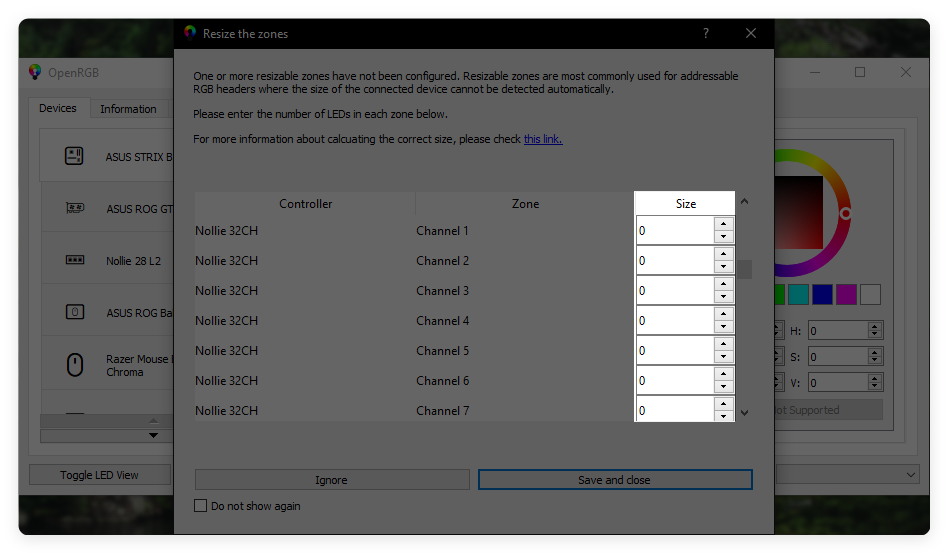
- If you have Lian Li Strimer:
- Lian Li Strimer 24-pin motherboard: Resize Channel ATX 1, ATX 2, ATX 3, ATX 4, ATX 5 and ATX 6 to 20 LEDs.
- Lian Li GPU dual 8-pin or triple 8-pin: Resize Channel GPU 1, GPU 2, GPU 3, GPU 4, GPU 5 and GPU 6 to 27 LEDs (for dual 8-pin, leave GPU 5 and GPU 6 at 0).
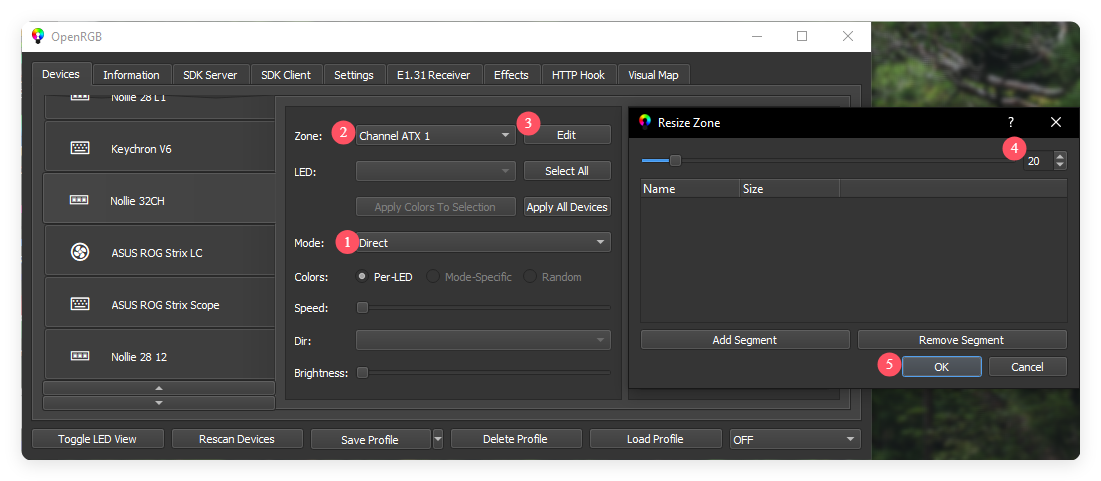
- Starting with 1.0, OpenRGB supports per channel mapping.
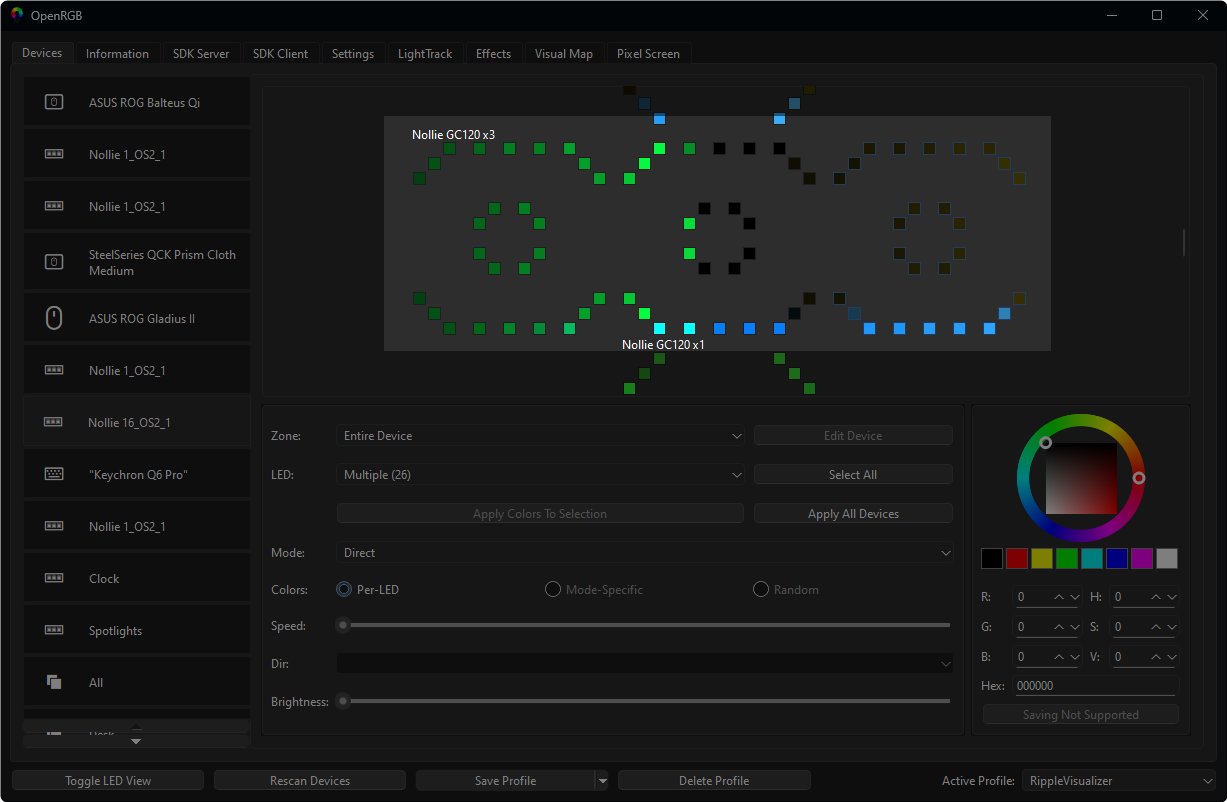
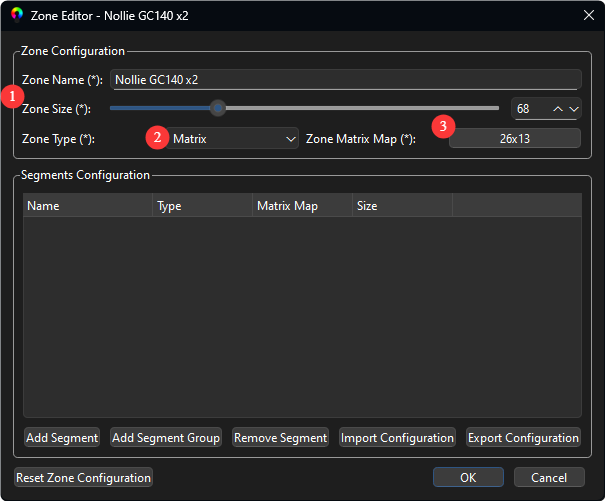
- You need resize zone correctly, Zone Type change to Matrix, Click on the Button right next to Zone Matrix Map.
- A Matrix Map Editor window shows up. Set the Width and Height correctly before you start mapping, it will reset if you change width and height.
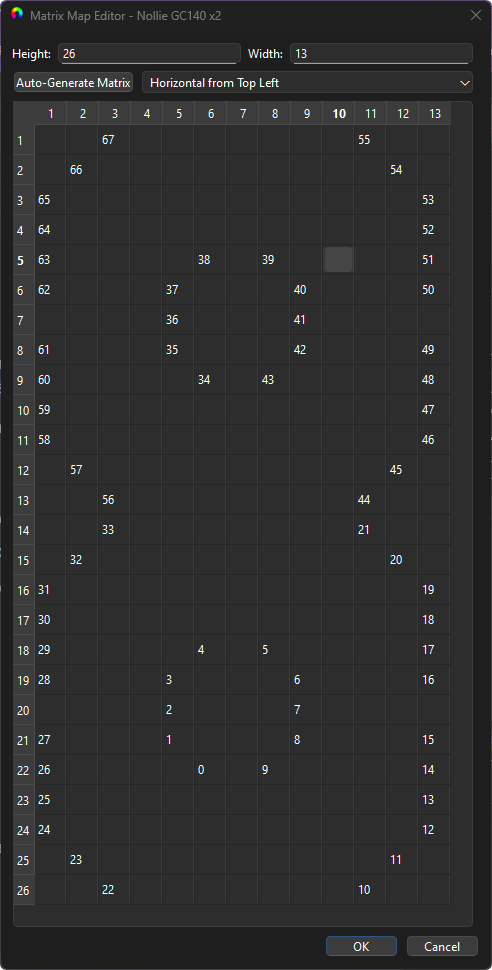 (We recommend you use our Nollie x SignalRGB Component Editor to map out your components before doing this step.)
-
When you are happy with your mapping, you can simply click OK to continue, back to the Zone Editor, click OK again to save.
-
Click Settings, Plugins, Install Plugin, browse the Effects Engine Plugin and Visual Map Plugin you just downloaded.
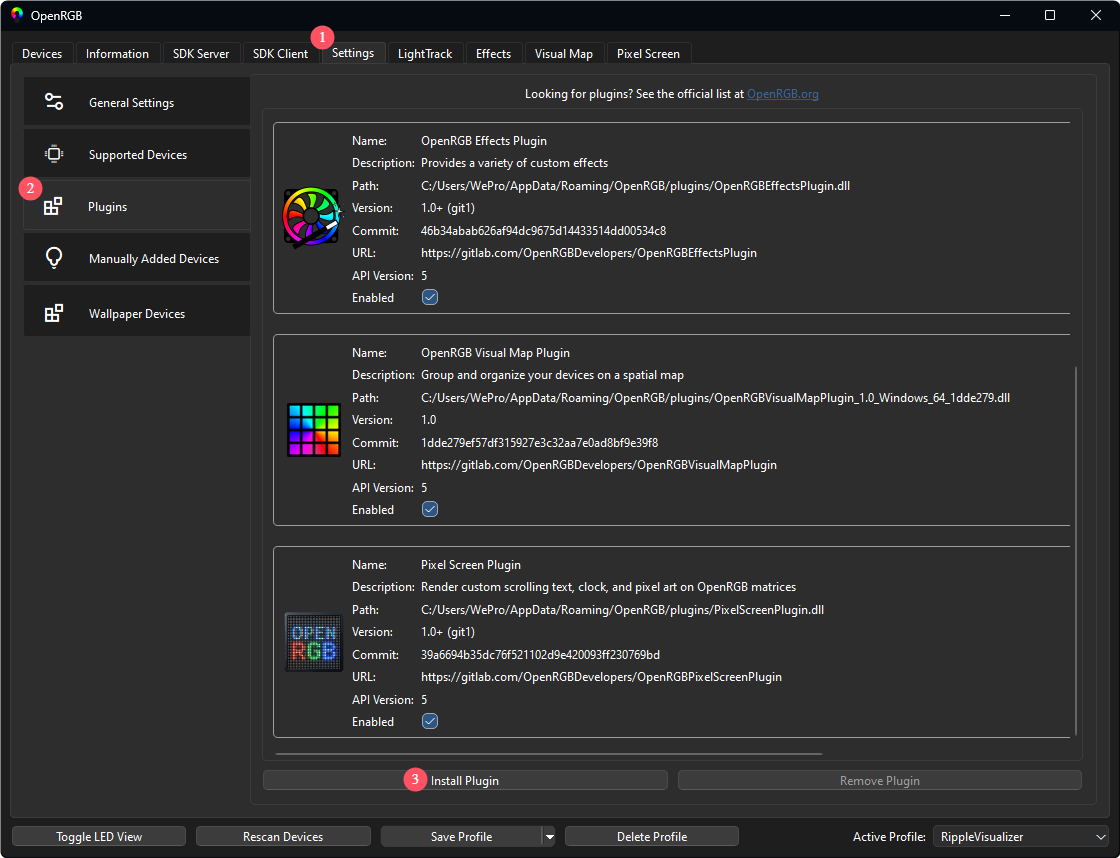
Setting up Effects Plugin
- Click the Effects tab to view the effects engine.
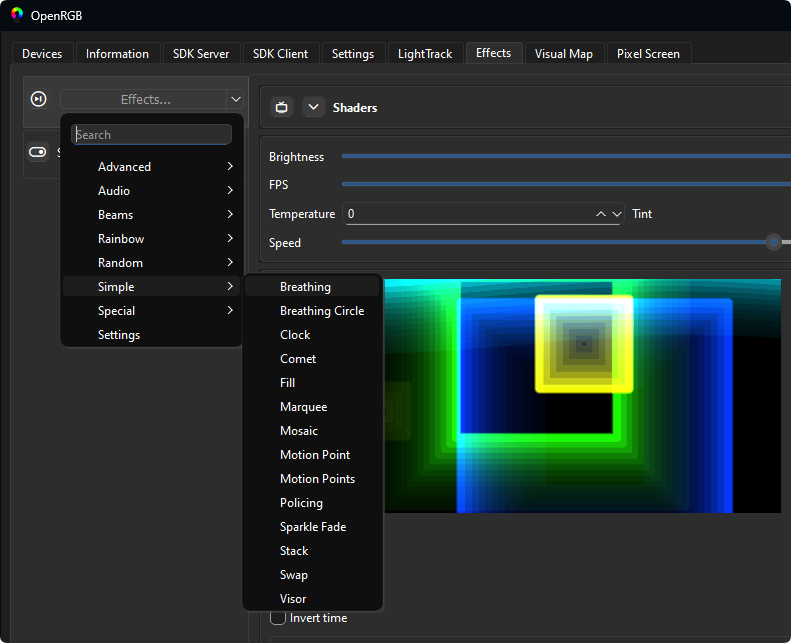
- Now I will use Breathing effect as an example. Click Effects.. drop down button → Simple → Breathing.
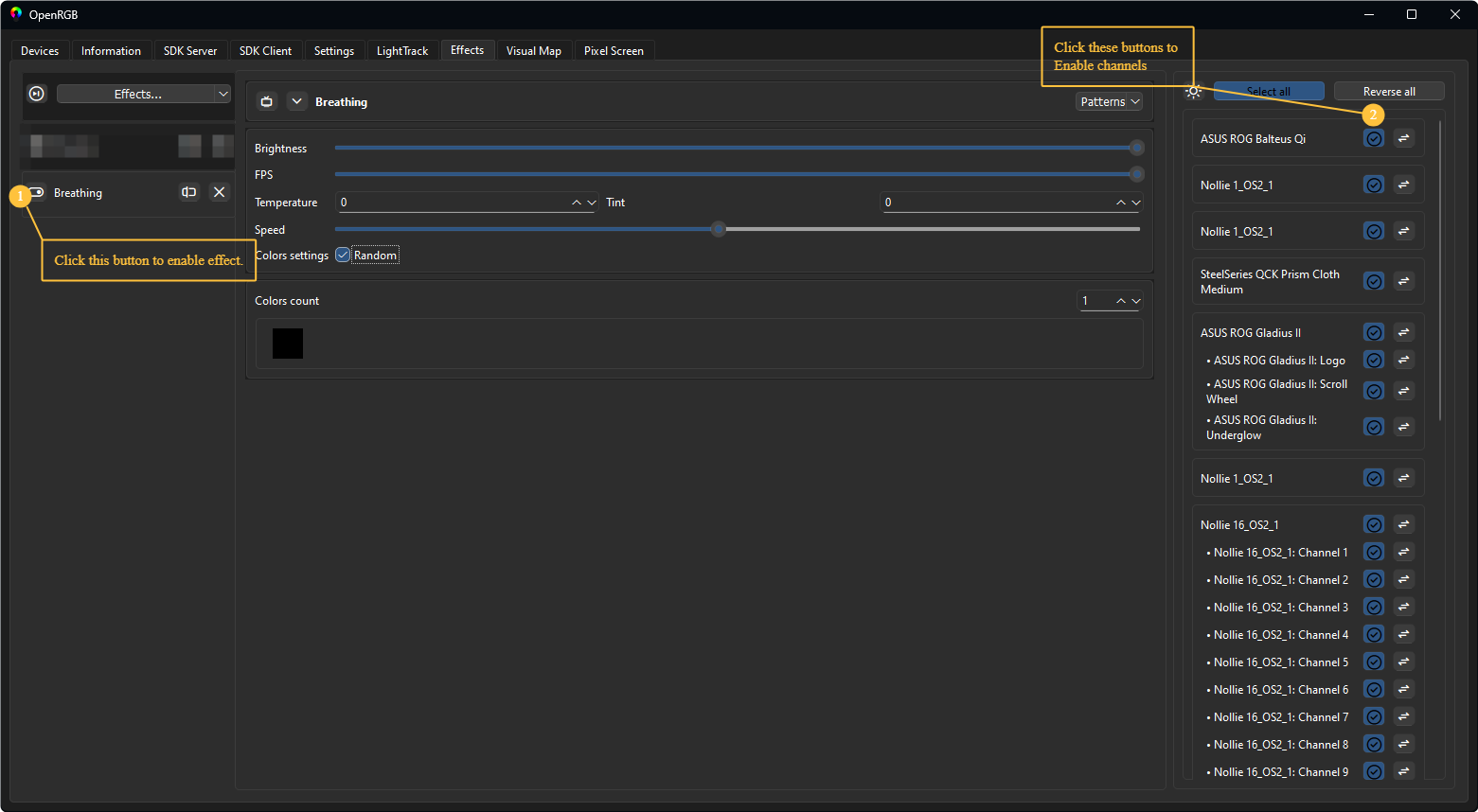
- Select the Device channels 2️⃣ you want it to sync, Click the “On/Off” button 1️⃣ on the left to start.
- Finally, click the Devices tab to go back and then click Save Profile button at the bottom.
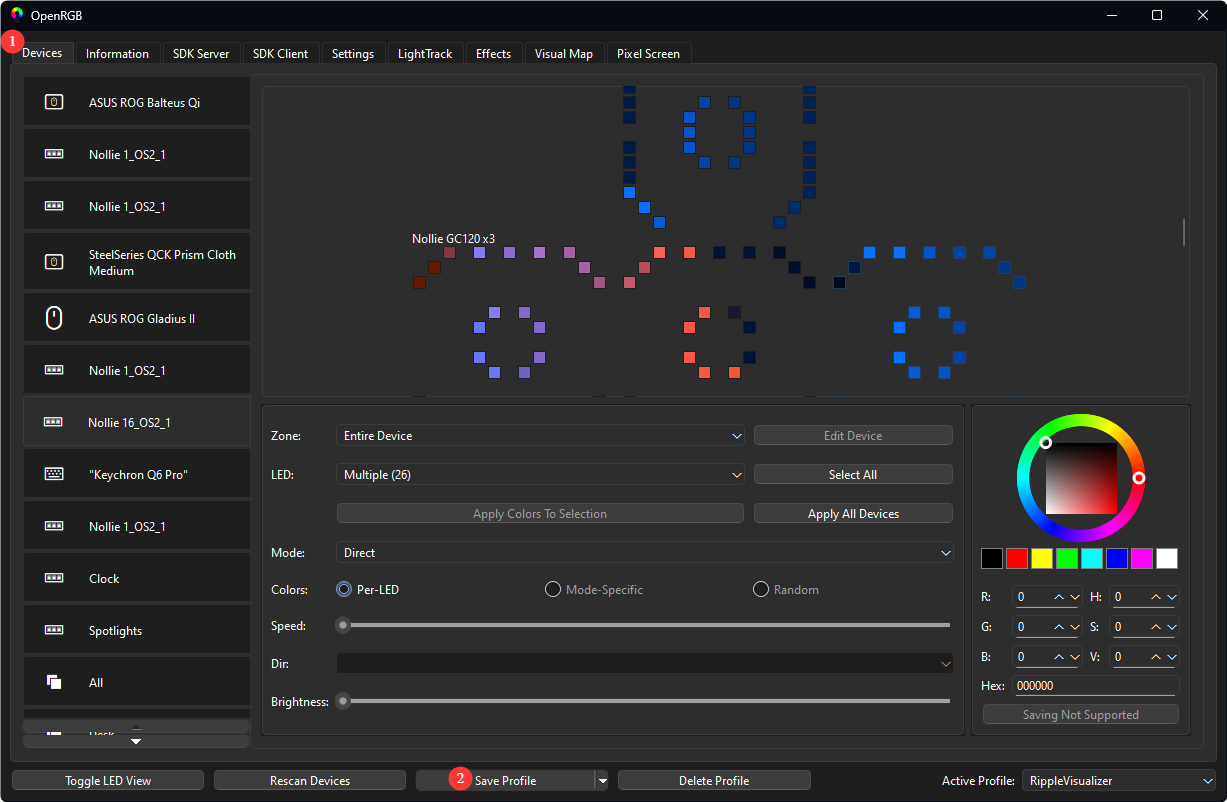
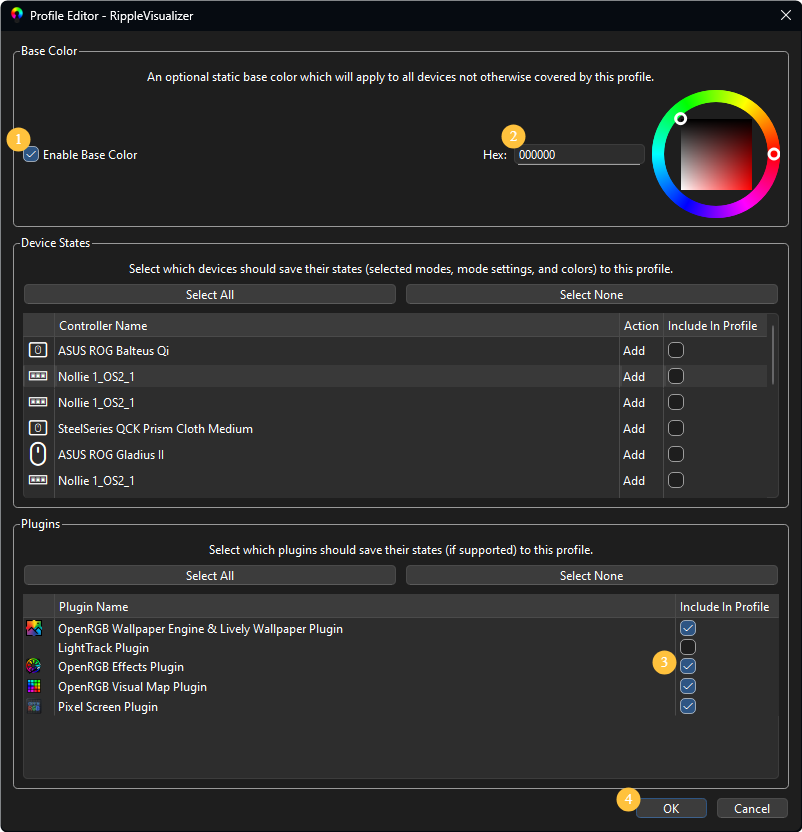
- Check Enable Base Color 1️⃣, Choose a static color at 2️⃣, Check the plugins you wish to save 3️⃣ and click OK to save.
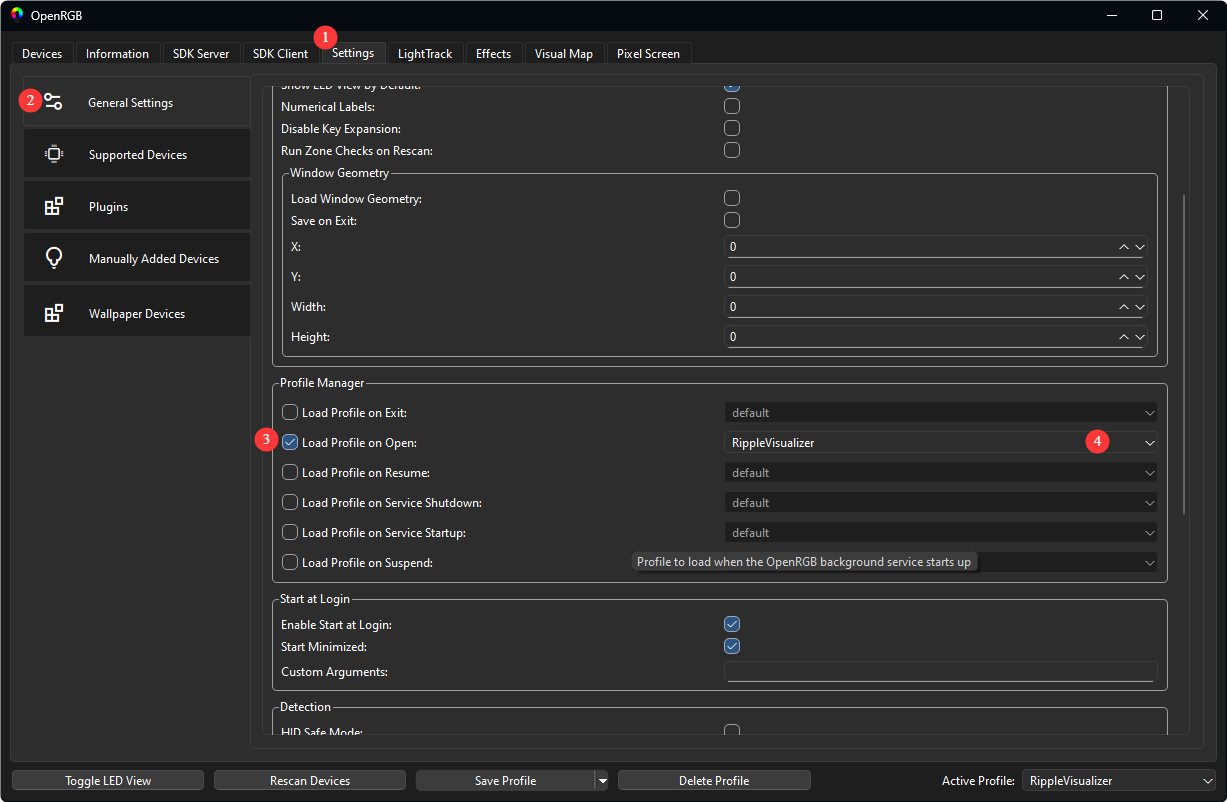
- To make OpenRGB to run your profile on start up, Click the Settings tab 1️⃣, Scroll down to Profile Manager, check Load Profile on Open, choose the profile you just saved 4️⃣.
- If you need more examples, check out this video by CalcProgrammer1.