
Hardware GuideHardware·2 min read·Sep 29, 2026
Nollie 2W Installation Guide
Package contents, motherboard connection, and wiring precautions for Nollie 2W.
N
nuonuo
Nollie Team
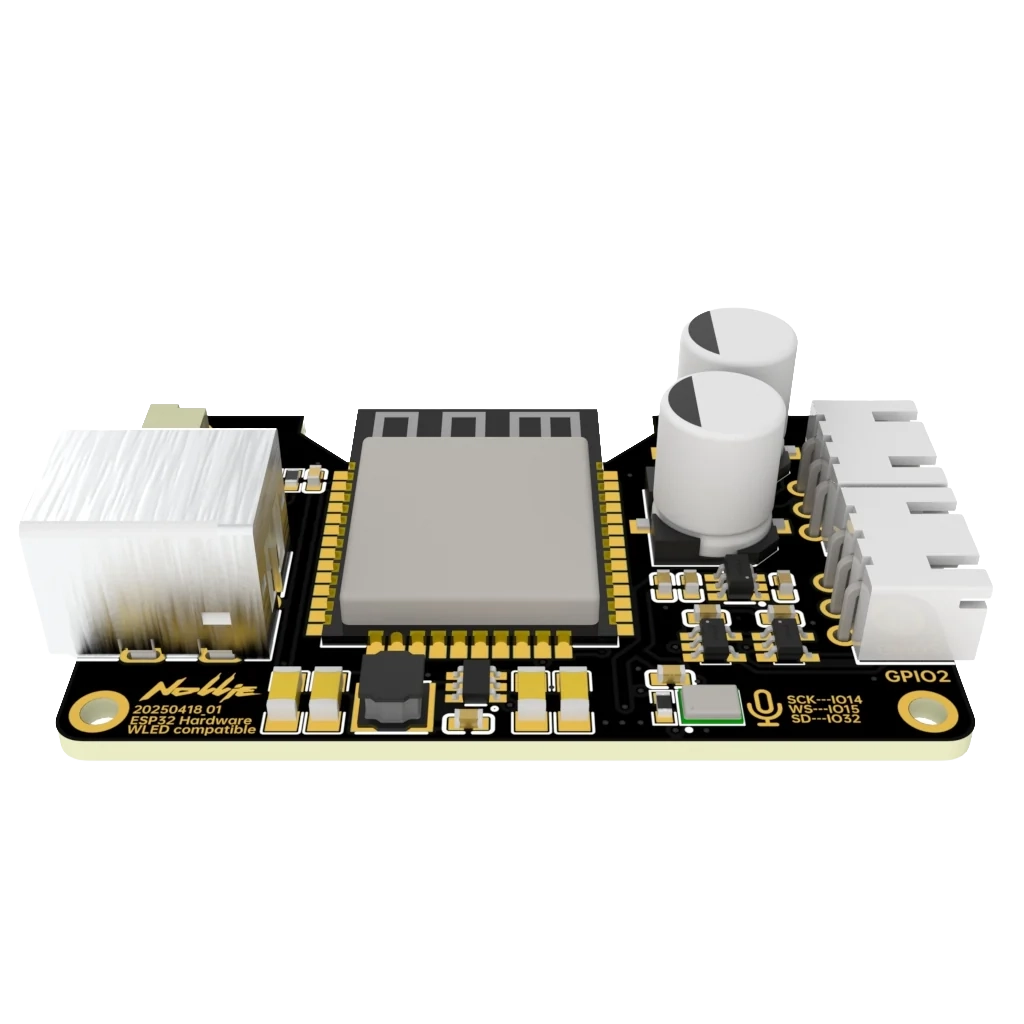
Key Takeaways
- Connect the controller's USB cable to the motherboard USB-A port.
- Do not plug motherboard 5V 3-pin or 4-pin RGB into the controller.
- If it does not light up upon power-on, do not continue and contact support immediately.
Package Content
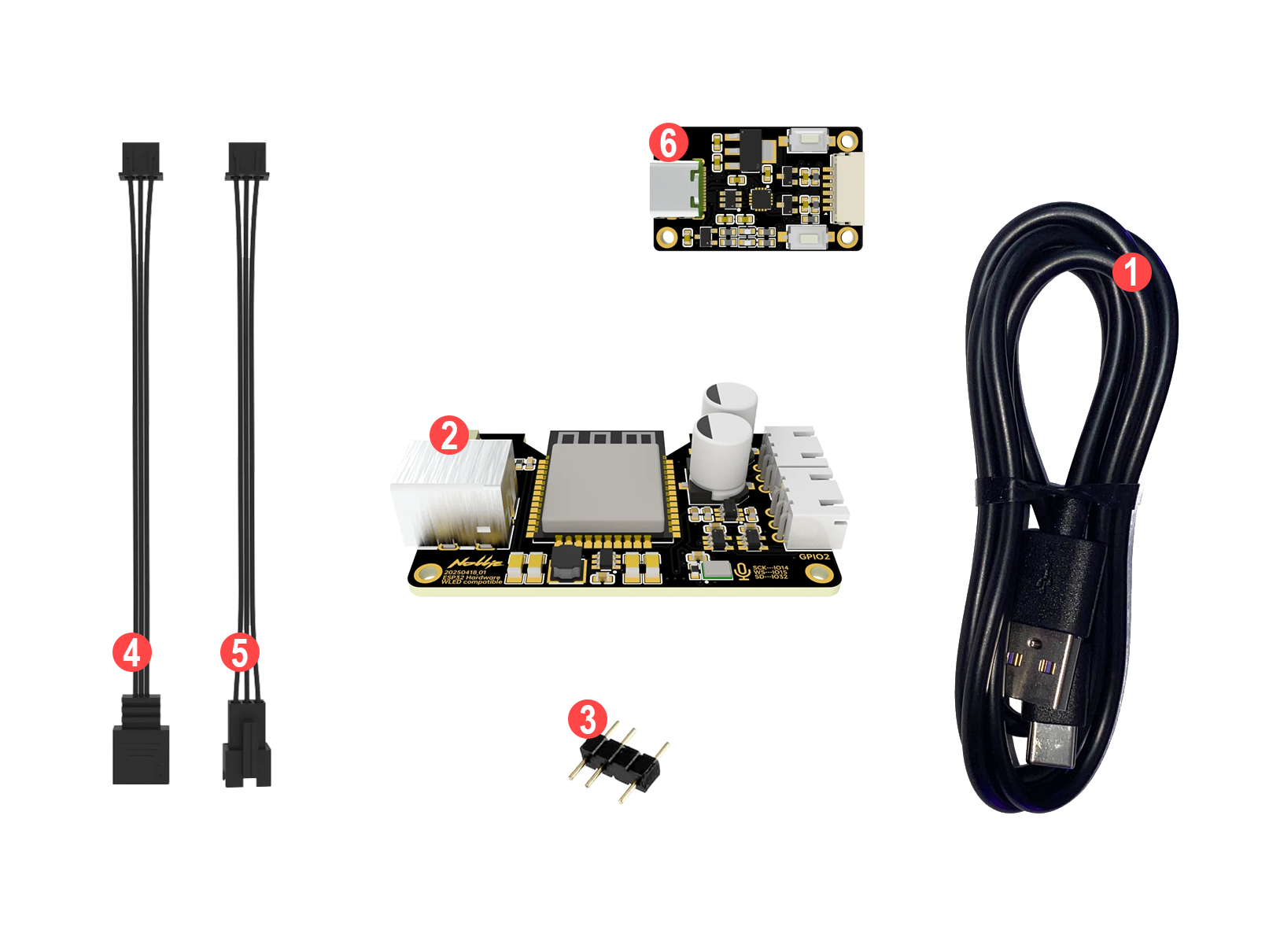
- USB-A to USB-C cable ×1
- Nollie 2W Controller ×1
- 5V 3-pin Female to Male adapter ×1
- XH2.54 to 5V 3-pin cable (10 cm) ×1
- XH2.54 to JST-SM 2.5 cable (10 cm) ×1
- CH343P Programmer
Device Installation
- Plug one of the XH2.54 cable 4️⃣/5️⃣ to Nollie 2W Controller 2️⃣.
- Plug your component to the XH2.54 cable 4️⃣/5️⃣.
- Plug your Power supply to the Nollie Controller. Be sure to use a power supply with the correct voltage; never use a 12V power supply with a 5V LED light strip.
Setup WLED
- Open your phone or laptop’s Wi-Fi settings.
- Look for network named
WLED-APand connect to it. - Enter the default password
wled1234. - A captive portal page should open automatically. If it doesn’t, open a web browser and go to:
https://4.3.2.1. - On the screen that opens, tap “WIFI SETTINGS”.
- Fill in your home network details:
- Network Name (SSID): Your Wi-Fi name (Note: WLED only supports 2.4 GHz Wi-Fi).
- Network Password: Your Wi-Fi password.
- Tap “Save & Connect”.
- The Nollie Controller will restart and connect to your home Wi-Fi network. Reconnect your phone/Laptop back to your home Wi-Fi.
Access to the WLED Control Interface
- Easiest: Install the WLED App (available on iOS and Android). It automatically discovers WLED devices on your network
- Via Browser: Check your home router’s device list or navigate to:
http://wled.local(or replacewled.localwith the assigned IP address, e.g.,192.168.0.150)
Configure your LED Strip
- From the main dashboard, tap ⚙️ Config in the top-right corner.
- Select LED & Hardware.
- Set the following settings:
- Check the checkbox on
Use per-output limiter - LED outputs: Choose your strip type (e.g.,
WS281xfor WS2812B/WS2811, orSK6812for RGBW). - Length: Enter the total number of LEDs on your strip.
- Data GPIO:
- Channel 1: GPIO 2
- Channel 2: GPIO 4
- Color Order: Usually
GRBfor WS2812B (if red and green appear swapped, change this). - PSU: Take the rated amperage on your PSU devide by 2 (e.g., the PSU is 10A, then enter 5000 mA).
- Scroll to the bottom and click Save.
Precautions
- Do not plug 5V LED Strip into Nollie Controller while using a 12V Power supply.
- Do not plug Power supply and USB cable into Nollie Controller at the same time.