
Nollie 32 EXT Port Wiring Guide
Professional DIY guide: Wiring external power, common ground, and digital ARGB signal channels.
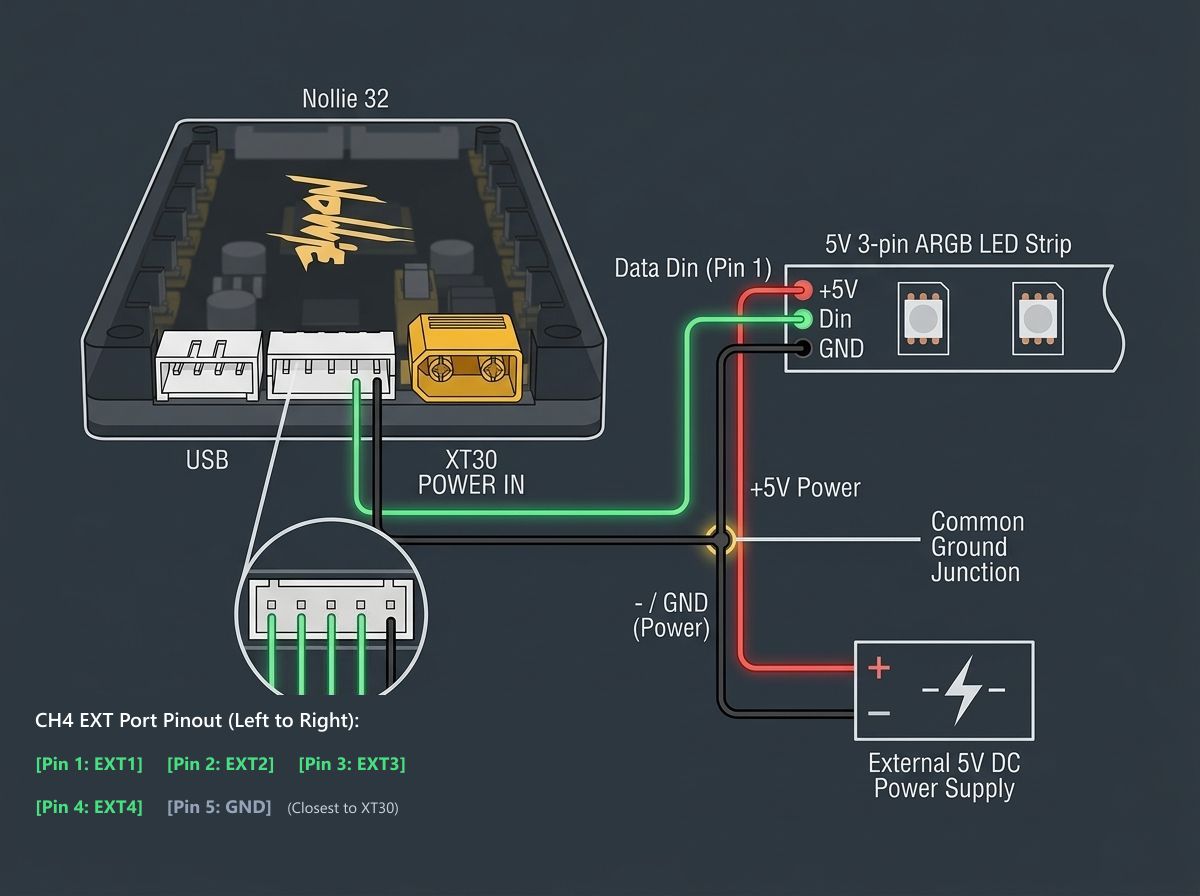
- The EXT port only outputs digital data (Din) and Ground (GND). It does NOT output +5V power.
- Intended for professional/DIY setups where high-current ARGB strips or arrays are powered by external 5V power supplies.
- Always establish a Common Ground: tie Controller GND, External PSU (-) GND, and LED Strip GND together.
- NEVER feed external +5V into any pin of the Nollie32 controller.
This guide is intended for advanced and professional DIY users.
Incorrect wiring or feeding external voltage into signal pins can cause permanent damage to your controller, LED strips, or power supply. Always double-check polarity and connections before powering on your equipment.
What is the Nollie 32 EXT Port?
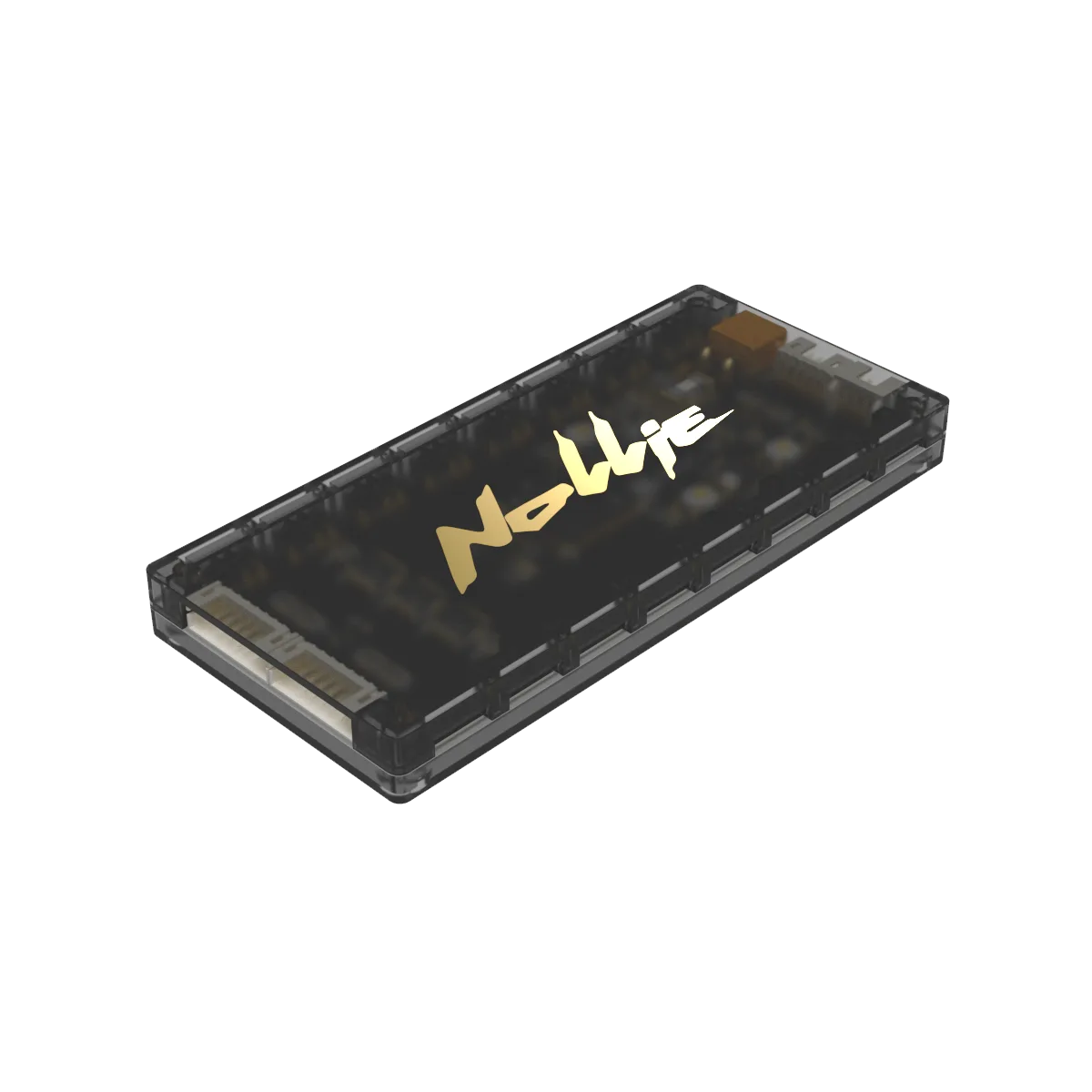
The EXT Port is located on the front edge of the Nollie 32 controller—specifically the middle white socket situated between the 4-pin internal USB port (left) and the yellow XT30 power connector (right). It is an expansion header designed using a JST PH2.0 5-Pin female socket.
The EXT port on a Nollie 32 serves as an external expansion interface, allowing you to connect additional devices and accessories to further customize and expand your lighting system. Specifically, it enables the connection of external modules for adding more ARGB ports or even 9-pin Thermaltake ports. This allows for greater flexibility in controlling and connecting a larger number of ARGB components beyond the standard 16 ports on the controller itself.
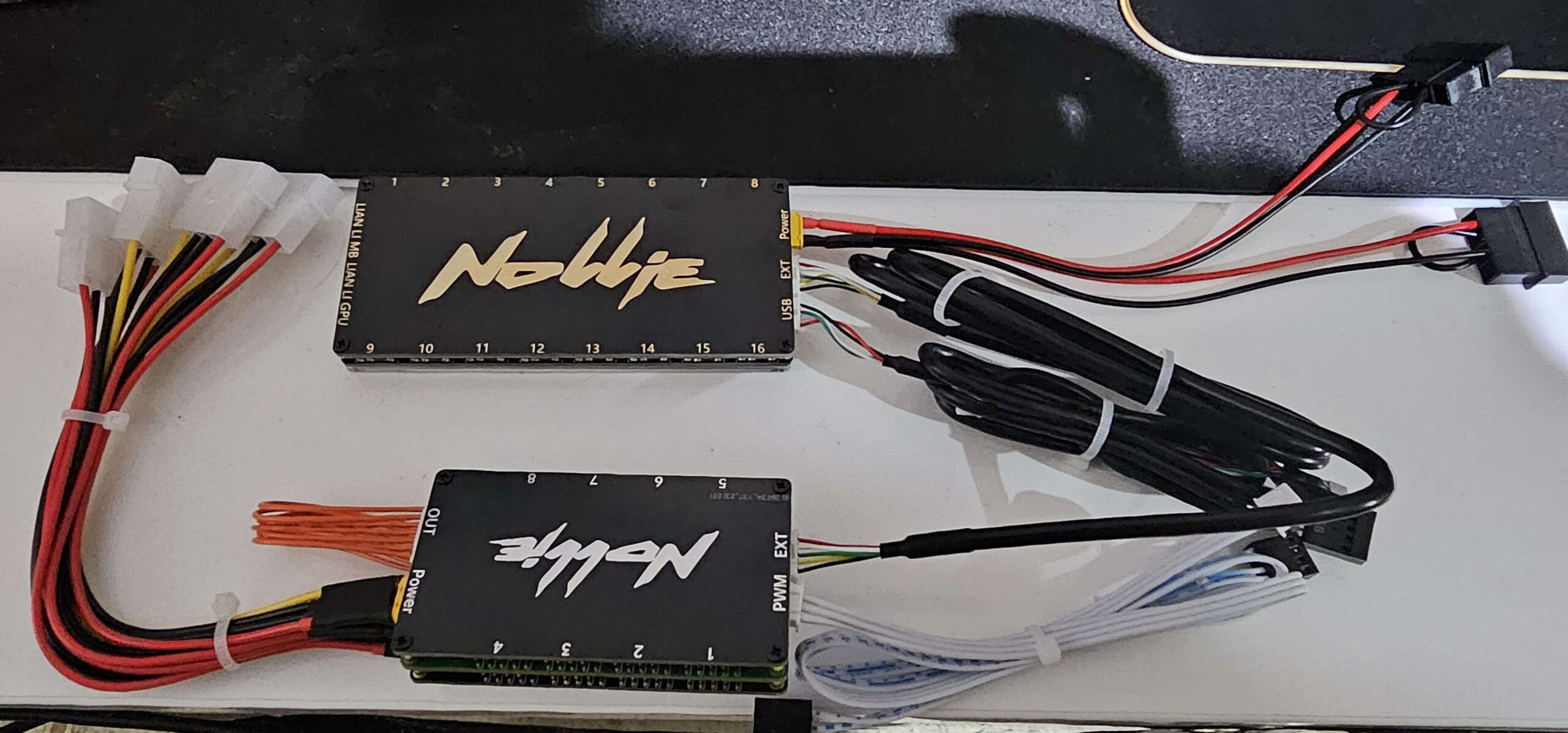
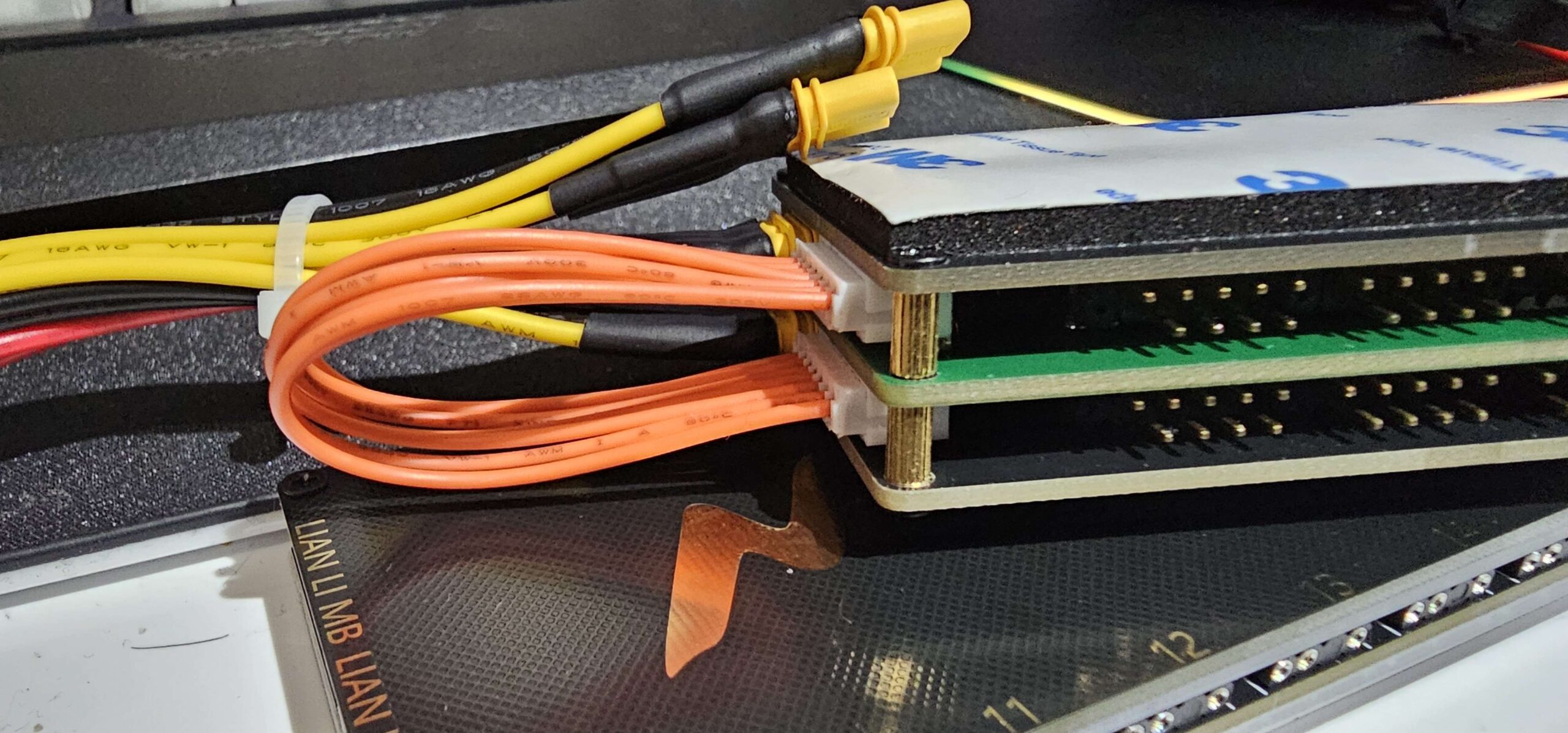
Unlike the standard 3-pin ARGB headers on the controller, the EXT port only outputs digital logic signals (Din) and Ground (GND). It does NOT provide 5V power.
Why is the EXT Port Designed Without 5V Power?
Standard internal ARGB channels route power directly through the controller’s PCB and internal power cables (Molex / XT30). While this is convenient for standard PC fans and internal strips, large-scale custom setups—such as:
- Long high-density LED strips (WS281X / SK6812)
- Large ambient desk / monitor backlights
- Custom 2D LED matrix panels
- DIY lightboxes and external case accents
can pull 10A, 20A, or more of current, easily exceeding standard board traces or internal PC PSU cable ratings.
The EXT port solves this by decoupling power from data: it supplies 4 independent, pure digital control channels (EXT1–EXT4) directly from the MCU/level-shifter, allowing you to power your LEDs using a separate, high-amperage external 5V power supply (e.g. Mean Well PSU or 5V power brick) while retaining full software synchronization in SignalRGB, NollieRGB, and OpenRGB.
Wiring Definition & Pinout
Looking directly at the front edge of the Nollie 32, the middle JST PH2.0 5-Pin socket pinout is oriented from Left to Right as follows:
| Pin (Left → Right) | Identifier | Signal Type | Description |
|---|---|---|---|
| Pin 1 (Leftmost) | EXT1 | Digital Data Out | Signal Channel 1 (Din for strip/device 1) |
| Pin 2 | EXT2 | Digital Data Out | Signal Channel 2 (Din for strip/device 2) |
| Pin 3 | EXT3 | Digital Data Out | Signal Channel 3 (Din for strip/device 3) |
| Pin 4 | EXT4 | Digital Data Out | Signal Channel 4 (Din for strip/device 4) |
| Pin 5 (Rightmost) | GND | Ground Reference | Ground return line (adjacent to yellow XT30 connector) |
The Golden Rule: Common Ground
ARGB digital signals (Din) transmit data as high-speed 5V square waves. In order for the LED chips to read these pulses accurately, the signal requires a zero-volt reference point.
If you connect the data line from the controller but fail to tie the controller’s Ground to the power supply’s Ground:
- The data voltage will float erratically.
- The LEDs will flicker, strobe uncontrollable colors, freeze, or fail to respond entirely.
- Ground loops or stray currents can degrade signal integrity.
       [ Nollie 32 Controller ]
         │ (EXT Data)        │ (Controller GND)
         ▼                   ▼
    ┌──────────┐        ┌──────────┐
    │ Strip    │        │ Common   │ ◄─────── [ External 5V PSU (-) GND ]
    │ Data Din │        │ GND Rail │
    └──────────┘        └──────────┘
                             ▲
                             │ (LED Strip GND)
                        [ LED Strip ] ◄────── [ External 5V PSU (+) 5V ]
Step-by-Step Wiring Instructions
To wire an external ARGB strip (e.g., WS281X / SK6812) to the Nollie 32:
Step 1: Connect the Digital Signal Line
- Connect a wire from one of the controller’s signal pins (EXT1, EXT2, EXT3, or EXT4) to the Din (Data Input) pad on your ARGB strip.
Step 2: Form the Common Ground
- Connect the GND pin from the Nollie 32 EXT port to the GND pad on your ARGB strip.
- Connect the Negative (-) / GND lead of your external 5V DC power supply to the GND pad on your ARGB strip.
- Both ground wires must meet at the strip’s ground (or a shared distribution block).
Step 3: Connect External 5V Power
- Connect the Positive (+) 5V lead of your external power supply directly to the +5V / VDD pad on your ARGB strip.
- DO NOT connect this external 5V wire to any pin on the Nollie 32.
Safety Checklist & Best Practices
- Verify 5V DC Voltage: Confirm with a digital multimeter that your external power supply outputs 5.0V – 5.2V DC before connecting any LEDs. Overvoltage (e.g., using a 12V supply by mistake) will instantly destroy 5V ARGB LEDs.
- Keep Data Lines Reasonable: Long data cables (over 2–3 meters) can suffer signal degradation. Use shielded wiring or add a 33–100Ω inline resistor near the strip’s Din pad if you encounter transmission jitter over distance.
- Power Injection for Long Strips: For LED strips exceeding 100–150 LEDs, voltage drop along thin copper traces will cause color fading (shifting toward orange/red at the end). Inject +5V and GND from your external PSU at both ends of the strip.
- Power Sequencing: It is recommended to turn on the external 5V power supply before or simultaneously with the PC system.