Ambient SyncSoftware·3 min read·Apr 8, 2026
How to setup Skydimo
Configure Skydimo Windows DIY Enthusiast edition, enable third-party support, and sync ambient monitor backlighting.
N
nuonuo
Nollie Team
Key Takeaways
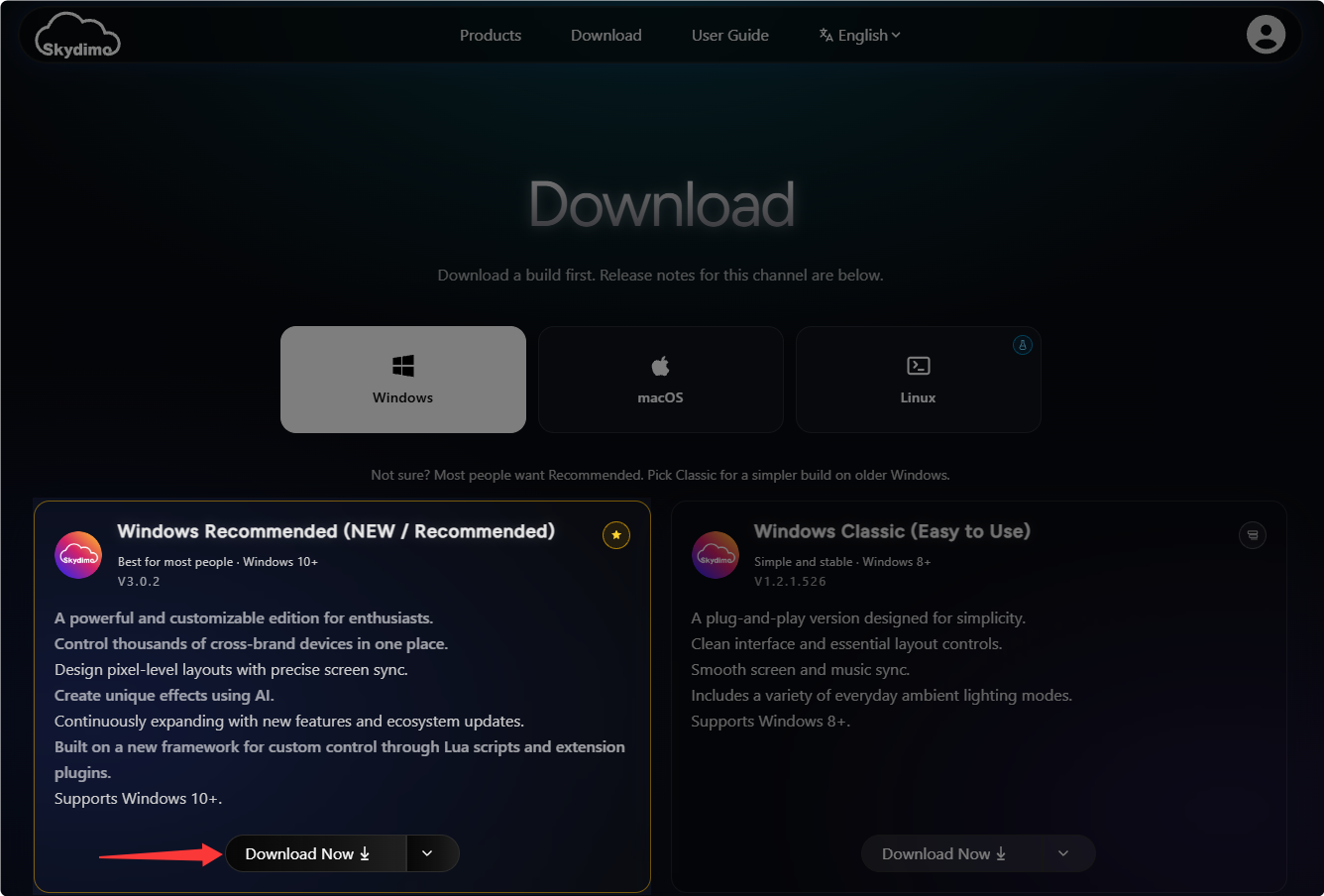
- Download the Windows DIY Enthusiast edition from skydimo.com/en/download.
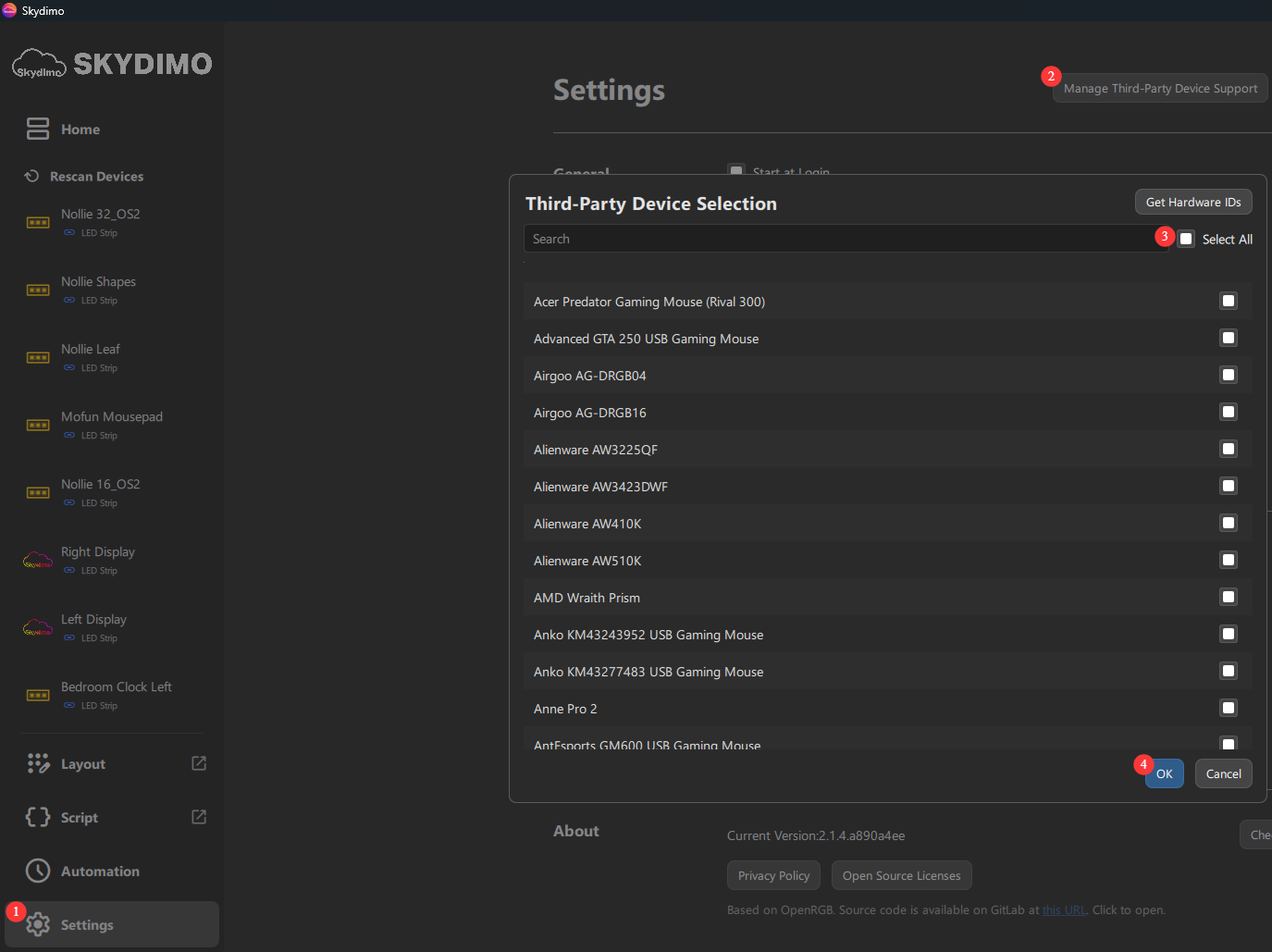
- Enable 'Manage Third-Party Device Support' and 'Script driver support' in Settings.
- Configure custom layouts per channel and set Strimer LED counts for Nollie 32.
Download Skydimo
- Head over to https://skydimo.com/en/download and download Skydimo V3.0.
Setup
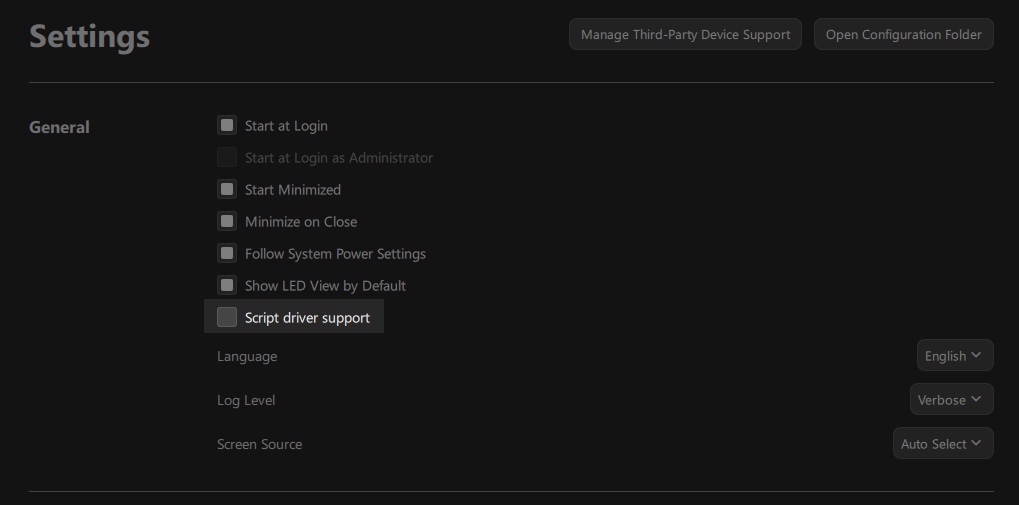
- Once inside the application, click on Settings on the bottom left, click on Manage Third-Party Device Support and enable all devices.
- If you have SignalRGB installed, you can also use Skydimo with SignalRGB supported devices. To do that, check Script driver support.
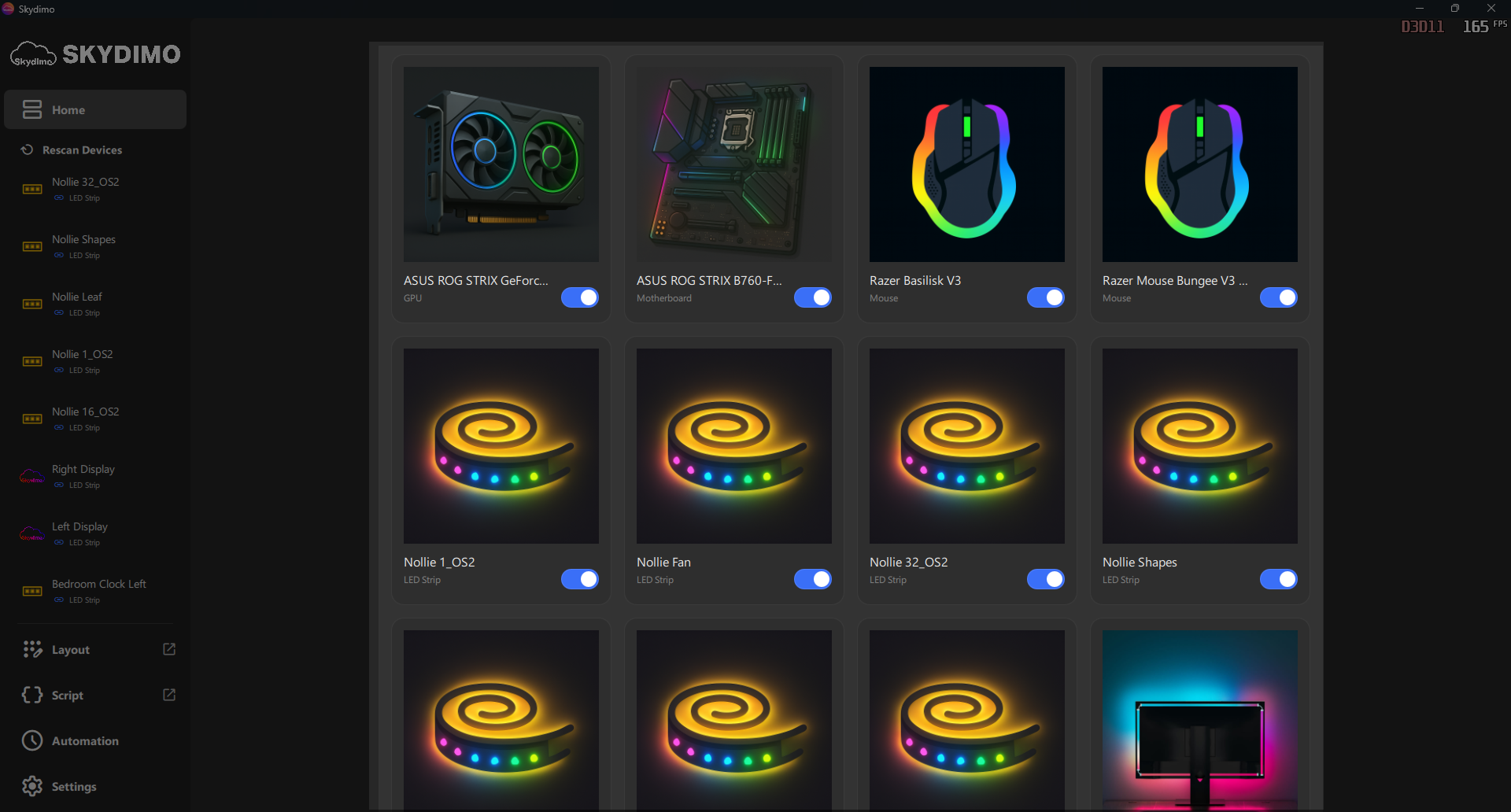
- Back to Home, click on one of your RGB Controllers.
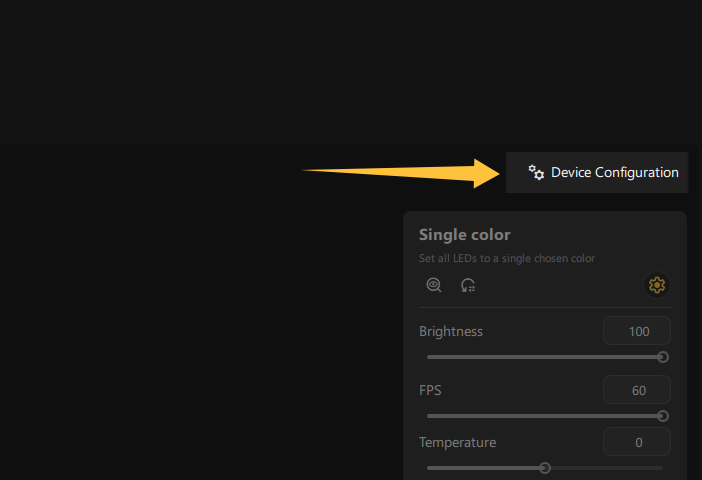
- You’ll need to tell Skydimo what components you have on your Nollie Controller channels, click the button on the top right.
- Under Layouts you will find a big button to add layouts, click on it, you can choose from all the available layout presets.
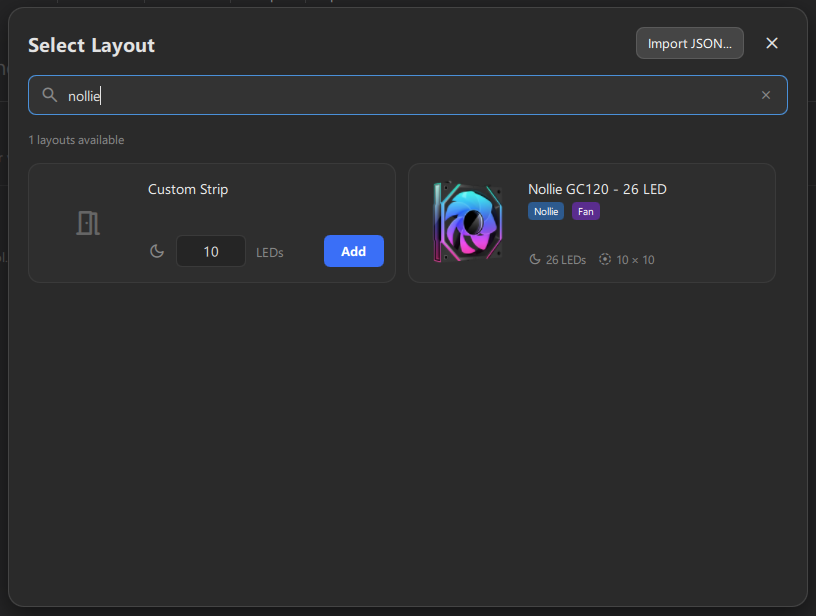
- If you have more than one component on your header, you can add more layouts.
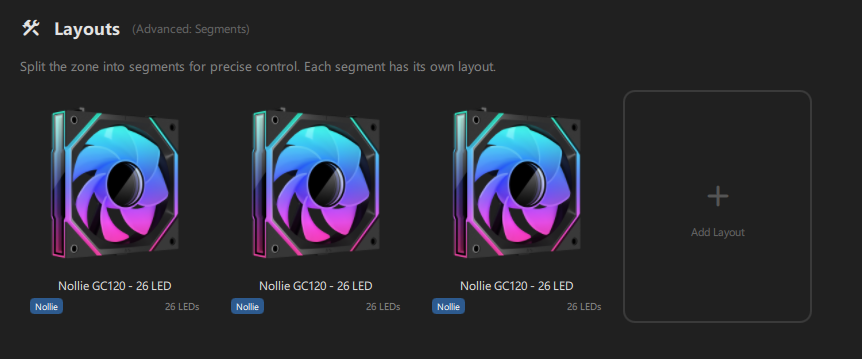
- Lian Li Strimer 24-pin motherboard: Add a custom 20 LEDs strip to Channel ATX 1, ATX 2, ATX 3, ATX 4, ATX 5 and ATX 6. (Nollie 32 only)
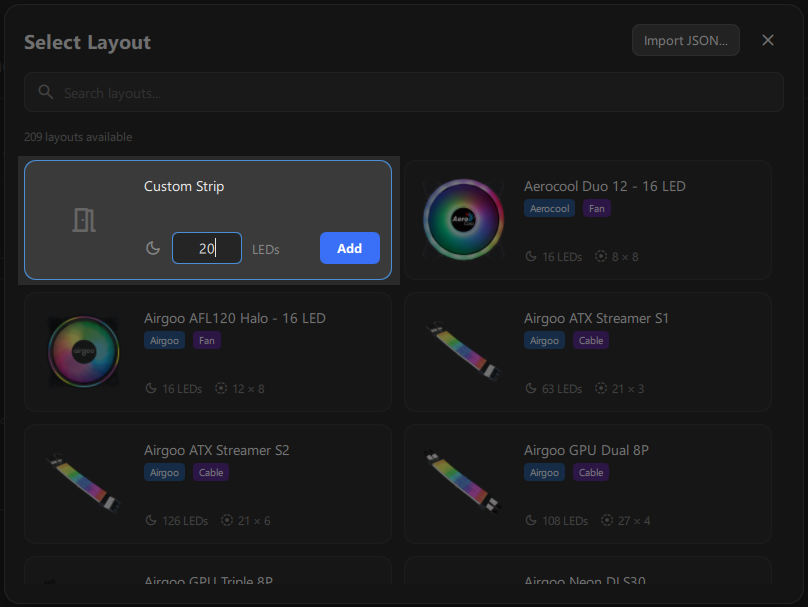
- Lian Li Strimer GPU dual 8-pin or triple 8-pin: Add a custom 27 LEDs strip to Channel GPU 1, GPU 2, GPU 3, GPU 4, GPU 5 and GPU 6. For dual 8-pin leave Channel GPU 5 and GPU 6 at 0 LEDs. (Nollie 32 only)
Setup Solid Color & Effects
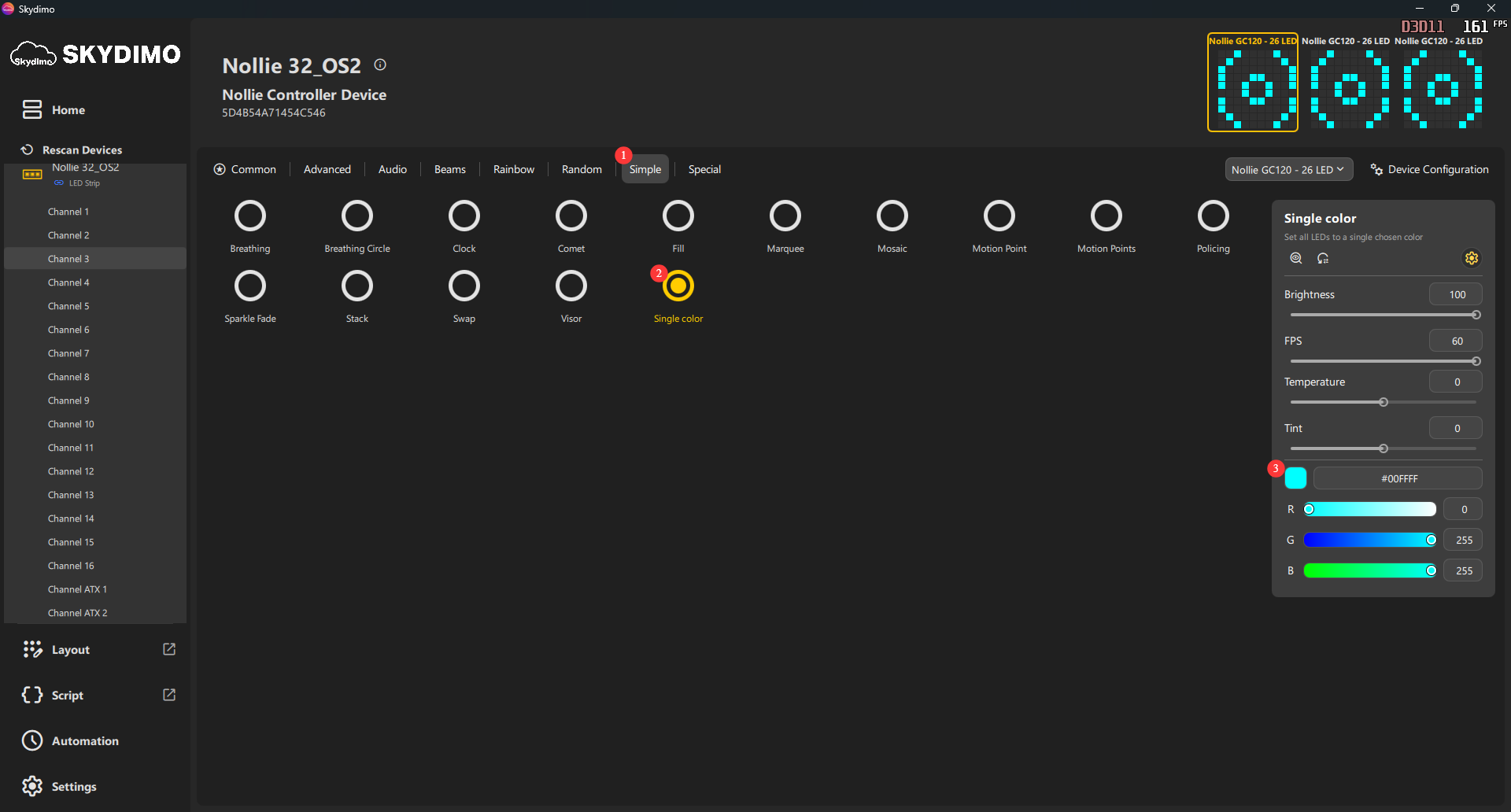
- Solid color: Click on any of your devices and click Simple, Single Color and set the color of your choice.
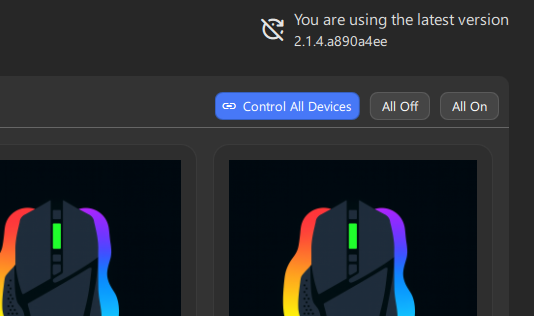
- If you wish to set all devices to the same color, click on Control All Devices button on the home page.
- Dynamic Effects: Click on any of your devices and choose any of the available dynamic screen matching or atmospheric effects.