
How to Create custom Component in Your Browser
Build SignalRGB components and NollieRGB VMAPs on nolliergb.com, with nothing to install.
- Open nolliergb.com/tools/component-editor in Chrome, Edge, Firefox or Safari. Nothing to install, and your files never leave your computer.
- Saves exactly the same SignalRGB Component and NollieRGB VMAP files as the desktop editor, so you can switch between them freely.
- In Chrome and Edge, Save writes straight back to the file you opened; other browsers download a copy instead.
- Hide LEDs with Ctrl + H to export them as Z-LEDs in a NollieRGB VMAP.
The Component Editor is the browser version of the Nollie x SignalRGB Component Editor desktop app. It draws the same LED layouts and saves the same files:
- SignalRGB Components (
.json) forDocuments\WhirlwindFX\Components, so SignalRGB knows where each LED physically sits. - NollieRGB VMAPs (
.json) for NollieRGB 2.2, including hidden LEDs (Z-LEDs) that stay dark during hardware effects. - OpenRGB visual map imports, turning an OpenRGB virtual controller into a component or VMAP.
Everything runs in your browser. Files are opened and saved on your computer and are never uploaded.
Prefer an app? The desktop editor is on the Software page. Files saved by either one open in the other unchanged.
Interface Overview
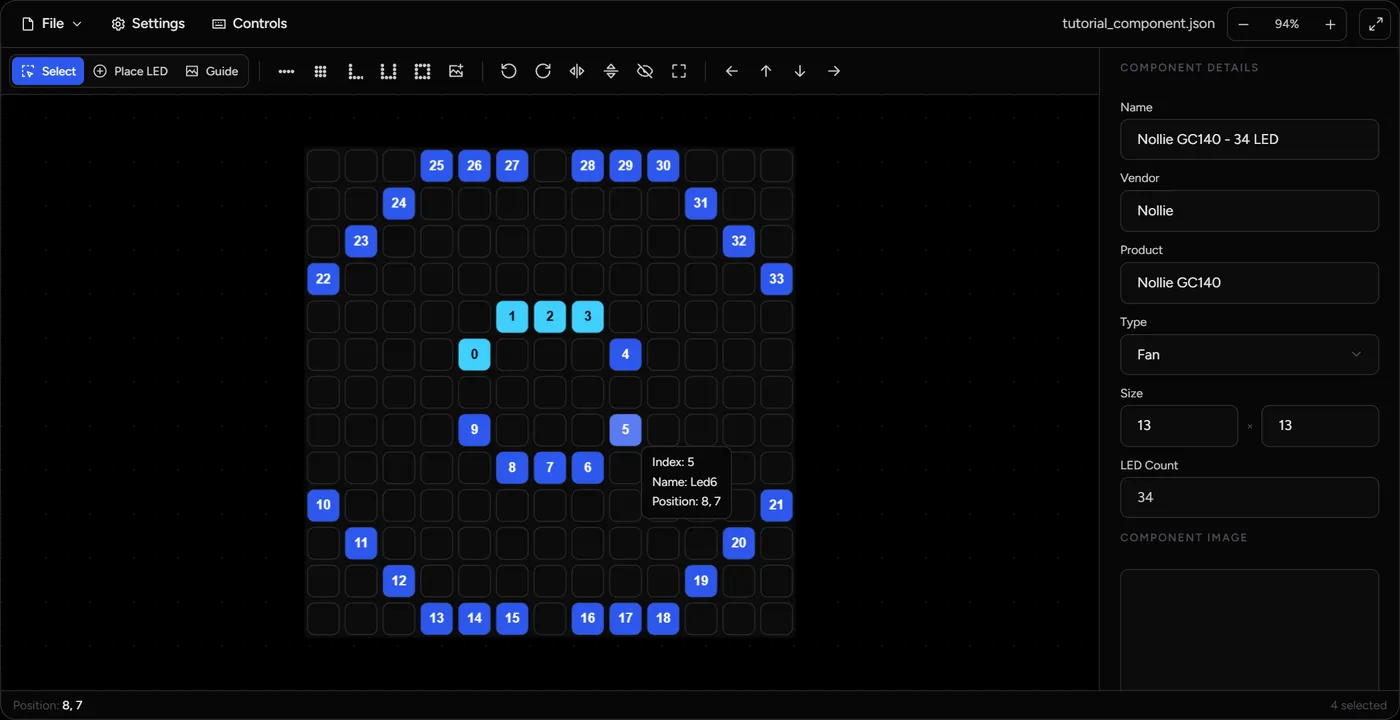
- Top bar: the File menu, Settings, Controls (keyboard shortcuts), the open file’s name, zoom controls and the full screen button.
- Toolbar, from left to right:
- Tools: Select, Place LED and Guide.
- Generate: Linear, Matrix, L-Shape, U-Shape, Rectangle and Insert Guide Image.
- Transform: rotate, flip, show/hide LEDs and AutoResize.
- Move: arrows that shift LEDs one cell.
- Grid: your LEDs, each labelled with its mapping index. Hover an LED to see its index, name and position.
- Sidebar: Component Details (name, vendor, product, type, size, LED count) and the Component Image.
- Status bar: the grid position under your mouse and how many LEDs are selected.
Moving Around the Grid
| Action | How |
|---|---|
| Pan | Drag with the middle mouse button, or hold Space and drag |
| Zoom | Scroll wheel or trackpad pinch, or the − / + buttons |
| Fit the grid to the view | Click the zoom percentage |
| Full screen | The button in the top-right corner (Esc to leave) |
| Context menu | Right-click anywhere on the grid |
Drawing LEDs
Place LEDs by hand
- Choose the Place LED tool.
- Click a cell to place one LED, or click and drag to paint a run of LEDs in order.
- New LEDs number themselves after the last LED you placed.
Trace a guide image
For fans, pump heads and other round or irregular layouts, trace over a photo:
- Click Insert Guide Image in the toolbar (or right-click the grid).
- Pick a
.png,.jpgor.webpphoto. The editor switches to the Guide tool. - Drag the image to move it, or drag a corner handle to resize it until the LEDs line up with the grid.
- Switch to Place LED and click on each LED in the photo.
The guide image is only a drawing aid. It isn’t saved in the file.
Use the shape generators
Right-click the cell where the shape should start, then choose a generator from Generate. The toolbar buttons open the same generators starting at 0, 0. You can change the Start position in the dialog either way.
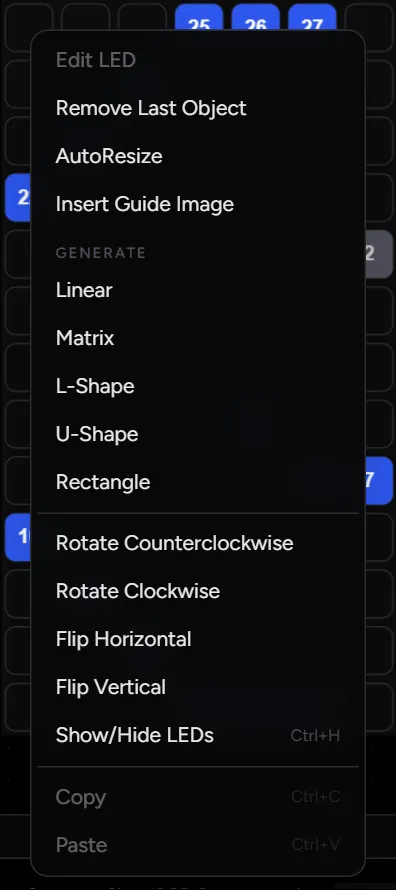
- Linear: a straight strip. Set the number of LEDs, the direction and the spacing.
- Matrix: a grid of LEDs. Pick the starting corner and direction, and tick Serpentine if the wiring zig-zags.
- L-Shape, U-Shape and Rectangle: strips that turn corners. Set the LED count for each side, and optionally Rounded corners.
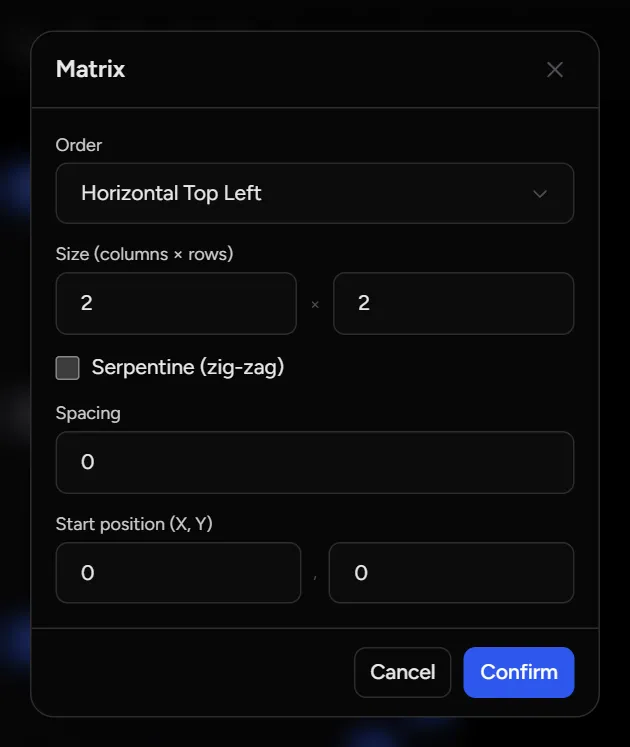
Newly generated LEDs come out selected, so you can rotate or flip them straight away.
Selecting and Editing
- With the Select tool, click an LED, or drag a box around several.
- Hold Ctrl (⌘ on Mac) while clicking or dragging to add to the selection. Ctrl + A selects everything; Esc clears it.
- Drag a selected LED to move the whole selection.
- Rotate, Flip and Show/Hide act on the selected LEDs, or on all LEDs when nothing is selected. Rotating also swaps the grid’s width and height.
- AutoResize moves your LEDs to the top-left corner and shrinks the grid to fit them.
- Right-click an LED and choose Edit LED to rename it or type exact coordinates.
LEDs outside the grid are drawn faded. Use AutoResize, or make the grid bigger in the sidebar, to bring them back in.
Copy and paste (daisy-chained fans)
- Draw the first fan and select all of its LEDs.
- Press Ctrl + C.
- Point at the empty cell where the next fan’s first LED goes, and press Ctrl + V.
- The pasted LEDs continue numbering from the last LED.
Removing LEDs
- Delete (or Backspace) removes the most recently placed LED.
- Hold Delete for one second removes every LED placed in this session. LEDs that came from an opened file are kept.
Hiding LEDs for NollieRGB VMAPs
Hidden LEDs keep their place in the numbering, but a NollieRGB VMAP turns them off during hardware effects. This is handy for inner fan rings or the LEDs on daisy-chain bridges.
- Select the LEDs to hide.
- Press Ctrl + H, or click the eye button in the toolbar. Hidden LEDs turn grey.
- Save as a NollieRGB VMAP. Hidden LEDs are written as Z-LEDs (
fx_ch_zled_num/ZLedMapping).
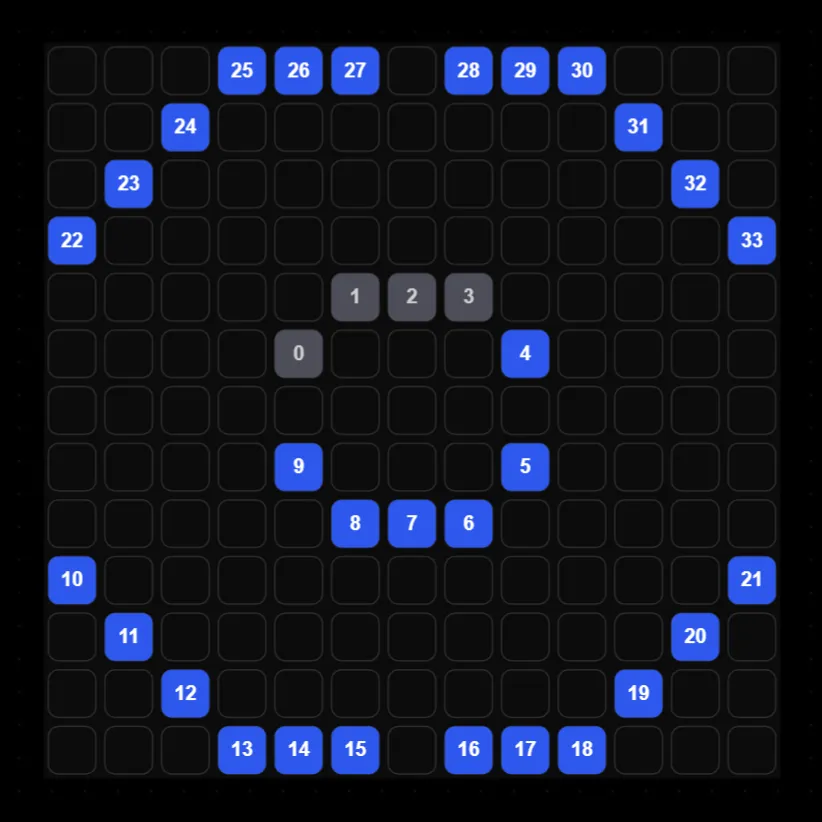
Tip: if your NollieRGB effect supports the Process Color3 setting, hidden LEDs light up in Color3 instead. Also turn on the Vmap process setting for this to work.
Saving Your Work
Fill in the Component Details in the sidebar first: Name, Vendor, Product and Type. Then add a Component Image with Select Image or an Image URL. If both are set, SignalRGB uses the URL.
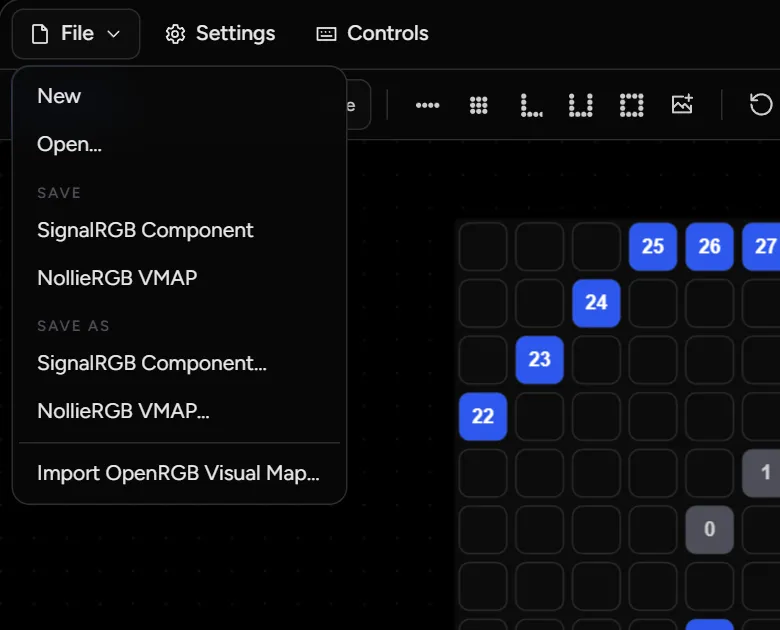
Open the File menu:
- Save → SignalRGB Component or NollieRGB VMAP.
- Save as → the same two formats, always asking where to save.
How saving works depends on your browser:
| Browser | Save | Save as |
|---|---|---|
| Chrome, Edge | Writes straight back to the file you opened (asks the first time) | Lets you choose a folder and name |
| Firefox, Safari | Downloads a copy to your Downloads folder | Same |
Use it in SignalRGB
- Save as SignalRGB Component into:
In Firefox or Safari, move the downloaded file there.%USERPROFILE%\Documents\WhirlwindFX\Components\ - Restart SignalRGB.
- Go to Devices, select your Nollie controller, open the channel, and click Add Component. Your component is in the list.
Use it in NollieRGB
- Save as NollieRGB VMAP.
- In NollieRGB, go to LED Settings and choose Vmap.
- Load the file. Active LEDs show white and hidden LEDs show black. Click Save to send the layout to your controller.
Opening and Importing Files
- File → Open… opens a SignalRGB component or a NollieRGB VMAP. You can also drag a
.jsonfile onto the grid. - File → Import OpenRGB Visual Map… reads an OpenRGB virtual controller file. Pick the device or zone in the dialog. OpenRGB keeps these files in:
%APPDATA%\OpenRGB\plugins\settings\virtual-controllers\
If you have unsaved changes, the editor asks before replacing them.
Settings
Settings in the top bar has two options. They’re remembered in this browser:
- Shift displayed LED index by 1: number LEDs from 1 instead of 0 on screen. Saved files are not affected.
- Default size for new components: the grid size used by File → New.
Keyboard & Mouse Shortcuts
| Shortcut | Action |
|---|---|
| Left mouse | Select or move LEDs, place LEDs, or move the guide image (depends on the tool) |
| Ctrl + left mouse | Add to the selection |
| Right mouse | Open the context menu |
| Middle mouse or Space + drag | Move the grid |
| Scroll wheel / pinch | Zoom in and out |
| Delete or Backspace | Remove the last placed LED |
| Hold Delete (1 s) | Remove all LEDs placed this session |
| Arrow keys | Move selected LEDs (all LEDs if none are selected) |
| Ctrl + A | Select all LEDs |
| Ctrl + C / Ctrl + V | Copy selected LEDs / paste at the mouse position |
| Ctrl + H | Show or hide selected LEDs |
| Esc | Clear the selection, close a menu, or leave full screen |
On a Mac, use ⌘ in place of Ctrl.
Troubleshooting
Keyboard shortcuts don’t do anything
Shortcuts work while the editor has focus or your mouse is over the grid. Click the grid once and try again. They’re also paused while you’re typing in a text box.
My saved file went to the Downloads folder
Firefox and Safari can’t save to a folder you pick from a web page, so the editor downloads the file instead. Move it to Documents\WhirlwindFX\Components for SignalRGB. For direct saving, use Chrome or Edge.
Some LEDs disappeared after rotating or moving
They’re probably outside the grid, where they’re drawn faded. Click AutoResize to bring every LED back inside.